Version 2026.1
Thank you for updating Remote Desktop Manager (RDM) to version 2026.1!
Below, we’ll take a quick look at the most exciting updates. For the full list of changes, check out the release notes.
New features
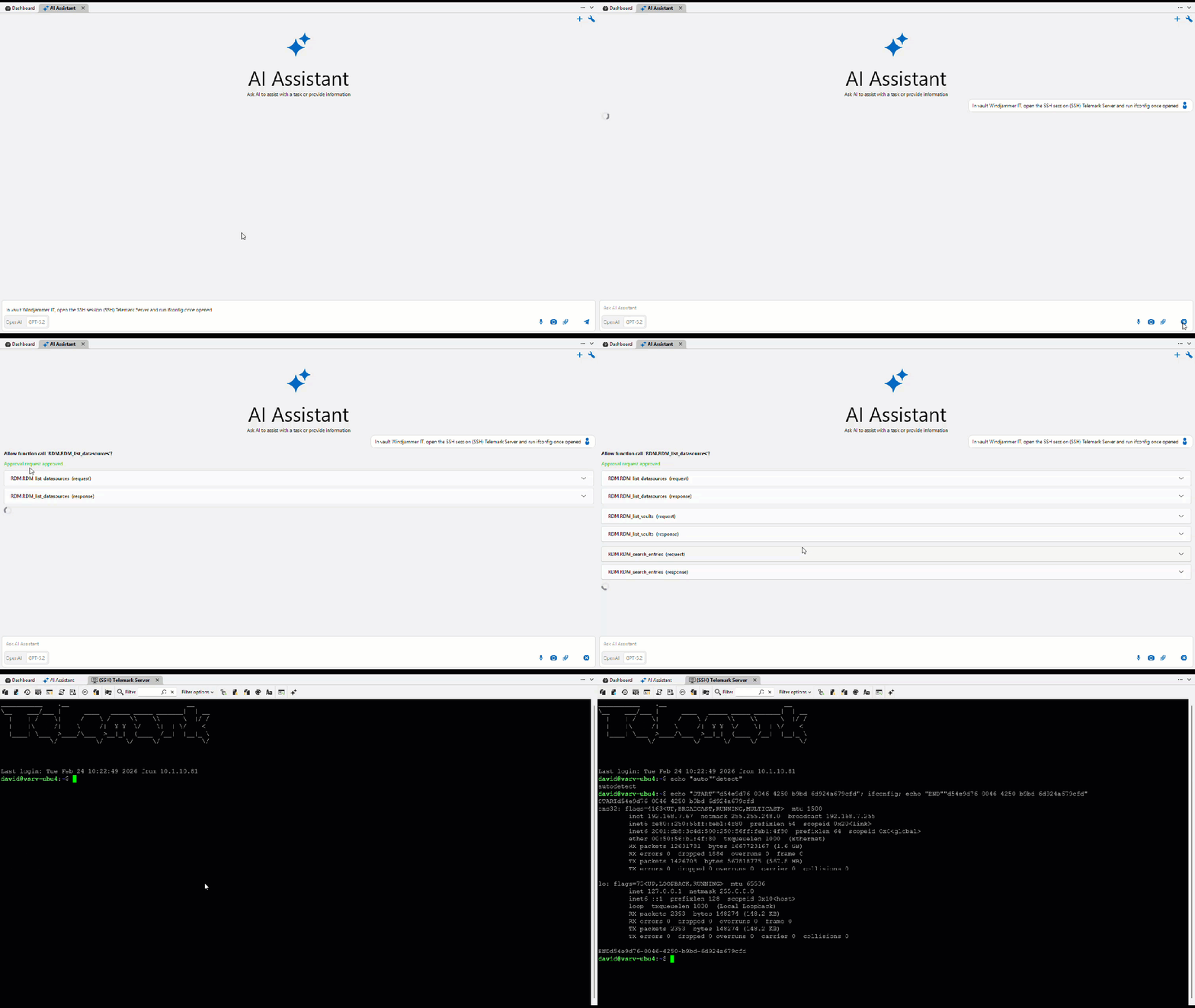
Expand automation with new MCP server AI integrations
As part of our ongoing efforts to expand MCP server capabilities in RDM, you can now use the built-in AI assistant chat window to interact with MCP and perform various tasks using natural language, including running commands directly in RDP, via the Devolutions Agent, or via SSH sessions!
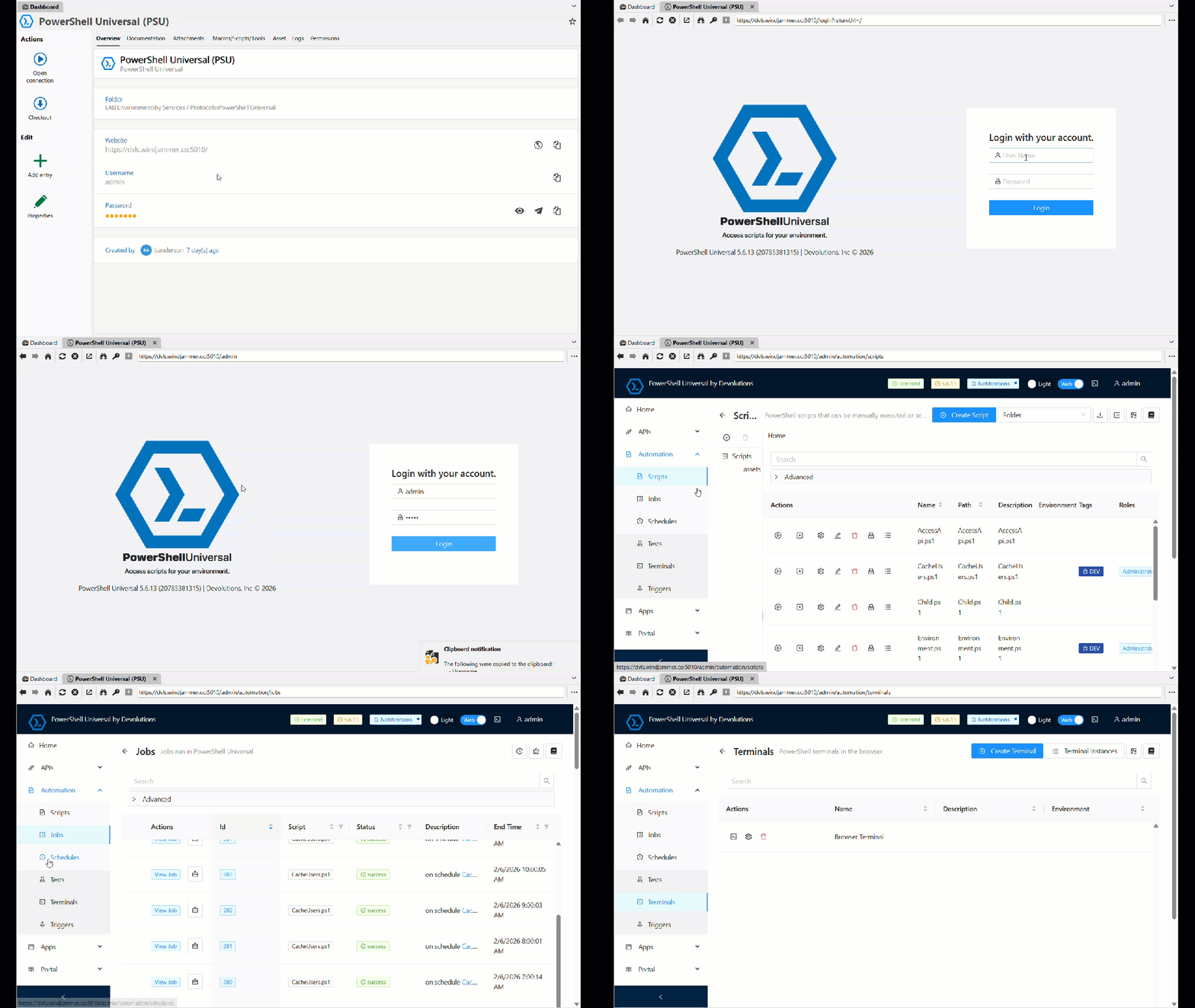
Access Powershell Universal (PSU) directly from RDM with new entry type
Following the announcement that PowerShell Universal is now part of Devolutions, we’ve added a dedicated entry for users to start building with PowerShell Universal (PSU) directly inside RDM. This is an initial integration. More exciting functions will be added in future releases. Stay tuned!
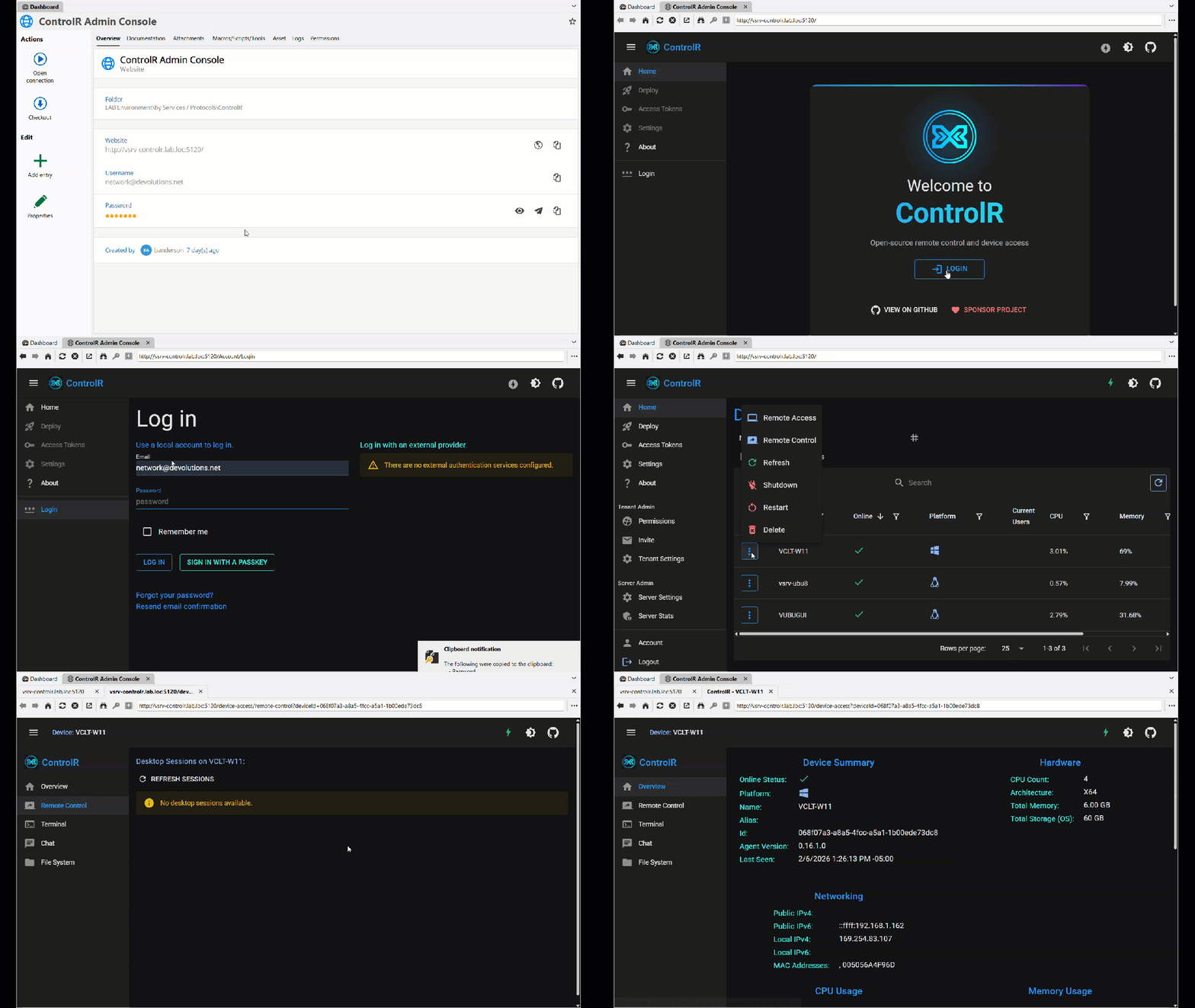
Launch ControlR remote connection for centralized support sessions in one place
With our exciting 2-year sponsorship, we’ve added a dedicated entry for ControlR within RDM to centralize interactive support sessions under one single pane of glass. And we’re only getting started, more exciting things will be added in future releases!
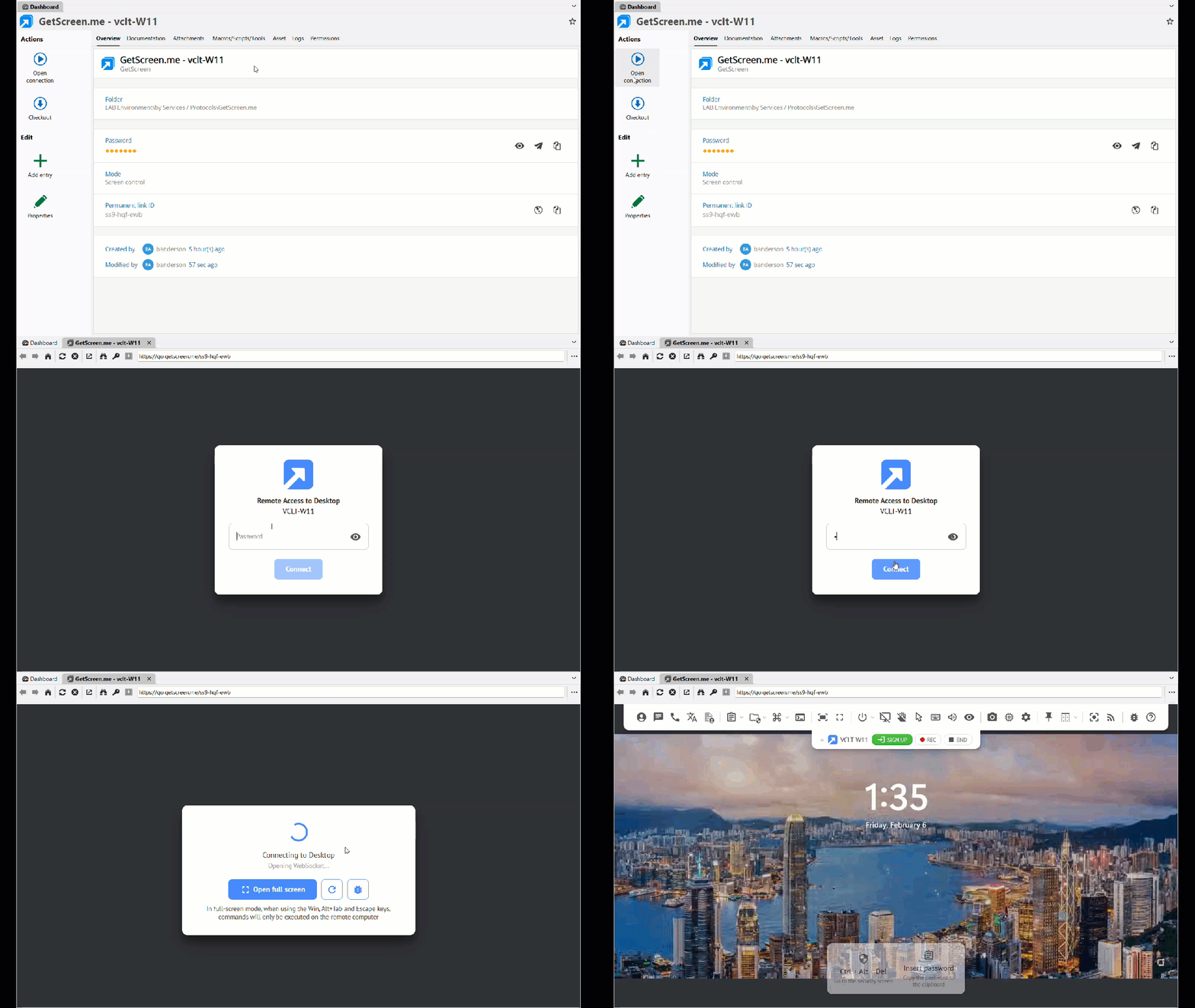
Additional remote support entry options with the GetScreen session entry
GetScreen is a popular tool for remote desktop & support sessions that is now integrated into RDM, expanding our ever-growing list of remote desktop solutions within the platform and giving our users more flexibility to choose a solution that best fits their needs.
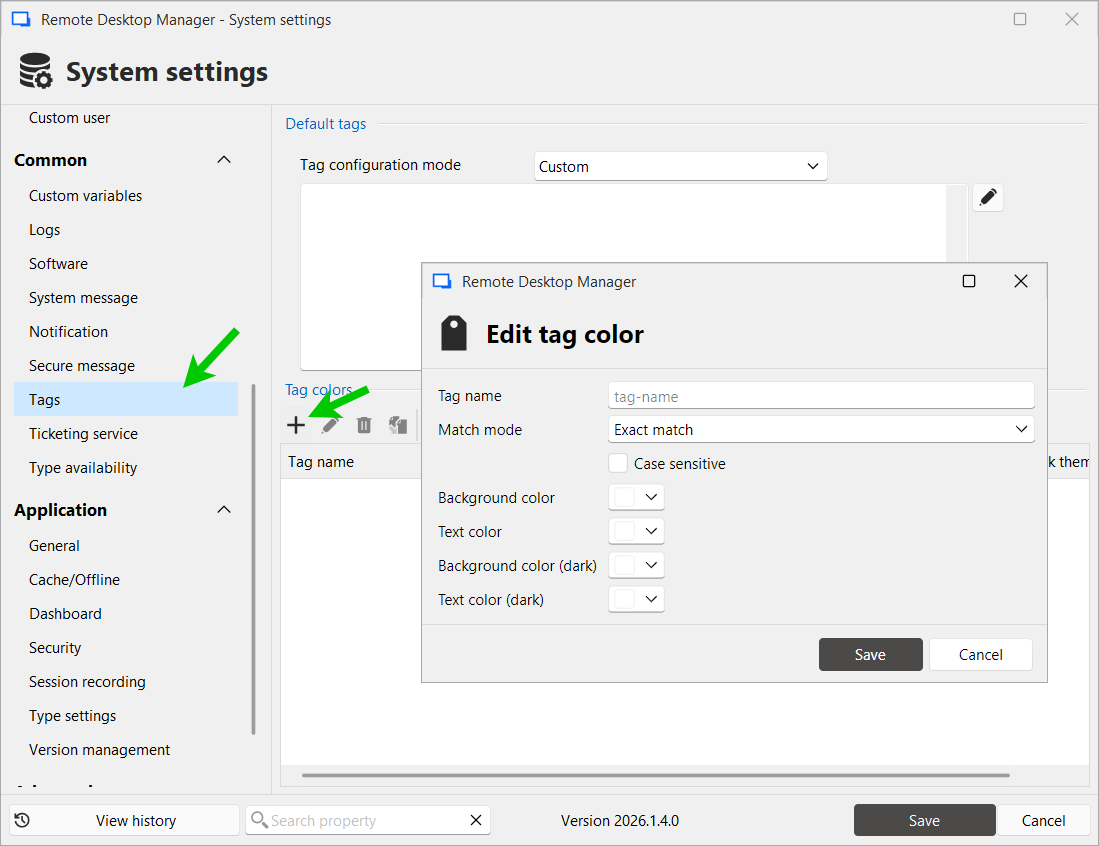
Improved visual organization with customizable tag colors (Windows-only)
Color-code tags in the overview to make entries easier to spot, using admin-defined data source rules (Administration → System Settings → Tags) or with local RDM user preferences.
Generate and view PGP and JWT values directly in RDM
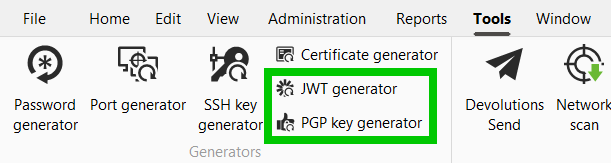
We’ve added 2 new credential entry types: PGP (Pretty Good Privacy) and JWT (JSON Web Tokens) in RDM with generators in the Tools tab, which includes options for importing, generating, or linking to local files, with validation for secret key management. These new entries enhance security by enabling credential management, so users can ensure their sensitive information is handled properly.
Create custom widgets and dashboards to display the information that matters most
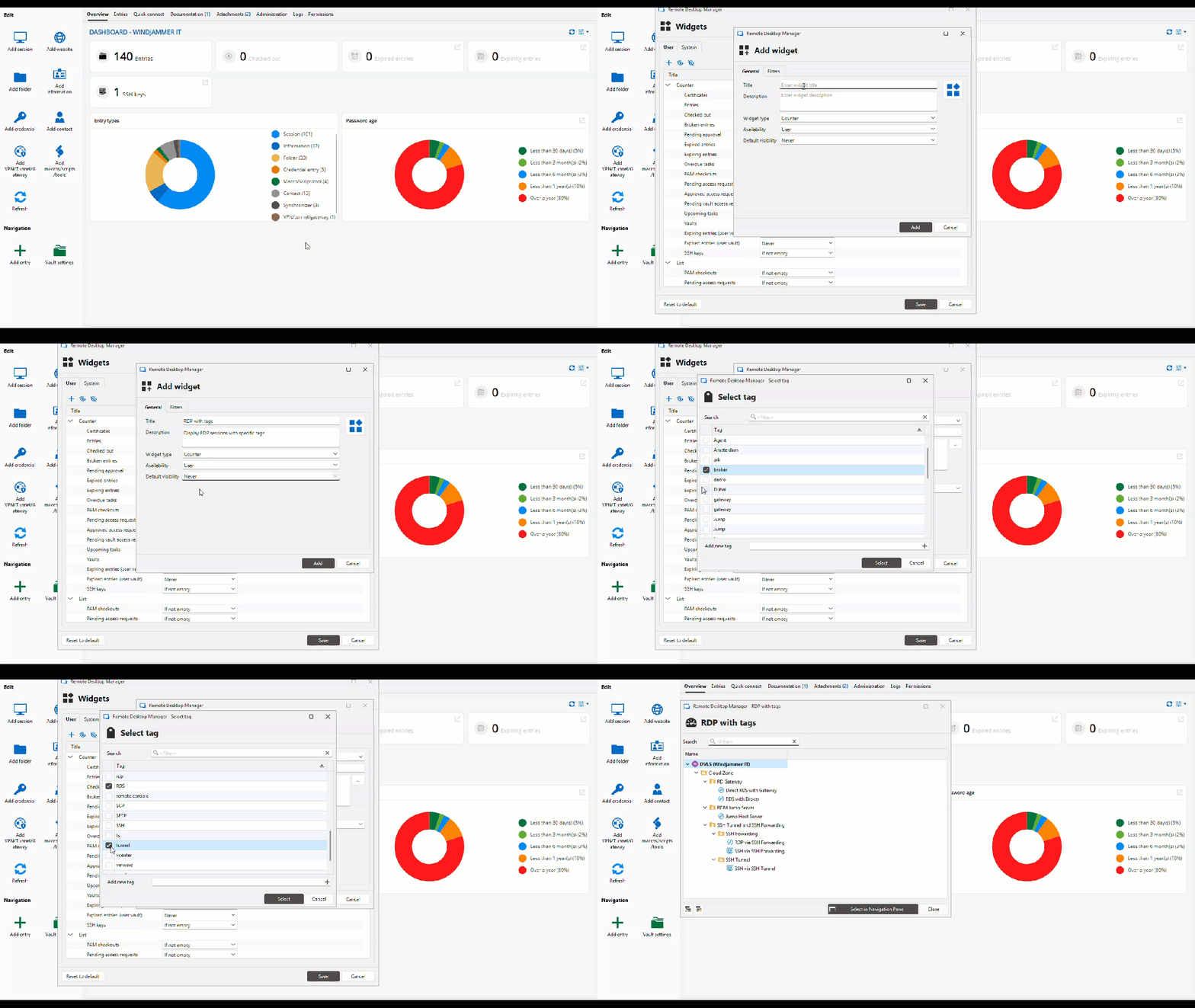
You can now create custom widgets using data relevant to your team’s use cases. At the same time, we’ve added a function to create pre-configured dashboards for users with the option to enforce a specific one. This will give you a way to present critical information to users so they can act on or be aware of the status of elements like expired/expiring entries & upcoming tasks.
Reach Devolutions Support faster with an in-app live chat button
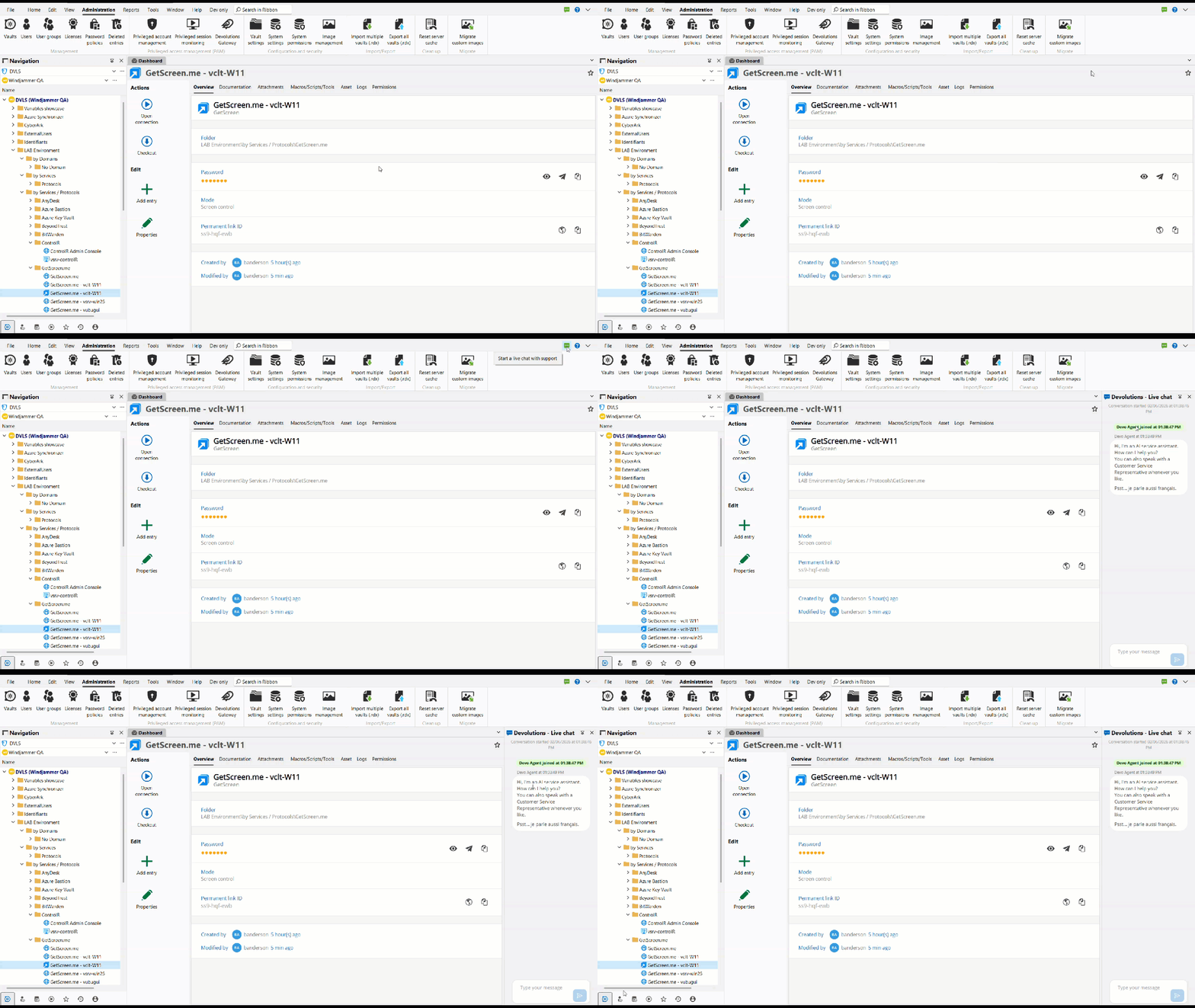
In an effort to expand the ways users can easily communicate with our support team, we’ve added a dedicated button to initiate a live chat, providing a faster way to reach out and get help with our solutions!
Improvements
Simplify sign-in with SSO with LastPass and 1Password
With 2026.1, we are adding support to use your identity provider (i.e., Entra ID) to log in to LastPass or 1Password, making it easier to use these password managers for retrieving credentials in RDM and using them for authenticating to endpoints.
Make VMware monitoring clearer with dashboard refinements
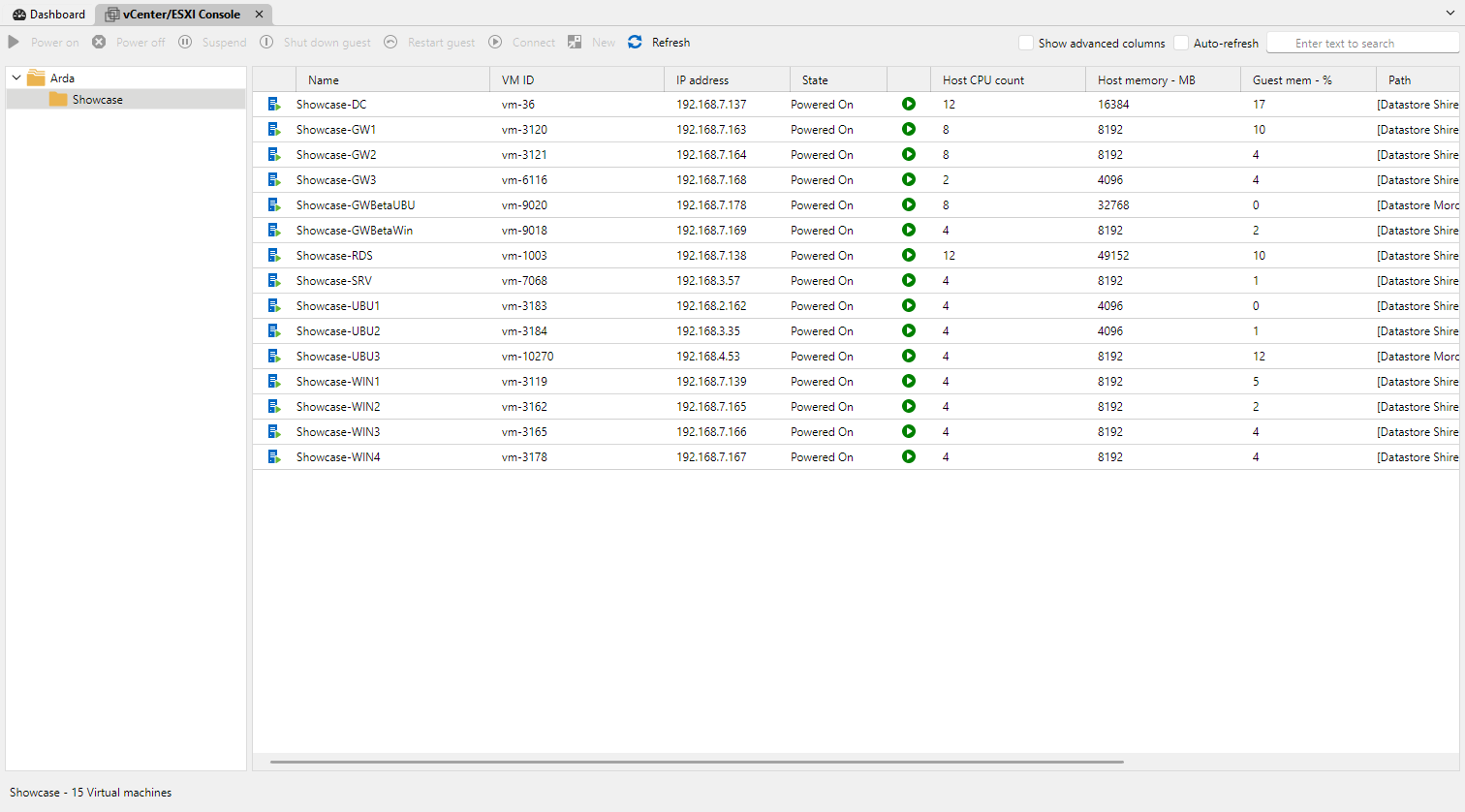
The dashboard now displays the vSphere folder structure, and you can view additional columns such as DNS hostname, Guest OS, and more for your listed VMs.
Strengthen asset sync workflows with expanded NetBox sync
With the help of community feedback, the Netbox synchronizer now supports creating sessions based on the session type value configured in Netbox during import, providing a quicker way to access these endpoints once created in RDM using the best remote protocol.
Support SSH certificates for expanded automation and session management
You can now attach SSH certificates to SSH key entries. This was previously only available on SSH session entries, and it simplifies certificate-based setups, including user-specific configurations and “linked (vault)” usage.
Add time zone context directly for sessions
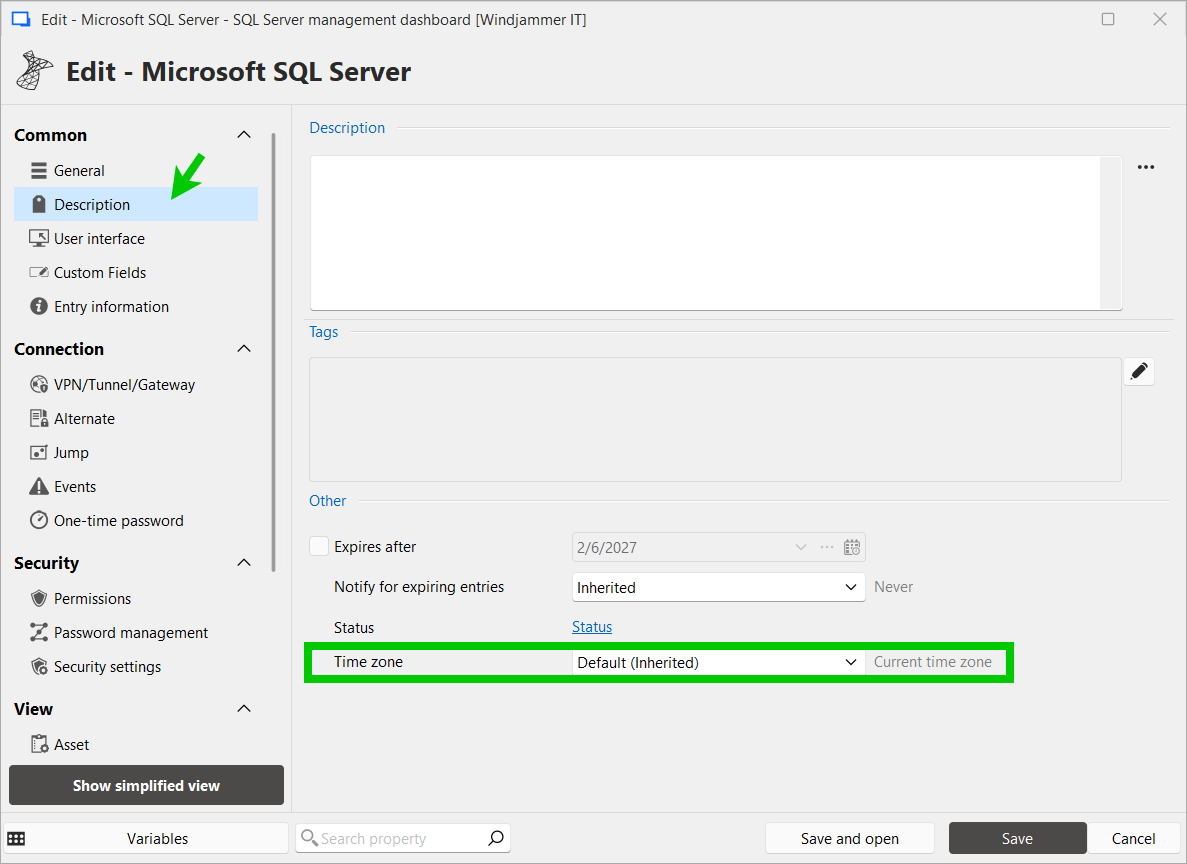
A new timezone setting has been added to the Description tab in connection properties. Users can select from three time display modes. This will allow users to see the current time in the target system's timezone directly in the Overview panel.
Note: When set to "Current time zone", no clock row is displayed in the Overview panel.
Reduce connection friction with prompts for linked VPNs
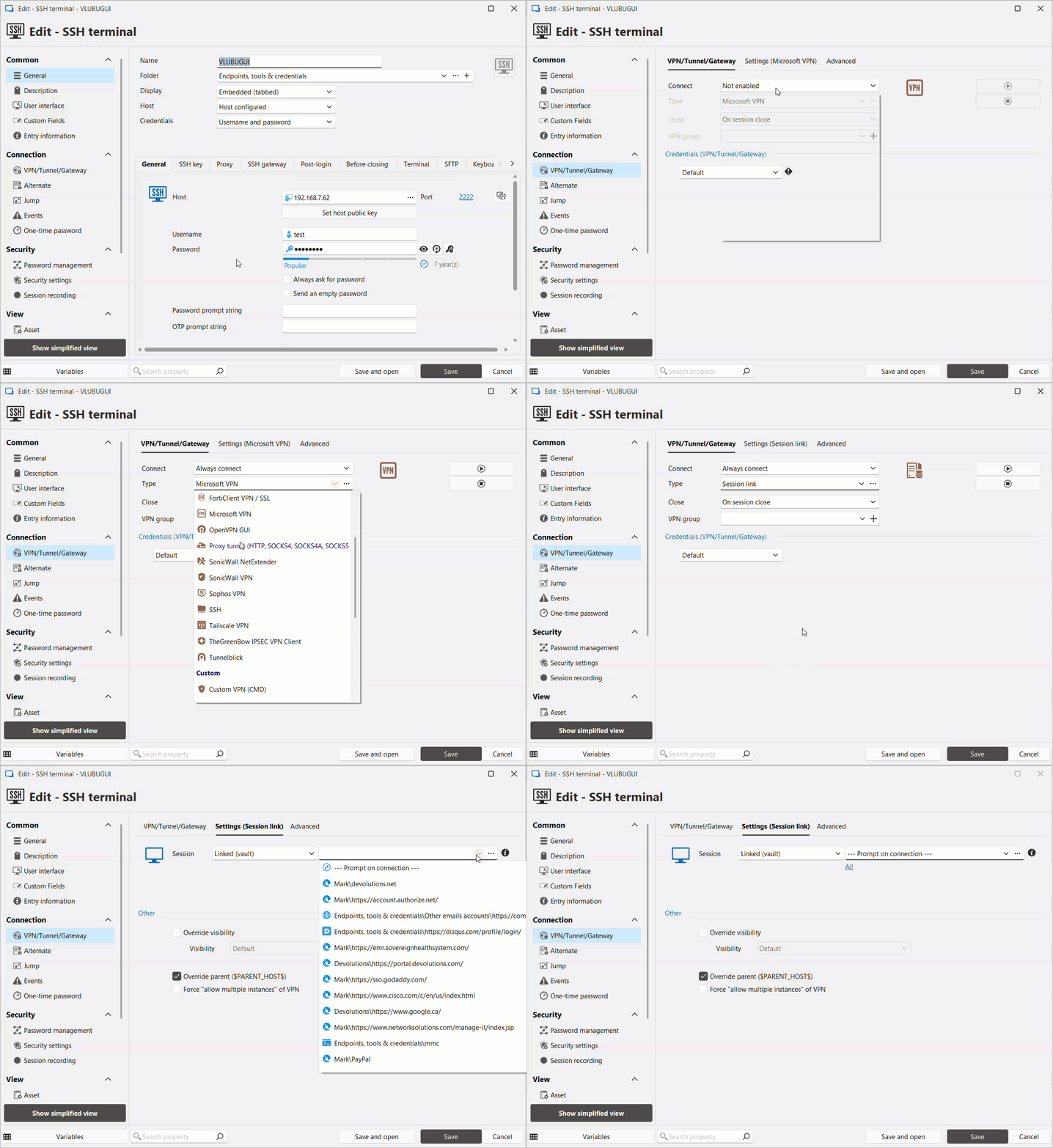
We’ve the ability to be prompted to select a VPN when you open a connection that requires it, enabling ad-hoc selection of a VPN, which helps make IT operations easier.
Enable local session recording in the Free edition!
We’re pleased to share that it’s now possible to use RDM’s local session recording mechanism to record sessions with the free edition of RDM, enabling solo users to capture their work for various use cases!