











 Adam Driscoll
Scopra come scrivere test contro PowerShell Universal con Pester 5.
Installare i prerequisiti
In questo articolo useremo InvokeBuild e Pester. Dovrà installare questi moduli per seguire l’esempio.
Install-Module Pester
Install-Module InvokeBuild
Scaricare PowerShell Universal
Il primo passo è scaricare e installare la versione di PowerShell Universal rispetto alla quale vuole testare la configurazione. Può farlo in due modi. Può usare Invoke-WebRequest direttamente per scaricare lo ZIP, oppure Install-PSUServer per scaricare l’MSI e installare il servizio.
In questo esempio userò Invoke-WebRequest perché scarico la build nightly. Lo script seguente legge lo storage blob nightly, trova l’ultima build, scarica lo ZIP, lo estrae e sblocca i file.
[xml]$Xml = (Invoke-RestMethod 'https://imsreleases.blob.core.windows.net/universal-nightly?restype=container&comp=list').Substring(3)

$MaxBlob = $null
foreach($blob in $Xml.EnumerationResults.Blobs.Blob.Where({$_.Url.Contains('win7') -and $_.Url.Contains(".zip")}))
{
    if ($null -eq $MaxBlob -or ([int]$blob.Name.Split('/')[0]) -gt ([int]$MaxBlob.Name.Split('/')[0]))
    {
        $MaxBlob = $blob
    }
}

Invoke-WebRequest $MaxBlob.Url -OutFile "$PSScriptRoot\Universal.zip"
Expand-Archive -Path "$PSScriptRoot\Universal.zip" -Destination "$PSScriptRoot\Universal"
Get-ChildItem "$PSScriptRoot\Universal" -Recurse | Unblock-File
Può anche adattare lo script precedente per scaricare una versione rilasciata.
Invoke-WebRequest "https://imsreleases.blob.core.windows.net/universal/production/2.5.4/Universal.win7-x64.2.5.4.zip" -OutFile "$PSScriptRoot\Universal.zip"Configurare PowerShell Universal
Dopo aver scaricato PowerShell Universal, possiamo configurare PSU con file di configurazione già pronti. Nella nostra suite di test di integrazione abbiamo file .ps1 che carichiamo nella directory di configurazione prima di avviare il server.
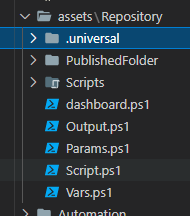
I nostri file di test coprono molte permutazioni di configurazione PSU. Questo è un estratto del nostro endpoints.ps1.
New-PSUEndpoint -Url "/get" -Method 'GET' -Endpoint {
    "Hello"
}

New-PSUEndpoint -Url "/get/header" -Method 'GET' -Endpoint {
    $Headers["X-MYHEADER"]
}

New-PSUEndpoint -Url "/get/:id" -Method 'GET' -Endpoint {
    $Id
}

New-PSUEndpoint -Url "/post" -Method 'POST' -Endpoint {
    $Body
}

New-PSUEndpoint -Url "/post/params" -Method 'POST' -Endpoint {
    param($Name, $Value)

    @{
        Name = $Name
        Value = $Value
    }
}

New-PSUEndpoint -Url "/error" -Endpoint {
    throw "Uh oh!"
} -ErrorAction stop
Prendiamo poi questa configurazione e la distribuiamo nella directory C:\ProgramData\UniversalAutomation\Repository.
New-Item C:\ProgramData\UniversalAutomation -ItemType Directory
Copy-Item "$PSScriptRoot\assets\Repository" C:\ProgramData\UniversalAutomation -Recurse
Preparare un test Pester
Possiamo poi avviare il server PSU e renderlo pronto per la suite Pester. Lo script seguente avvia il server PSU, attende che diventi attivo, effettua l’accesso e concede un app token da usare in seguito nei test.
Import-Module "$PSScriptRoot\Universal\Universal.psd1"
$Process = Start-Process "$PSScriptRoot\Universal\Universal.Server.exe" -PassThru

# Wait for the PSU server to start
while($true)
{
    try
    {
        Invoke-RestMethod "http://localhost:5000/api/v1/alive"
        break;
    }
    catch
    {

    }
}

try
{
    # Sign in using default forms auth.
    Invoke-RestMethod "http://localhost:5000/api/v1/signin" -Method Post -Body (@{
        Username = "admin"
        Password = "admin"
    } | ConvertTo-Json) -SessionVariable Session -ContentType "application/json"

    # Grant an app token using the login session
    $ENV:TestAppToken = (Invoke-RestMethod "http://localhost:5000/api/v1/apptoken/grant" -Method GET -WebSession $Session).Token

    # Connect to the PSU server so we can use cmdlets
    Connect-PSUServer -AppToken $ENV:TestAppToken -ComputerName "http://localhost:5000"

    # Set the current location and start executing tests
    Set-Location $PSScriptRoot
    $Results = Invoke-Pester -PassThru
    if ($Results.Result -ne 'Passed')
    {
        throw "Tests failed!"
    }
}
finally
{
    Stop-Process $Process
}
Scrivere un test Pester
Il passo successivo è eseguire gli script di convalida con Pester. Questo articolo è stato scritto con Pester 5.3.1.
Ecco un sottoinsieme dei test che eseguiamo per gli script. Sfruttiamo un test data-driven che ci consente di eseguire contro più ambienti passando un array -ForEach al blocco Describe.
Tutti i test in questo esempio verranno eseguiti tre volte, una per ciascun ambiente. Usiamo anche il blocco BeforeAll per impostare l’ambiente prima dell’esecuzione dei test di ciascun ambiente.
Infine, ogni blocco It convalida una funzionalità con cmdlet come Invoke-PSUScript.
Describe "Scripts.<_>" -ForEach @('pwsh', 'powershell', 'integrated') {
    BeforeAll {
        Set-PSUSetting -DefaultEnvironment $_
    }

    Context "Run" {
        It "should have correct variables" {
            $Vars = Invoke-PSUScript -Name 'Vars.ps1' -Wait
            $Vars.Environment | Should -be $_
            $Vars.Script.Name | Should -be "Vars.ps1"
            $Vars.Job | Should -not -be $null
            $Vars.JobId | Should -not -be $null
            $Vars.ScriptId | should -not -be $null
            $Vars.Simple | Should -be "123"
        }
        It "should run a script by name" {
            $Job = Invoke-PSUScript -Name 'Script.ps1'
            $Job | Should -not -be $null
        }

        It "should run a script by pipeline" {
            { Get-PSUScript -Name 'Script.ps1' | Invoke-PSUScript } | Should -Throw
        }

        It "should return a hashtable" {
            $Output = Invoke-PSUScript -Name 'Output.ps1' -Wait
            $Output.Name | Should -be 'Tutorial'
            $Output.Description | Should -be 'Tutorial'
        }

        It "should pass parameters to script" {
            $Output = Invoke-PSUScript -Name 'Params.ps1' -Wait -One 1 -Two 2
            $Output.One | Should -be 1
            $Output.Two | Should -be 2
        }

        It "should call script in folder" {
            Invoke-PSUScript -Name 'Script2.ps1' -Wait | Should -be 'Hello'
        }
    }
}
Inserire tutto in uno script InvokeBuild
Con il framework di test e i test pronti, possiamo racchiuderli in uno script InvokeBuild. Così è più facile chiamare le singole parti del flusso.
Ecco l’esempio completo. Abbiamo definito tre attività di build. Una pulisce le esecuzioni di test precedenti. La seconda scarica ed estrae la build nightly. L’ultima esegue la suite di test.
task Clean {
    Remove-Item -Path "C:\ProgramData\PowerShellUniversal" -Force -ErrorAction SilentlyContinue -Recurse
    Remove-Item -Path "C:\ProgramData\UniversalAutomation" -Force -ErrorAction SilentlyContinue -Recurse
    Remove-Item -Path "$PSScriptRoot\Universal" -Force -ErrorAction SilentlyContinue -Recurse
    Remove-Item -Path "$PSScriptRoot\Universal.zip" -Force -ErrorAction SilentlyContinue
}

task DownloadNightly {
    [xml]$Xml = (Invoke-RestMethod 'https://imsreleases.blob.core.windows.net/universal-nightly?restype=container&comp=list').Substring(3)

    $MaxBlob = $null
    foreach($blob in $Xml.EnumerationResults.Blobs.Blob.Where({$_.Url.Contains('win7') -and $_.Url.Contains(".zip")}))
    {
        if ($null -eq $MaxBlob -or ([int]$blob.Name.Split('/')[0]) -gt ([int]$MaxBlob.Name.Split('/')[0]))
        {
            $MaxBlob = $blob
        }
    }

    Invoke-WebRequest $MaxBlob.Url -OutFile "$PSScriptRoot\Universal.zip"
    Expand-Archive -Path "$PSScriptRoot\Universal.zip" -Destination "$PSScriptRoot\Universal"
    Get-ChildItem "$PSScriptRoot\Universal" -Recurse | Unblock-File
}

task RunTests {

    New-Item C:\ProgramData\UniversalAutomation -ItemType Directory
    Copy-Item "$PSScriptRoot\assets\Repository" C:\ProgramData\UniversalAutomation -Recurse

    Import-Module "$PSScriptRoot\Universal\Universal.psd1"
    $Process = Start-Process "$PSScriptRoot\Universal\Universal.Server.exe" -PassThru

    while($true)
    {
        try
        {
            Invoke-RestMethod "http://localhost:5000/api/v1/alive"
            break;
        }
        catch
        {

        }
    }

    try
    {
        Invoke-RestMethod "http://localhost:5000/api/v1/signin" -Method Post -Body (@{
            Username = "admin"
            Password = "admin"
        } | ConvertTo-Json) -SessionVariable Session -ContentType "application/json"

        $ENV:TestAppToken = (Invoke-RestMethod "http://localhost:5000/api/v1/apptoken/grant" -Method GET -WebSession $Session).Token

        Connect-PSUServer -AppToken $ENV:TestAppToken -ComputerName "http://localhost:5000"

        Set-Location $PSScriptRoot
        $Results = Invoke-Pester -PassThru
        if ($Results.Result -ne 'Passed')
        {
            throw "Tests failed!"
        }
    }
    finally
    {
        Stop-Process $Process
    }
}

task CleanAndRun Clean, RunTests

task . Clean, DownloadNightly, RunTests
Eseguire test Pester in GitHub Actions
Nel nostro ambiente usiamo GitHub Actions per le pipeline CI e CD. Abbiamo un agent self-hosted dedicato ai test di integrazione. Nel repository Universal abbiamo configurato un file YAML di workflow GitHub Actions per eseguire i test su quell’agent. Il workflow viene eseguito ogni mattina e può essere avviato manualmente.
Chiamiamo Invoke-Build per eseguire i test di integrazione. Se un test fallisce, viene generata un’eccezione e anche il workflow fallisce.
name: Integration Tests
on:
    schedule:
        - cron: "0 4 * * *"
    workflow_dispatch:

jobs:
    build:
      name: Build
      runs-on: self-hosted
      steps:
        - uses: actions/checkout@v1
        - name: Run Integration Test
          run: Invoke-Build -File .\test\integration-test.ps1
          shell: pwsh
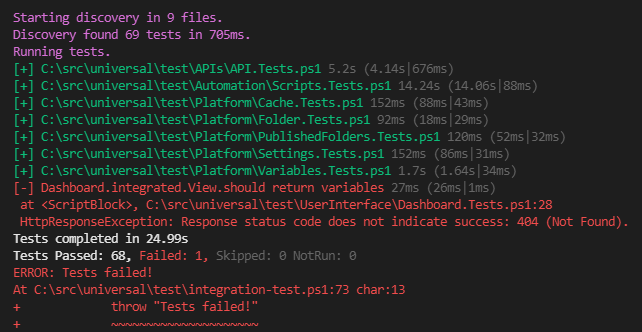
L’output dell’Action indica quali test sono riusciti e quali sono falliti. Ecco il risultato di una delle nostre suite.
Pronto a iniziare a creare? Scarichi PowerShell Universal.