Version 2026.3
Thank you for updating Remote Desktop Manager (RDM) to version 2026.3!
Below, we'll take a quick look at the most exciting updates. For the full list of changes, check out the release notes.
A rebuilt Windows interface
The migration of the Windows interface to Avalonia is complete in 2026.3. Nearly every screen was rebuilt on the new foundation, so the change reaches the whole application rather than a handful of windows. RDM also starts faster and ships in a smaller installer.
The ribbon and the main menu are redesigned around a consistent set of actions. A streamlined Toolbar mode is the new default for anyone who wants less chrome. In the tree, columns are sortable, entries carry status badges, and a multi-selection carries across a vault switch.
Sessions run on a native rendering path, including tabs, docking, thumbnails, and full screen. An undocked window reopens where you left it. Dozens of per-type dashboards are now a single layout that previews notes, documents, and scripts without opening the entry.
The interface scales cleanly on high-DPI displays, includes a true high-contrast theme, and supports keyboard navigation and screen readers throughout.
Manage access with roles on Devolutions Server and Devolutions Cloud
Vault access on Devolutions Server and Devolutions Cloud workspaces now comes from roles. You can open a vault only when one of your assigned roles grants access to it. This change does not affect local or SQL Server data sources in Remote Desktop Manager.
On Devolutions Server, a new set of roles now manages all access and permissions at the workspace, vault, and privileged-provider levels. Every existing administrator receives the Workspace Owner role and keeps their current access. When you create a new user, you assign the roles that match the access they need.
On Devolutions Cloud, every existing administrator now holds the Vault owner role on every vault. You can remove that role from any vault that an administrator should not see. A new administrator gets the Administration menu only until you assign them a role on a vault.
Store PAM credentials in shared vaults
You can now store Devolutions PAM credentials in a regular shared vault, alongside standard entries. A vault must be at the High security level before it can hold PAM accounts. A vault at Standard refuses a PAM entry and asks an administrator to convert the vault first. High-security vaults are not available offline, and a vault that holds PAM accounts cannot return to Standard until you move or delete those accounts.
Extend active PAM checkouts
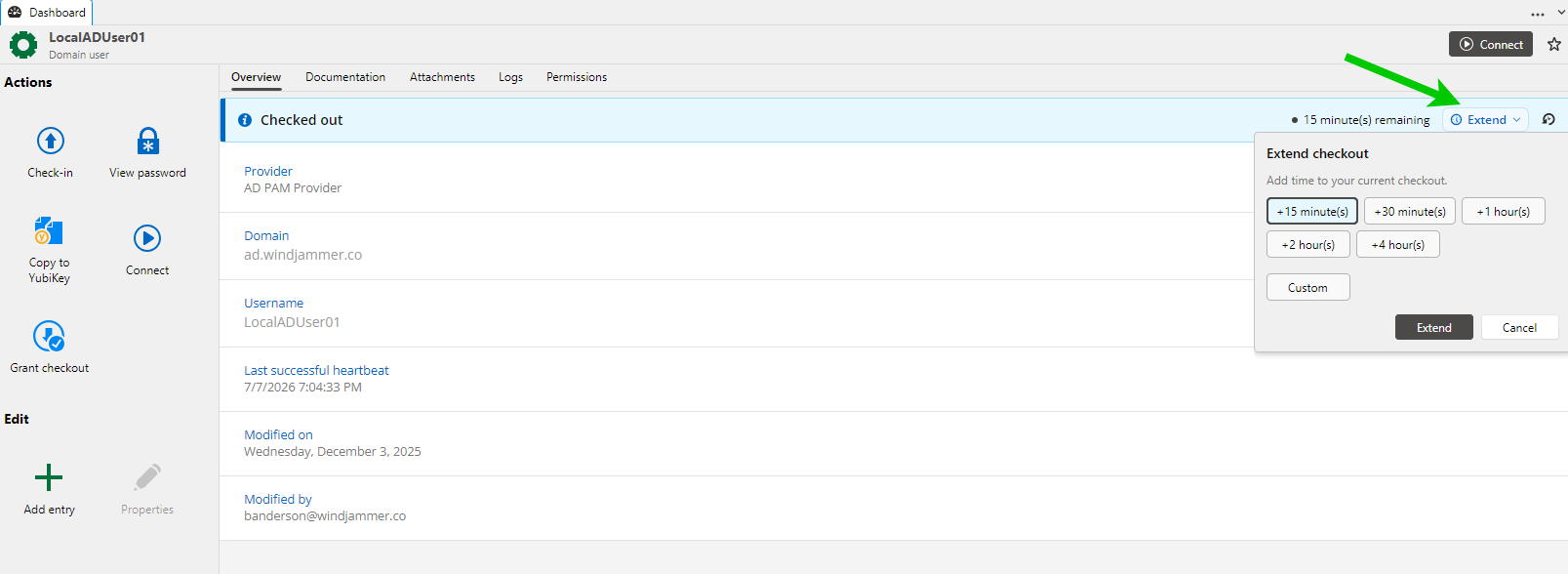
You can now request more time on an active PAM checkout, instead of checking the credential in and starting a new request. Extensions are off by default. The checkout policy controls whether extensions are available, whether approval is required, and the maximum extension duration.
Manage PAM provider credentials with self-rotation
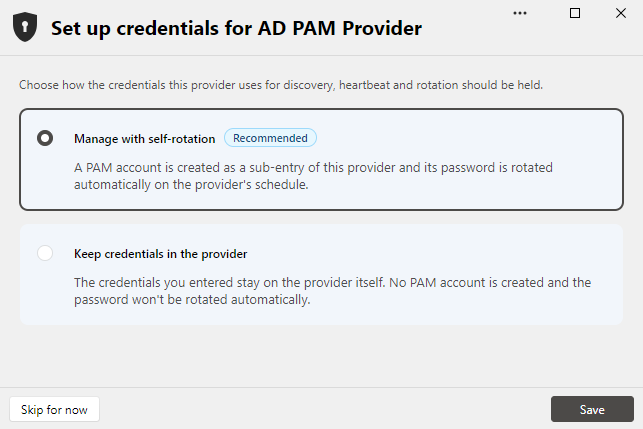
A PAM provider signs in with its own account to run discovery, heartbeat, and password rotation. When you save a provider, you can now choose Manage with self-rotation, Keep credentials in the provider, or Skip for now. You can also convert an existing provider to a Managed PAM account. The managed account appears under the provider and follows the provider's rotation schedule.
Manage Devolutions Cloud users in RDM
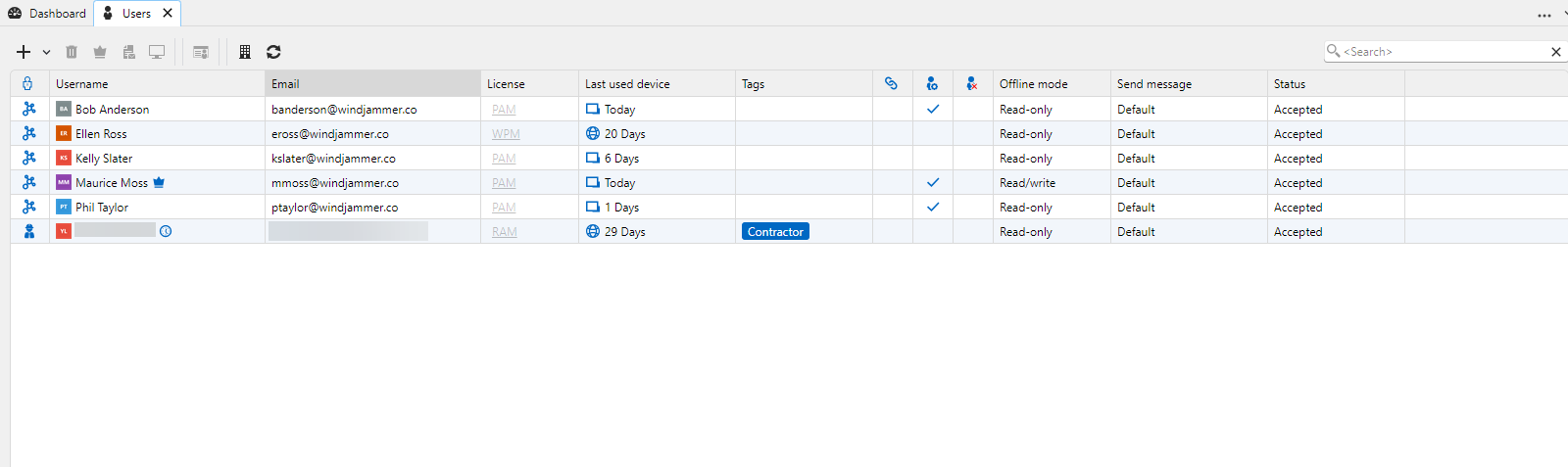
You can now manage Devolutions Cloud users in RDM, as an alternative to the Devolutions Cloud web interface. You can search for and filter users, add users, administrators, or contractors, and send or resend invitations. You can also view licenses, user groups, registered devices, and user activity.
Manage Devolutions Cloud system settings in RDM
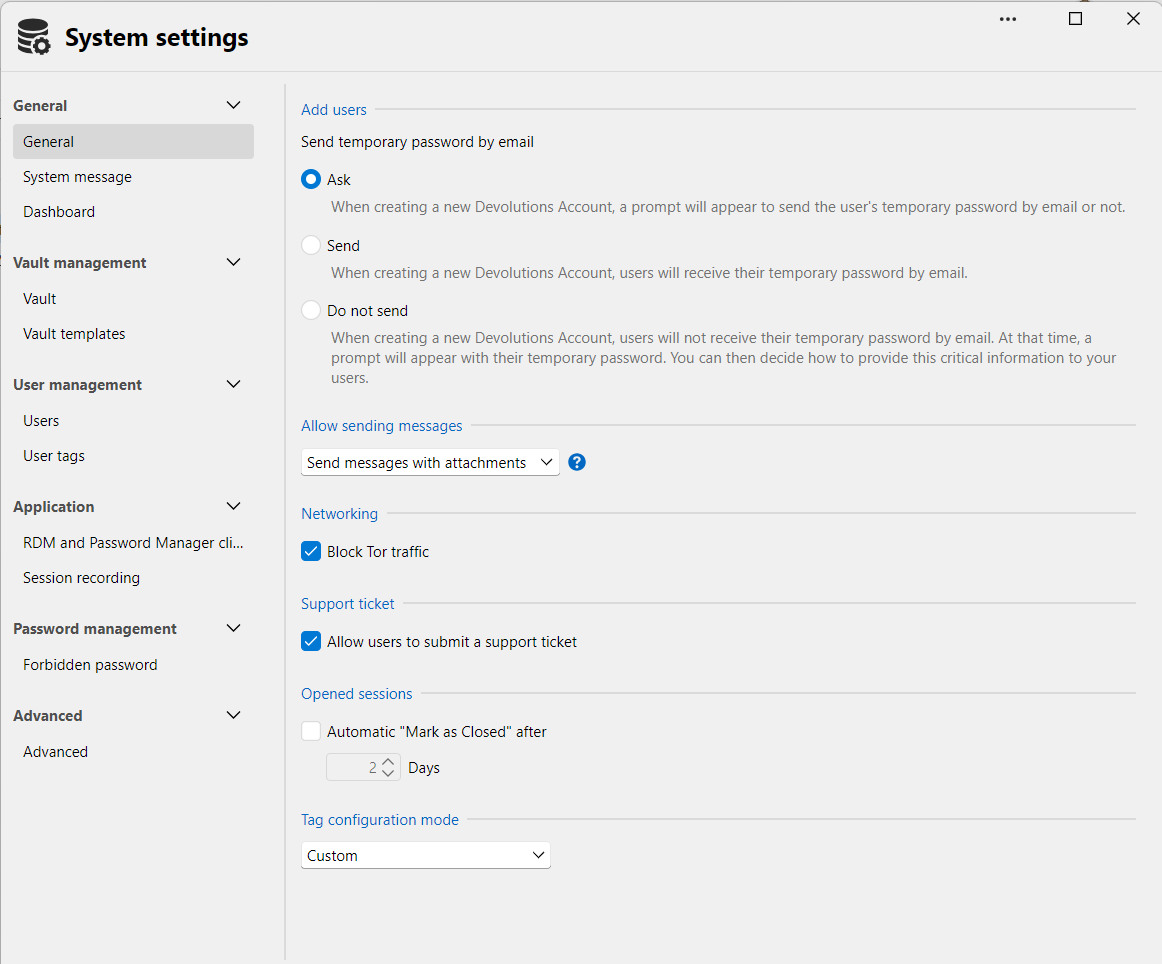
You can now manage the supported Devolutions Cloud system settings in RDM, instead of the Devolutions Cloud web interface. RDM could already manage system settings for SQL Server and Devolutions Server workspaces.
Use a built-in X Window server
RDM now includes a built-in X Window server. You can forward X11 from an SSH terminal session without installing a third-party X server. X11 forwarding options are in the SSH terminal entry settings, and Devolutions XServer is available from Tools.
Discover PAM accounts with the RDM SQL Server data source
For an RDM SQL Server data source, Account Discovery Preview shows the accounts a scan would discover, along with their risk signals. Any RDM user can run the preview, and you do not need a PAM license to view the results. The preview is read-only: results stay in memory for the session and are cleared when the window closes. Acting on what you find, including import, export, scheduling, and account management, requires a PAM license.
Keep existing just-in-time PAM accounts between checkouts
The just-in-time (JIT) account mode now includes Enable account on checkout, alongside None and Create the account on checkout. The new mode allows an existing account to be used at checkout, instead of creating a new one. At check-in, it disables the account again.
Create a vault from a template
When you create a vault, you can select a vault template to copy its folders and entries with their nesting. Templates are available when you create a vault for a Devolutions Server workspace or a Devolutions Cloud workspace. Permissions are not copied from the template, so entries inherit them in the new vault. The template itself does not change when you apply it.
Create multiple forbidden password lists
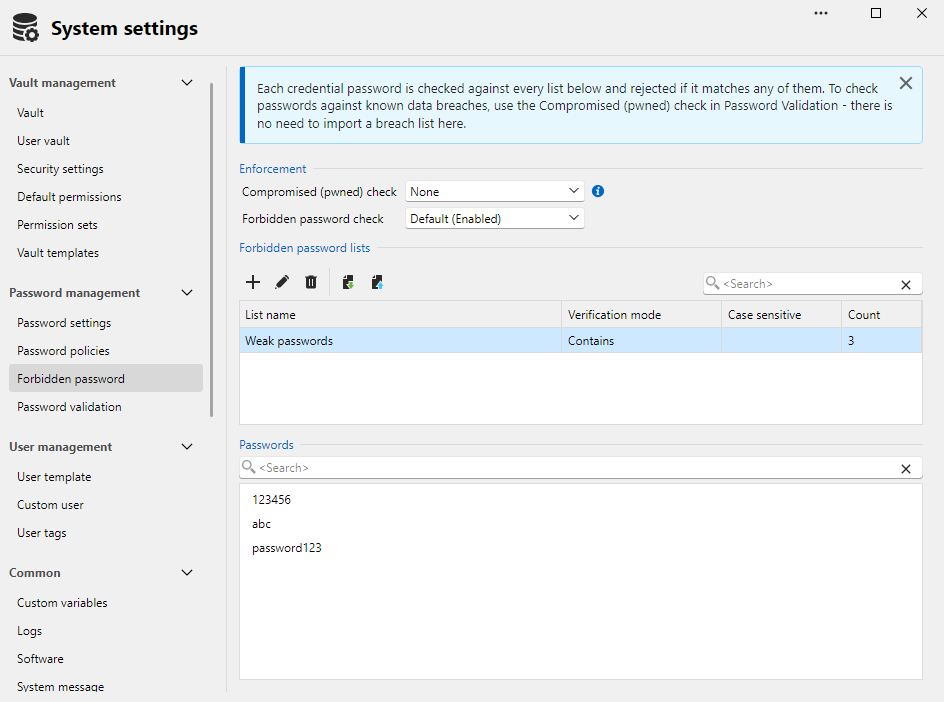
Each list has its own match mode (Exact or Contains) and its own case-sensitivity setting. With the Forbidden password check on, a password that matches any list is refused before you save it.
Existing settings are migrated to a list named Default. Importing entries with forbidden passwords completes with a warning instead of being blocked. The warning identifies each affected entry by name and path, names the rule it matched, links to the filtered Entry Security Analyzer, and includes a CSV export.