5 underrated features in Devolutions Remote Desktop Manager
Devolutions Remote Desktop Manager (RDM) is a single console for RDP, SSH, VNC, FTP, and web-based sessions, and a big part of its value is how much repetitive admin work it quietly automates once you know where to look. It has hundreds of features, and some of the most useful ones fly under the radar. Whether you’re a longtime user or just getting started, these five capabilities are worth a closer look.
1. Navigation tree filter and advanced search
If you’re scrolling through a long list of entries to find the right connection, you’re doing it the hard way. RDM actually gives you three ways to search, and most users only know one.
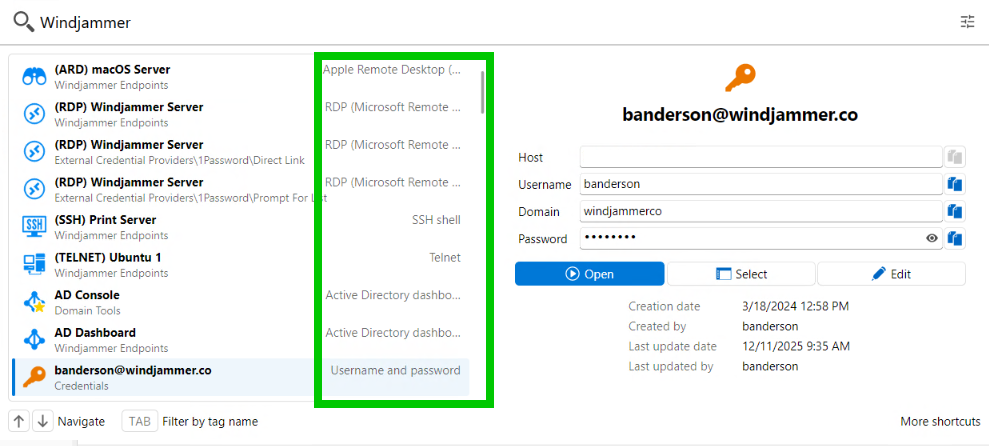
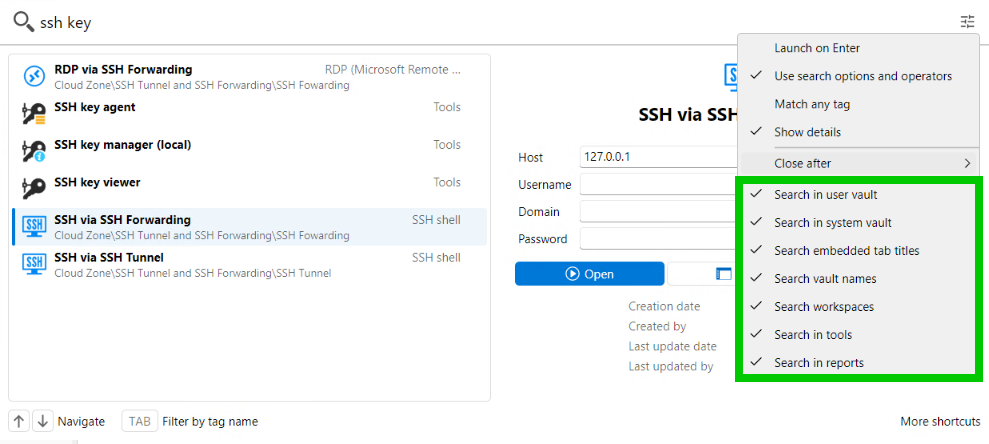
Quick Search is the fastest. Press Ctrl+Space from anywhere in RDM and it opens a search box. The underrated part is the scope: it can find reports, tools, and vaults, not only connection entries. Turn on Search in reports, Search in tools, Search vault names, and Search workspaces (plus user vault, system vault, and embedded tab titles) and you jump to a report, a macro, or a vault without hunting the tree.
What Quick Search does not do is search entries across every vault at once. It is not a multi-vault entry hunt. Keep that expectation in check, and it stays the go-to when you need to jump fast.
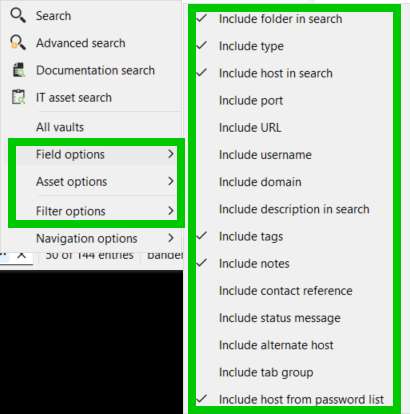
Navigation Tree Filter is the next step up. Type directly in the filter bar above the tree, and beyond matching entry names, you can use the Field options menu to filter by connection type, host, URL, tags, and more.
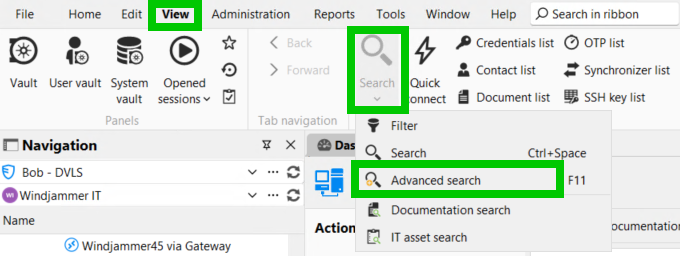
Advanced Search is for when you need real precision. Access it from View, Search, Advanced Search. You can stack multiple conditions, combine them with AND/OR logic, or write your own expressions with the Custom logical operator. Searches can be saved and reloaded for recurring audits, and results support multi-select for bulk actions.
The detail most users miss inside Advanced Search: the Current vs. All toggle at the top of the panel. Switch to All and you’re querying across every vault simultaneously, no more jumping between vaults to run the same search twice.
2. ControlR entry
ControlR is one of RDM’s newer entry types, and it’s one worth knowing about, especially if you’re juggling separate tools for ad-hoc support sessions.
RDM 2026.1 introduced a dedicated ControlR entry to centralize interactive support sessions under one single pane of glass. Instead of switching to a separate app for remote support, the entry lives right inside your existing RDM workflow.
RDM 2026.2 took it further. ControlR is now fully embedded with its own viewer and a dedicated ControlR Dashboard entry. From there, you can browse agents, launch remote-control sessions, and reach native Terminal and File System views: all without opening a separate tool.
If you’ve been relying on standalone remote support software, this is worth a look as a consolidated alternative that keeps everything inside RDM.
3. Devolutions Send: stop pasting credentials into chat
Sharing sensitive information (passwords, credentials, private notes) over email or chat is a bad habit that’s easy to fall into, even in security-conscious teams. Devolutions Send fixes this, and it does two distinct things inside RDM.
Send in-app is for messaging other users within the same workspace without leaving RDM. Pick your recipient(s), write your message, and send. You can attach files, set an auto-expiry date with Expires after, and flag messages as High priority to surface them when you sign in. A red letter icon in the bottom right signals new messages waiting for you.
Send by email sends a secure message straight to an external address, with no workspace account needed on the other end. You can protect it with a passphrase, set the link to expire anywhere from 1 hour to 1 month (or a custom duration), and control exactly how many times it can be viewed: unlimited, a single view, or a specific number.
Create shareable link works the same way, minus the email. You write the message, set your passphrase and expiry options, then get a link to copy and send however you’d like (Slack, text, whatever fits).
Note: All three options require a Devolutions Server or Devolutions Cloud workspace. SQL workspaces are limited only to creating a shareable link.
The fastest way in for a single credential: from any entry’s overview, select the small paper plane icon right next to the password field. It prompts Devolutions Send instantly, no need to dig through the Tools menu first.
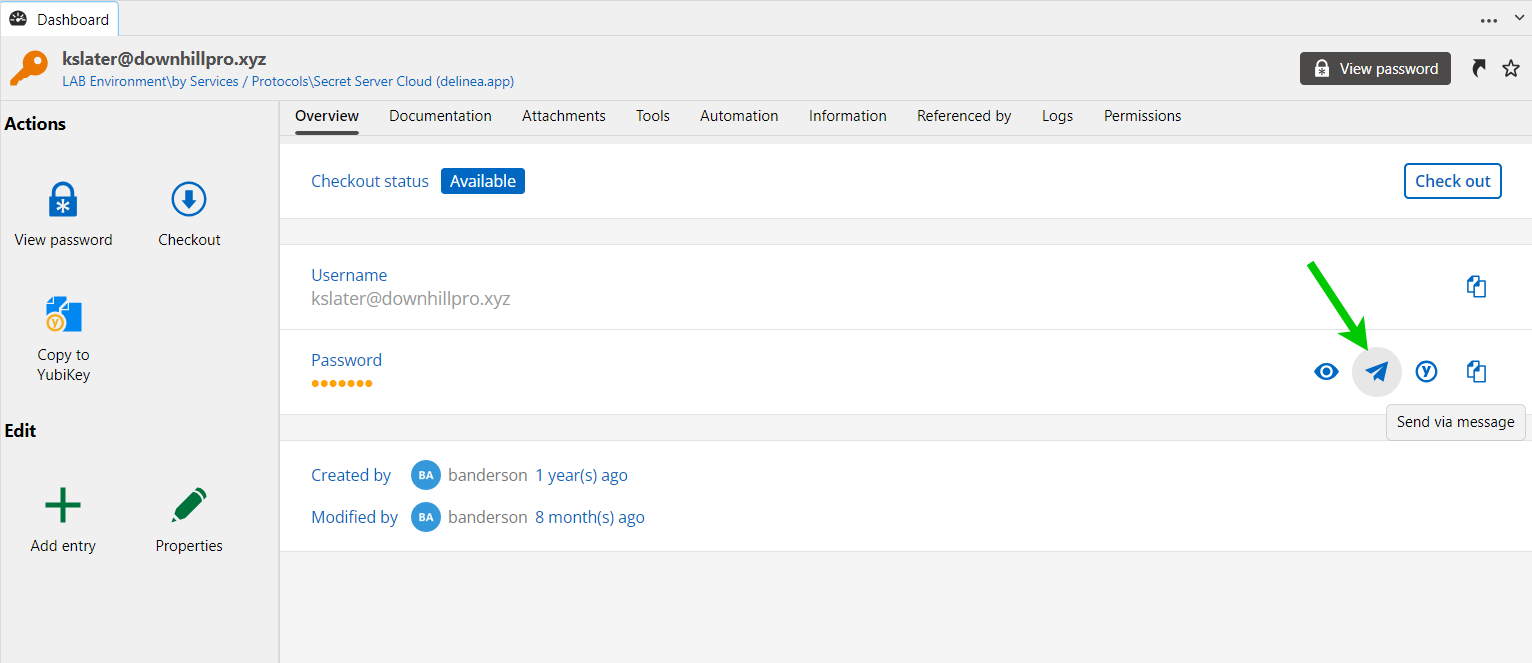
Devolutions Send is also available as a standalone tool at send.devolutions.com for situations where you’re not working inside RDM at all. If your team isn’t using it yet, it’s one of the easiest security improvements you can make today.
4. Typing macros: automate repetitive keystrokes in any session
Typing macros are one of RDM’s most direct tools for automating repetitive admin tasks. If you find yourself typing the same sequence of keystrokes every time you connect to a website, an RDP session, or an SSH terminal, typing macros are built to eliminate that.
A typing macro sends predefined text (and even simulated keystrokes) directly into a remote session. It removes manual steps during remote sessions, such as entering usernames or navigating prompts.
There are a few ways to run one. You can attach a macro to a specific moment in the connection lifecycle (before open, after open, before close, after close), so it fires automatically without you lifting a finger. You can also trigger one on demand: right-click any entry in the navigation pane and go to Macro/Script/Tools, select typing macro, or, if you’re already inside an opened embedded session, head to the Action section in the ribbon and choose Execute macro/script. It’s not just an automation tied to events; it’s a tool you can reach for whenever you need it.
The most common use case is authentication. For a website entry, you can paste a sequence like $USERNAME${TAB}$PASSWORD${ENTER} into the After Open tab’s typing macro field, and RDM will type the username, hit Tab, type the password, and hit Enter, automatically, every time the session opens.
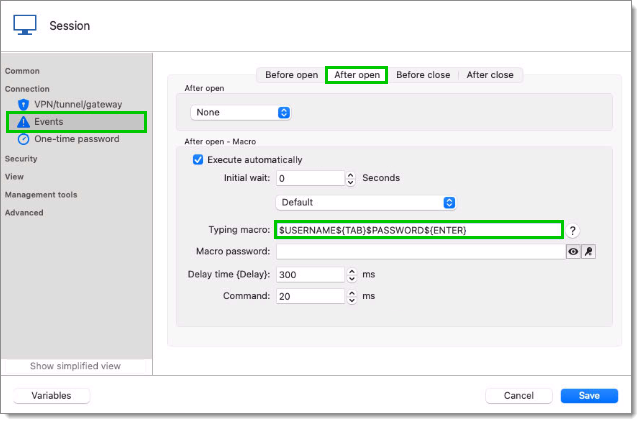
It’s not limited to RDP and websites either. Typing macros can also send information directly into SSH sessions in one step, which makes them genuinely useful for admins juggling a lot of terminal-based work.
Note: Sending a password through a macro requires enabling Allow password in variable in the entry’s security settings, and, if the entry pulls from a linked credential, in that credential’s settings as well. Depending on your system policy, you may also need to enable Allow password variables for all entries under Administration > System Settings > Password Policy.
Once you set one up, it just runs in the background every time: one less repetitive task standing between you and your work.
5. Built-in generators

Under the Tools tab, RDM hides a small toolbox of generators that a lot of users never open, and they save a surprising number of trips to third-party websites.
The Password generator is the one you’ll reach for most: create random passwords with custom criteria (character types, length, patterns), or save your own templates to reuse the same criteria every time. RDM 2026.1 added two more to the lineup, a JWT generator and a PGP key generator, alongside the existing Certificate generator, which creates a self-signed identity certificate. Each one ships with options for importing, generating, or linking to local files, with validation built in for secret key management.
The SSH key generator deserves a special mention. For anyone managing terminal-based connections, it’s one of the most useful generators in the toolbox: generate a new key pair, import an existing key, or link to a local file, all without leaving RDM and with validation built in. It keeps your key management right alongside the sessions that depend on it.
None of these are flashy, but they’re the kind of small utilities that quietly save you from opening a browser tab five times a day.
The bottom line
RDM is a deep tool, and it’s easy to stick to the features you already know. But the five capabilities above can meaningfully change how efficiently you work, whether it’s finding entries faster, tightening up how your team shares sensitive data, or cutting down on repetitive configuration work.
Give them a try and let us know in the Devolutions Forum which one you find most useful. Chances are, you’ll wonder why you weren’t using them sooner.
Ready to dig in? Download Remote Desktop Manager. Solo users can also start with Devolutions Remote Desktop Manager Free (RDM Free).