











 Adam Driscoll
Lernen Sie, Tests gegen PowerShell Universal mit Pester 5 zu schreiben.
Voraussetzungen installieren
In diesem Beitrag nutzen wir InvokeBuild und Pester. Sie müssen diese Module installieren, um mitzumachen.
Install-Module Pester
Install-Module InvokeBuild
PowerShell Universal herunterladen
Der erste Schritt besteht darin, die Version von PowerShell Universal herunterzuladen und zu installieren, gegen die Sie Ihre Konfiguration testen möchten. Das geht auf zwei Wegen. Sie können Invoke-WebRequest direkt nutzen, um das ZIP herunterzuladen, oder Install-PSUServer, um das MSI herunterzuladen und den Dienst zu installieren.
In diesem Beispiel verwende ich Invoke-WebRequest, weil ich den Nightly-Build herunterlade. Das folgende Skript liest den Nightly-Blob-Speicher, findet den neuesten Build, lädt das ZIP herunter, entpackt es und hebt die Dateisperre auf.
[xml]$Xml = (Invoke-RestMethod 'https://imsreleases.blob.core.windows.net/universal-nightly?restype=container&comp=list').Substring(3)

$MaxBlob = $null
foreach($blob in $Xml.EnumerationResults.Blobs.Blob.Where({$_.Url.Contains('win7') -and $_.Url.Contains(".zip")}))
{
    if ($null -eq $MaxBlob -or ([int]$blob.Name.Split('/')[0]) -gt ([int]$MaxBlob.Name.Split('/')[0]))
    {
        $MaxBlob = $blob
    }
}

Invoke-WebRequest $MaxBlob.Url -OutFile "$PSScriptRoot\Universal.zip"
Expand-Archive -Path "$PSScriptRoot\Universal.zip" -Destination "$PSScriptRoot\Universal"
Get-ChildItem "$PSScriptRoot\Universal" -Recurse | Unblock-File
Sie können das Skript oben auch anpassen, um eine veröffentlichte Version herunterzuladen.
Invoke-WebRequest "https://imsreleases.blob.core.windows.net/universal/production/2.5.4/Universal.win7-x64.2.5.4.zip" -OutFile "$PSScriptRoot\Universal.zip"PowerShell Universal konfigurieren
Sobald PowerShell Universal heruntergeladen ist, können wir PSU mit vorbereiteten Konfigurationsdateien einrichten. In unserer Integrationstest-Suite haben wir .ps1-Dateien, die wir vor dem Start des Servers in das Konfigurationsverzeichnis laden.
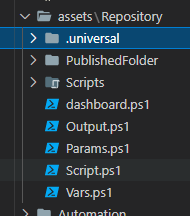
Unsere Testdateien enthalten viele Varianten der PSU-Konfiguration. Dies ist ein Ausschnitt unserer endpoints.ps1.
New-PSUEndpoint -Url "/get" -Method 'GET' -Endpoint {
    "Hello"
}

New-PSUEndpoint -Url "/get/header" -Method 'GET' -Endpoint {
    $Headers["X-MYHEADER"]
}

New-PSUEndpoint -Url "/get/:id" -Method 'GET' -Endpoint {
    $Id
}

New-PSUEndpoint -Url "/post" -Method 'POST' -Endpoint {
    $Body
}

New-PSUEndpoint -Url "/post/params" -Method 'POST' -Endpoint {
    param($Name, $Value)

    @{
        Name = $Name
        Value = $Value
    }
}

New-PSUEndpoint -Url "/error" -Endpoint {
    throw "Uh oh!"
} -ErrorAction stop
Anschließend übernehmen wir diese Konfiguration und stellen sie im Verzeichnis C:\ProgramData\UniversalAutomation\Repository bereit.
New-Item C:\ProgramData\UniversalAutomation -ItemType Directory
Copy-Item "$PSScriptRoot\assets\Repository" C:\ProgramData\UniversalAutomation -Recurse
Vorbereitung für einen Pester-Test
Als Nächstes starten wir den PSU-Server und machen ihn bereit für unsere Pester-Testsuite. Das folgende Skript startet den PSU-Server, wartet, bis er aktiv ist, meldet sich an und stellt dann ein App-Token aus, das wir später in den Tests verwenden können.
Import-Module "$PSScriptRoot\Universal\Universal.psd1"
$Process = Start-Process "$PSScriptRoot\Universal\Universal.Server.exe" -PassThru

# Wait for the PSU server to start
while($true)
{
    try
    {
        Invoke-RestMethod "http://localhost:5000/api/v1/alive"
        break;
    }
    catch
    {

    }
}

try
{
    # Sign in using default forms auth.
    Invoke-RestMethod "http://localhost:5000/api/v1/signin" -Method Post -Body (@{
        Username = "admin"
        Password = "admin"
    } | ConvertTo-Json) -SessionVariable Session -ContentType "application/json"

    # Grant an app token using the login session
    $ENV:TestAppToken = (Invoke-RestMethod "http://localhost:5000/api/v1/apptoken/grant" -Method GET -WebSession $Session).Token

    # Connect to the PSU server so we can use cmdlets
    Connect-PSUServer -AppToken $ENV:TestAppToken -ComputerName "http://localhost:5000"

    # Set the current location and start executing tests
    Set-Location $PSScriptRoot
    $Results = Invoke-Pester -PassThru
    if ($Results.Result -ne 'Passed')
    {
        throw "Tests failed!"
    }
}
finally
{
    Stop-Process $Process
}
Einen Pester-Test schreiben
Der nächste Schritt besteht darin, die Validierungsskripte mit Pester auszuführen. Dieser Beitrag wurde gegen Pester 5.3.1 geschrieben.
Hier ist eine Teilmenge der Tests, die wir für Skripte ausführen. Wir nutzen einen datengesteuerten Test, der uns mit einem -ForEach-Array am Describe-Block gegen mehrere Umgebungen laufen lässt.
Alle Tests in diesem Beispiel laufen dreimal, einmal pro Umgebung. Wir nutzen außerdem den BeforeAll-Block, um die Umgebung festzulegen, bevor die Tests der jeweiligen Umgebung laufen.
Schließlich prüft jeder It-Block einzelne Funktionen mit Cmdlets wie Invoke-PSUScript.
Describe "Scripts.<_>" -ForEach @('pwsh', 'powershell', 'integrated') {
    BeforeAll {
        Set-PSUSetting -DefaultEnvironment $_
    }

    Context "Run" {
        It "should have correct variables" {
            $Vars = Invoke-PSUScript -Name 'Vars.ps1' -Wait
            $Vars.Environment | Should -be $_
            $Vars.Script.Name | Should -be "Vars.ps1"
            $Vars.Job | Should -not -be $null
            $Vars.JobId | Should -not -be $null
            $Vars.ScriptId | should -not -be $null
            $Vars.Simple | Should -be "123"
        }
        It "should run a script by name" {
            $Job = Invoke-PSUScript -Name 'Script.ps1'
            $Job | Should -not -be $null
        }

        It "should run a script by pipeline" {
            { Get-PSUScript -Name 'Script.ps1' | Invoke-PSUScript } | Should -Throw
        }

        It "should return a hashtable" {
            $Output = Invoke-PSUScript -Name 'Output.ps1' -Wait
            $Output.Name | Should -be 'Tutorial'
            $Output.Description | Should -be 'Tutorial'
        }

        It "should pass parameters to script" {
            $Output = Invoke-PSUScript -Name 'Params.ps1' -Wait -One 1 -Two 2
            $Output.One | Should -be 1
            $Output.Two | Should -be 2
        }

        It "should call script in folder" {
            Invoke-PSUScript -Name 'Script2.ps1' -Wait | Should -be 'Hello'
        }
    }
}
In ein InvokeBuild-Skript verpacken
Nachdem Testframework und Tests stehen, können wir sie in ein InvokeBuild-Skript packen. So lassen sich einzelne Teile des Ablaufs leichter aufrufen.
Hier das vollständige Beispiel. Wir haben drei Build-Aufgaben eingerichtet. Eine räumt nach früheren Testläufen auf. Die zweite lädt den Nightly-Build herunter und entpackt ihn. Die letzte Aufgabe führt die Testsuite aus.
task Clean {
    Remove-Item -Path "C:\ProgramData\PowerShellUniversal" -Force -ErrorAction SilentlyContinue -Recurse
    Remove-Item -Path "C:\ProgramData\UniversalAutomation" -Force -ErrorAction SilentlyContinue -Recurse
    Remove-Item -Path "$PSScriptRoot\Universal" -Force -ErrorAction SilentlyContinue -Recurse
    Remove-Item -Path "$PSScriptRoot\Universal.zip" -Force -ErrorAction SilentlyContinue
}

task DownloadNightly {
    [xml]$Xml = (Invoke-RestMethod 'https://imsreleases.blob.core.windows.net/universal-nightly?restype=container&comp=list').Substring(3)

    $MaxBlob = $null
    foreach($blob in $Xml.EnumerationResults.Blobs.Blob.Where({$_.Url.Contains('win7') -and $_.Url.Contains(".zip")}))
    {
        if ($null -eq $MaxBlob -or ([int]$blob.Name.Split('/')[0]) -gt ([int]$MaxBlob.Name.Split('/')[0]))
        {
            $MaxBlob = $blob
        }
    }

    Invoke-WebRequest $MaxBlob.Url -OutFile "$PSScriptRoot\Universal.zip"
    Expand-Archive -Path "$PSScriptRoot\Universal.zip" -Destination "$PSScriptRoot\Universal"
    Get-ChildItem "$PSScriptRoot\Universal" -Recurse | Unblock-File
}

task RunTests {

    New-Item C:\ProgramData\UniversalAutomation -ItemType Directory
    Copy-Item "$PSScriptRoot\assets\Repository" C:\ProgramData\UniversalAutomation -Recurse

    Import-Module "$PSScriptRoot\Universal\Universal.psd1"
    $Process = Start-Process "$PSScriptRoot\Universal\Universal.Server.exe" -PassThru

    while($true)
    {
        try
        {
            Invoke-RestMethod "http://localhost:5000/api/v1/alive"
            break;
        }
        catch
        {

        }
    }

    try
    {
        Invoke-RestMethod "http://localhost:5000/api/v1/signin" -Method Post -Body (@{
            Username = "admin"
            Password = "admin"
        } | ConvertTo-Json) -SessionVariable Session -ContentType "application/json"

        $ENV:TestAppToken = (Invoke-RestMethod "http://localhost:5000/api/v1/apptoken/grant" -Method GET -WebSession $Session).Token

        Connect-PSUServer -AppToken $ENV:TestAppToken -ComputerName "http://localhost:5000"

        Set-Location $PSScriptRoot
        $Results = Invoke-Pester -PassThru
        if ($Results.Result -ne 'Passed')
        {
            throw "Tests failed!"
        }
    }
    finally
    {
        Stop-Process $Process
    }
}

task CleanAndRun Clean, RunTests

task . Clean, DownloadNightly, RunTests
Pester-Tests in GitHub Actions ausführen
In unserer Umgebung nutzen wir GitHub Actions für CI- und CD-Pipelines. Wir haben einen selbst gehosteten Agenten für Integrationstests. Im Universal-Repository haben wir eine GitHub-Actions-Workflow-YAML eingerichtet, um unsere Tests auf diesem Agenten auszuführen. Der Workflow läuft jeden Morgen und kann manuell ausgelöst werden.
Wir rufen Invoke-Build auf, um die Integrationstests auszuführen. Schlägt ein Test fehl, wird eine Ausnahme ausgelöst und der Workflow schlägt ebenfalls fehl.
name: Integration Tests
on:
    schedule:
        - cron: "0 4 * * *"
    workflow_dispatch:

jobs:
    build:
      name: Build
      runs-on: self-hosted
      steps:
        - uses: actions/checkout@v1
        - name: Run Integration Test
          run: Invoke-Build -File .\test\integration-test.ps1
          shell: pwsh
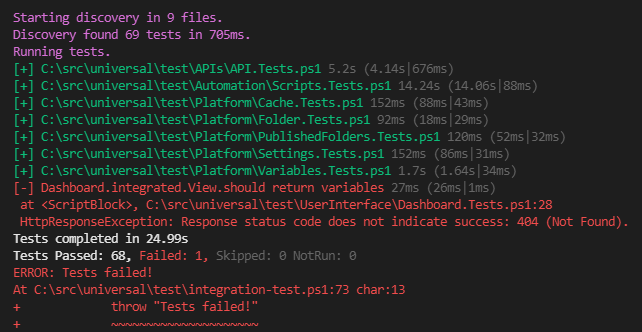
Die Ausgabe der Action zeigt, welche Tests erfolgreich waren und welche fehlgeschlagen sind. Hier das Ergebnis einer unserer Testsuites.
Bereit zum Bauen? PowerShell Universal herunterladen.