











 Jean-François Dagenais
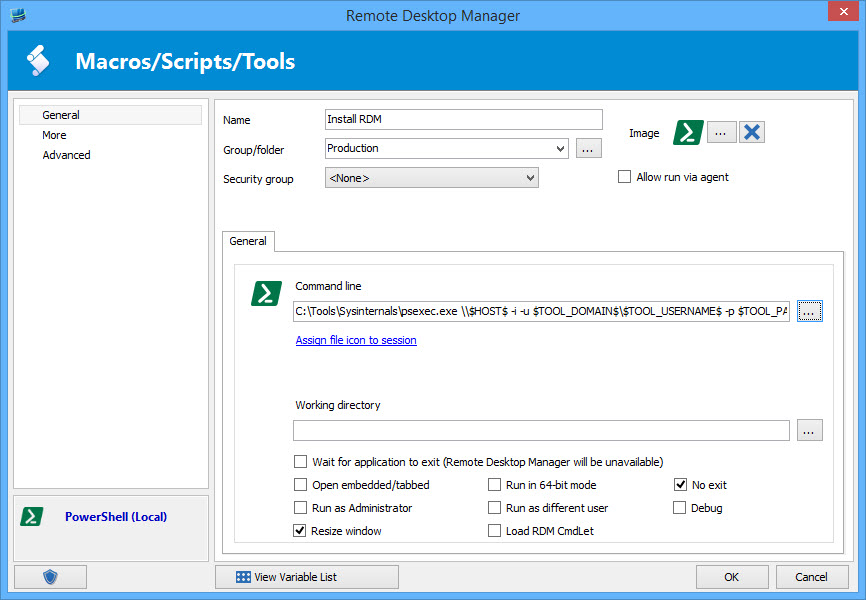
Hello RDMers, In our modern world, everything needs to go fast: cars, cellphones and of course computers. What a waste of time when you have to wait a couple of minutes just for 2 toasts for breakfast! Oh wait, this is not the worst, what about the time you lost because you had to install a software on a remote computer. Well, it’s possible to save time installing (or updating) an application on a remote computer with a Macro/Script/Tool entry of the PSExec type.Firstly, you need to install the Sysinternals tools from Microsoft, because we will need the help of PSExec.exe in the execution of our script (https://technet.microsoft.com/en-us/sysinternals/bb842062.aspx). Secondly, download the .msi or the .exe of the application that you want to install, and save this file on a shared drive that is accessible to the remote computer. In our case, lets be opportunistic and install Remote Desktop Manager, this will be helpful for those of you that use our RDM Agent or even Remote Desktop Manager Jump. Now, you’re ready to put the pieces together.Create a Macro/Script/Tool entry, use the PSExec type. In the Command line section, add the following (long) line:
** C:\Tools\Sysinternals\psexec.exe \$HOST$ -i -u $TOOL_DOMAIN$$TOOL_USERNAME$ -p $TOOL_PASSWORD$ cmd /k “msiexec /i\SRVDEPLOY\msi\Setup.RemoteDesktopManager .10.9.0.0.msi /quiet /passive /norestart”**
A few notes on that command line:
- Replace the path to launch PSExec
- Add the appropriate credentials in the Tools section of your session, if left blank it will use your current Windows session credentials
- Indicate the appropriate server shared to get the .msi or .exe
When you are ready to deploy your application on the remote computer, you just need to select the appropriate session in the Navigation Pane and launch the macro/script/tool from the Dashboard. For more information click here. The Macro/Script/Tool entry can also be launch via the RDM Agent.
As always, please let us know your thoughts by using the comment feature of the blog. You can also visit our forums to get help and submit feature requests, you can find them here.

 Coralie Lemasson


 Laurence Cadieux