









 Maurice Côté
Hi all,
Here at Devolutions, we frequently get questions on the folder system of Remote Desktop Manager.
Well, if you also had an interrogation on that subject, you may well find the answer below! If you think you know everything you should know, we still recommend you read this anyway, you may very well learn a few things along the way.
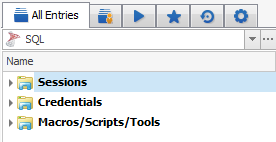 Remote Desktop Manager has three system folders at the root: Sessions, Credentials and ***Macros/Scripts/Tools.***These are system generated and are used to group your entries by categories.
When you create folders, you create a single folder structure. The exact same folders are displayed under our three system folders, but depending on a condition for the two latter ones. Essentially, the folders in the Credentials and Macros/Scripts/Tools folders must have children in order to appear. If they are empty we simply do not display them.
Your folders can be created using two different mechanisms: by creating an entry of the Group/Folder type; or by simply typing in a folder structure directly in an entry (separating sub folders using the backslash character). The latter method in fact creates “virtual” folders, they are generated dynamically as your entries are loaded.
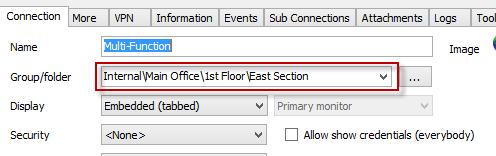
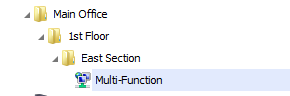
Obviously these folders do not have any properties set on them, in fact you cannot visually tell a virtual folder apart from a physical folder. But if you use the Edit Group/Folder command on a virtual folder, and save your changes, the folder is persisted to the data source and therefore becomes a “physical” folder.
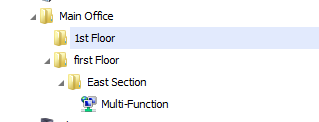
This may lead to confusion if you rename that folder from within the entry, because in fact it will leave the now physical folder alone and create a new virtual folder… In the image below, you can see what happened after I’ve decided to rename the “1st floor” folder to “First floor” but only after having turned it into a physical folder.
Its easy to understand the symptom when you know about the mechanism in details. Many of our users like the ultimate flexibility of virtual folders, while others prefer the good ol’ fashion physical folders. Again, Remote Desktop Manager allows you a lot of flexibility in managing your entries, pick your favorite method and adapt the product to your way of working.

 Steven Lafortune
 Coralie Lemasson