










 Jenny Knafo
Un moyen simple et efficace d’empêcher les pirates – ou simplement les collègues, membres de la famille et amis indiscrets – de fouiner dans votre historique de navigation, vos témoins, vos données de site et vos informations de formulaire consiste à activer le « mode navigation privée » de votre navigateur Chrome.
Cependant, si vous utilisez Devolutions Web Login, vous pouvez rencontrer des problèmes. Pourquoi? Parce que le mode privé de Chrome désactive les extensions par défaut. Mais ne vous inquiétez pas! La solution est aussi simple que 1,2,3… Sérieusement, il n’y a que 3 étapes!
Qu’est-ce que Devolutions Web Login?
Avant de nous plonger dans le vif du sujet, voici un bref aperçu de Devolutions Web Login.
Il s’agit de notre extension de navigateur gratuite, sécurisée, simple à utiliser et facile à installer, qui fonctionne conjointement avec Remote Desktop Manager, Devolutions Server et Devolutions Cloud.
Elle permet aux utilisateurs de se connecter automatiquement à un nombre illimité de sites Web sans avoir à se souvenir ou à chercher des mots de passe. De leur côté, les administrateurs système conservent un contrôle total sur la gestion des mots de passe, mais d’une manière qui n’a pas d’impact négatif sur la productivité des utilisateurs.
Étapes de configuration
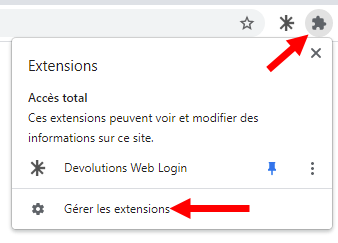
Étape 1 : Cliquez sur l’icône de l’extension dans le menu contextuel, puis cliquez sur Gérer les extensions. Si vous voulez, vous pouvez coller cette adresse URL dans la barre d’adresse Chrome : chrome://extensions/?id=neimonjjffhehnojilepgfejkneaidmo
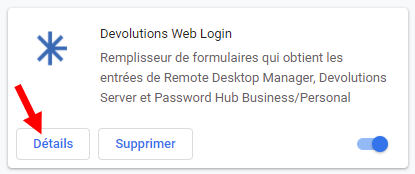
Étape 2 : Cliquez sur Détails dans la boîte de Devolutions Web Login.
Étape 3 : Défilez vers le bas et Autorisez l’utilisation de Devolutions Web Login en navigation privée.
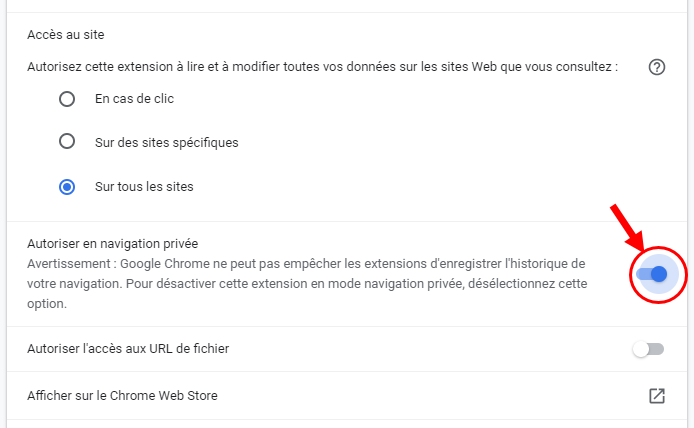
Et voilà! Le tour est joué! Vous êtes prêt à surfer sur le web en toute confidentialité, tout en profitant des nombreux avantages de Devolutions Web Login.