









 Marc Beausejour
In version 2024.3, we introduced background vault synchronization, a much-requested feature designed to synchronize vaults seamlessly without interrupting user workflow.
Before this enhancement, Remote Desktop Manager (RDM) users had to load each vault individually in the user interface to ensure that their offline files were current. While functional, this method proved inefficient in larger environments, where RDM had to process each vault one at a time.
How to enable background vault synchronization
This powerful feature is available for SQL Server, Devolutions Server, and Devolutions Hub data sources. For Devolutions Hub, administrators must enable the feature through Hub’s web interface.
Enabling this feature is easy:
- Navigate to
Administration > System settings > Cache/Offline. - Enable the option
Allow sync all vaults (background).
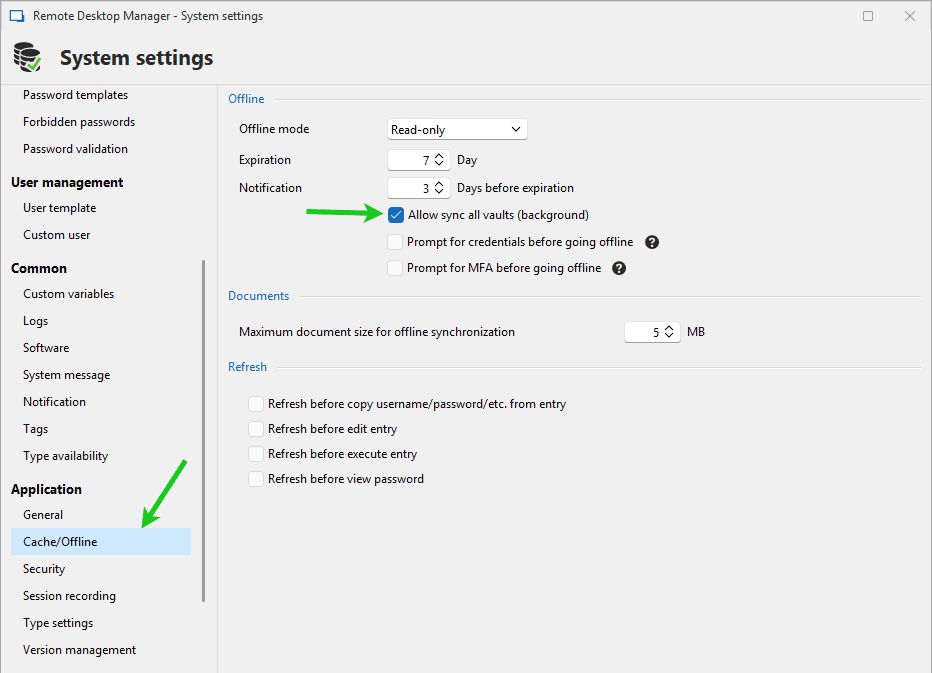
Next, configure your data source to take advantage of this feature:
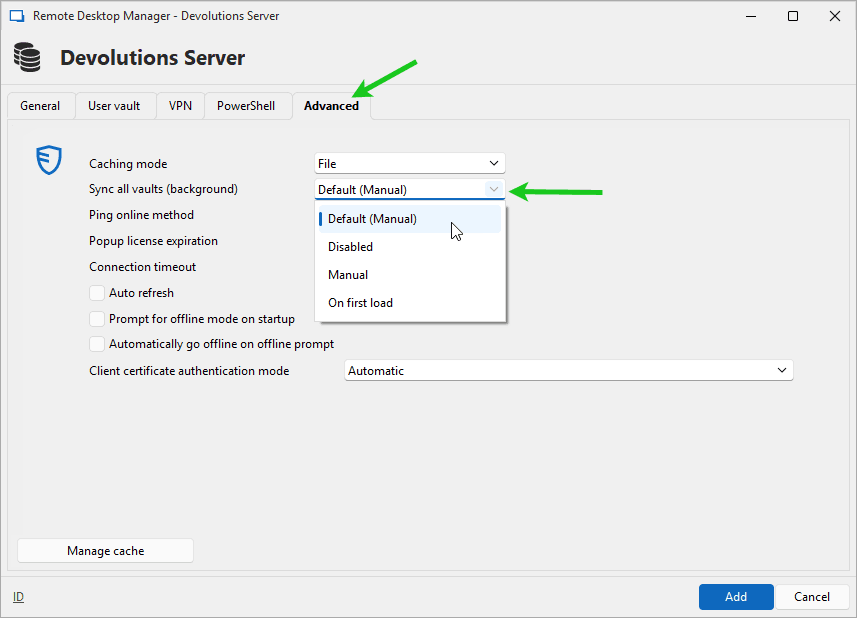
- Go to
File > Data Sourcesand edit your data source. - Open the
Advancedtab. - Select your preferred option in the
Sync all vaults (background)dropdown menu.
For detailed guidance, refer to our documentation on background synchronization.
Benefits of background vault synchronization
Uninterrupted productivity
Users no longer need to wait for RDM to finish synchronizing before resuming their work.
Automation
Vault synchronization runs automatically in the background, eliminating the need for manual input.
Up-to-date offline files
Ensures the latest data is always available, even during connectivity loss to the database.
Experience a smoother, more efficient way to manage vault synchronization today!

 Matt Miller