











 Coralie Lemasson
Work on-the-go with Password Manager mobile
Discovering new ways to enhance your user experience and efficiency is key to working smarter. Here are some expert tips to help you unlock the full potential of the Devolutions Password Manager mobile app, available for both iOS and Android devices. From hidden features to advanced shortcuts, these insights will empower you to master your app like a pro. Let’s dive in!
Want to try it out? Download the newest version and try it out for yourself.
Reorganize your OTPs in Authenticator
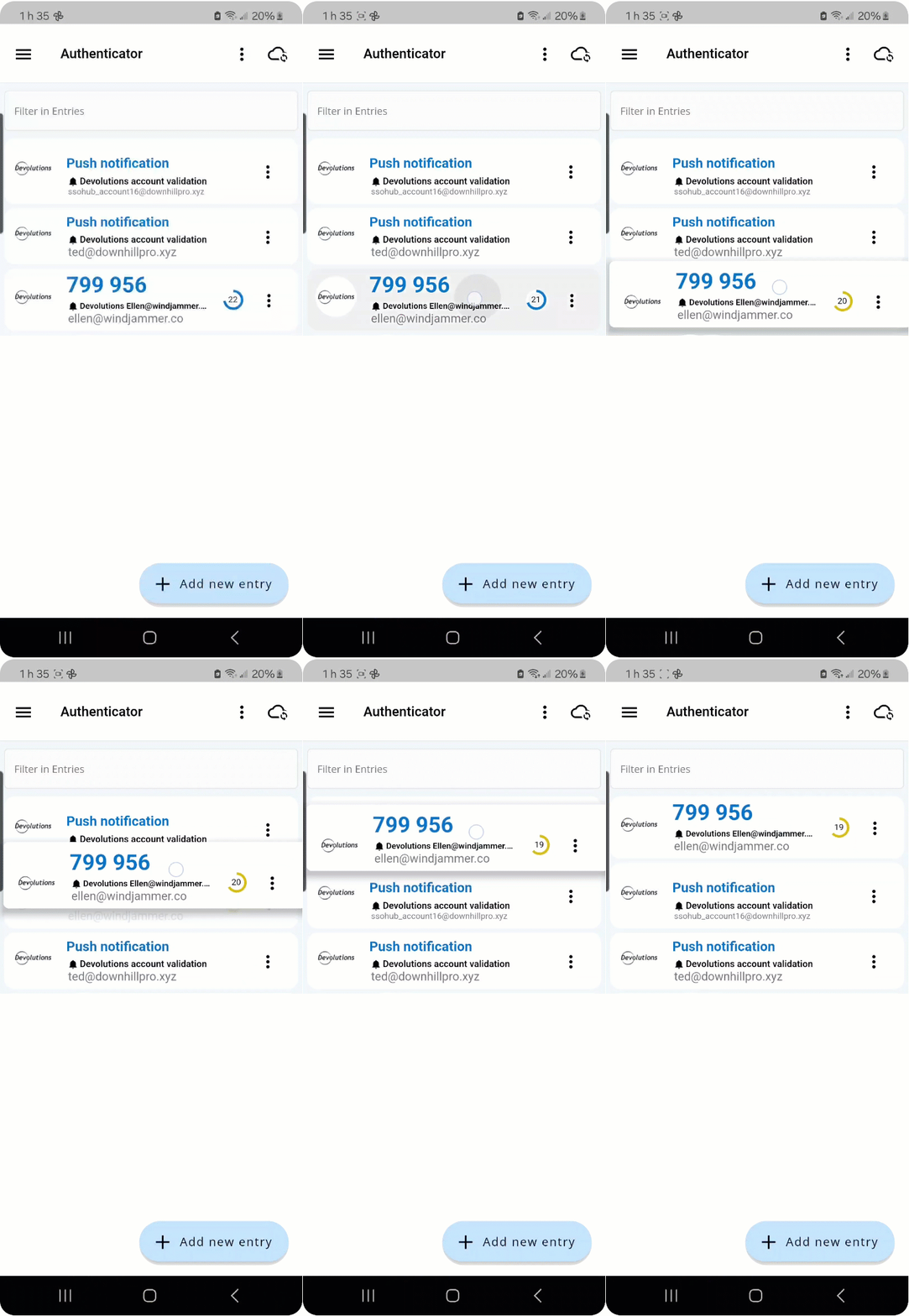
Implementing multi-factor authentication (MFA) that leverages one-time passwords (OTPs) is a quick and easy way to add a layer of security to your accounts. However, managing multiple OTP entries in Authenticator can be cumbersome, especially if you often find yourself scrolling to find the right one. Simplify this process by prioritizing the most important entries at the top. You can easily rearrange them by dragging and dropping entries to suit your preferences.
Back up your Authenticator OTPs
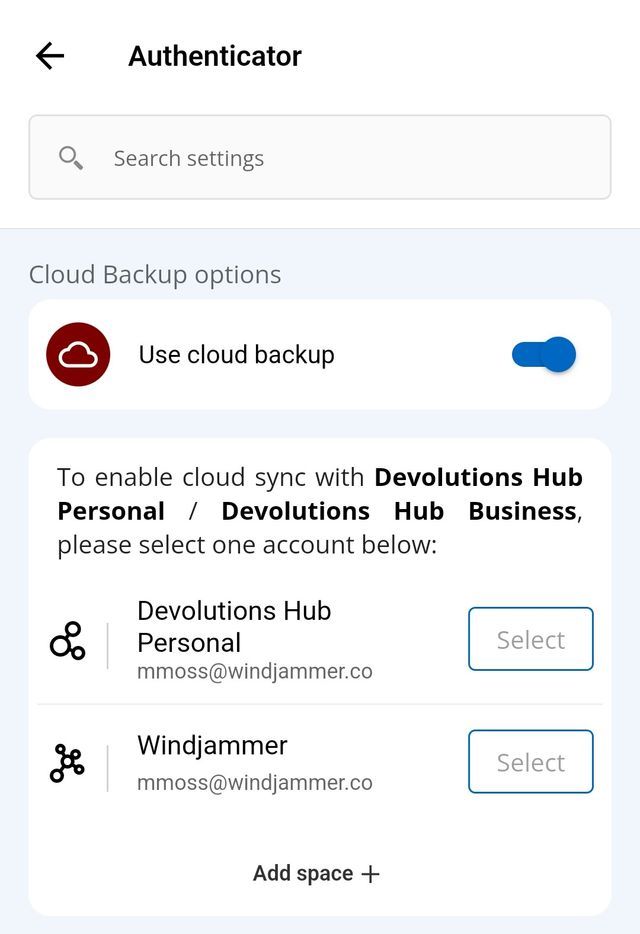
As with any crucial data, it’s essential to back up your Authenticator entry codes to ensure you can restore them if needed, such as after changing devices or losing one. If your organization uses Devolutions Cloud, you can store backups in your user vault.
To enable cloud backups, navigate to Settings > Authenticator in the Password Manager mobile app and activate the Use cloud backup option. Select your Cloud (or add a new one if necessary with Add space +) to start securing your OTPs.
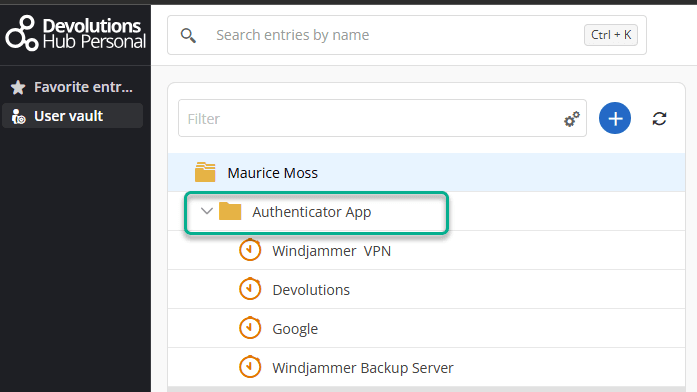
To access your backups directly, go to the Authenticator App folder in your Cloud vault.
Automatically fill in your username and password in an app or website
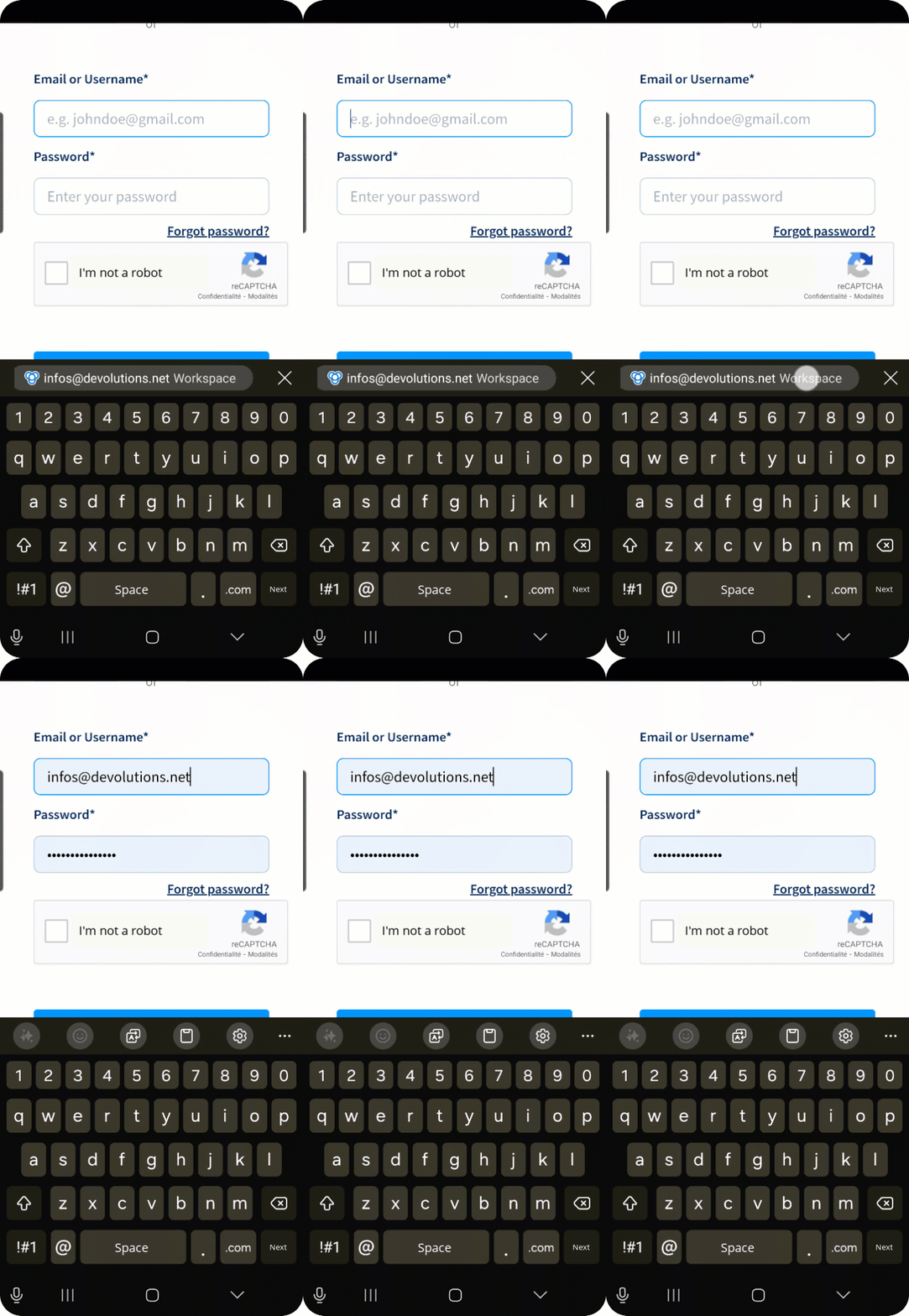
As you use your device to consult mobile apps and websites, the task of copying and entering credentials or other information can become rather tedious. Whether your credentials are stored in Devolutions Cloud, or Devolutions Server, Password Manager can automate this task for you.
Enable autofill in Password Manager’s general settings and authorize it on your device as your preferred service. Ensure that your space is synchronized, and you’re all set!
When prompted to sign in on an app or website:
- iOS: Tap “passwords” at the top of your keyboard to bring up Password Manager, which will display the entry (or entries) ready to be used for autofill. Select the appropriate one, and Password Manager will take care of the rest!
- Android: Tap the entry displayed at the top of your keyboard, and Password Manager will autofill the entry for you.
Use Password Manager in offline mode
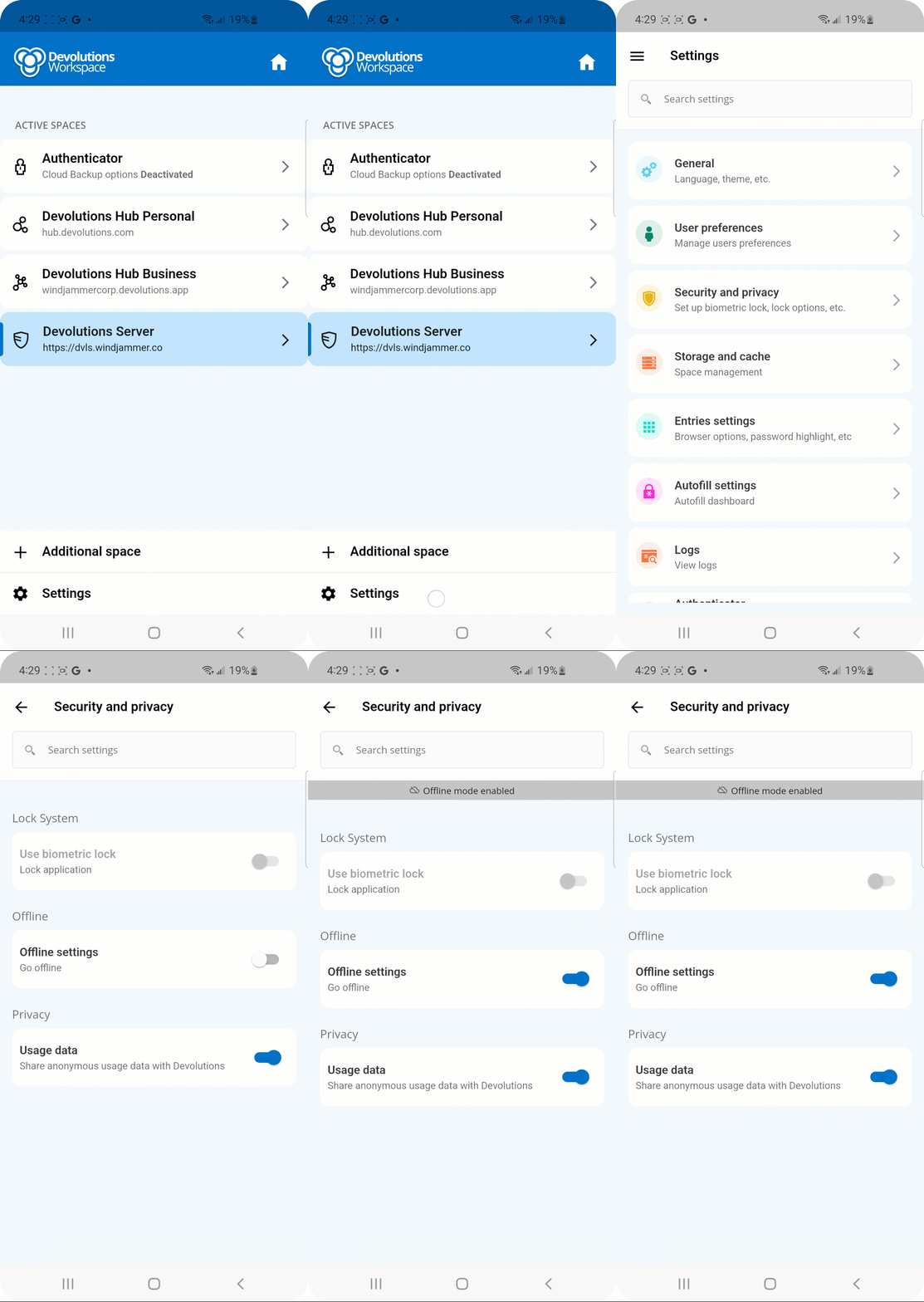
The Password Manager mobile app, like its desktop counterpart, maintains an offline cache, enabling you to work without an internet connection.
Regularly accessing your vaults keeps the offline cache updated. Whether you face a network outage or choose to work offline, you can continue accessing your data seamlessly.
To enable offline mode, go to Settings > Security and privacy > Go offline.
Add security to unlock Password Manager
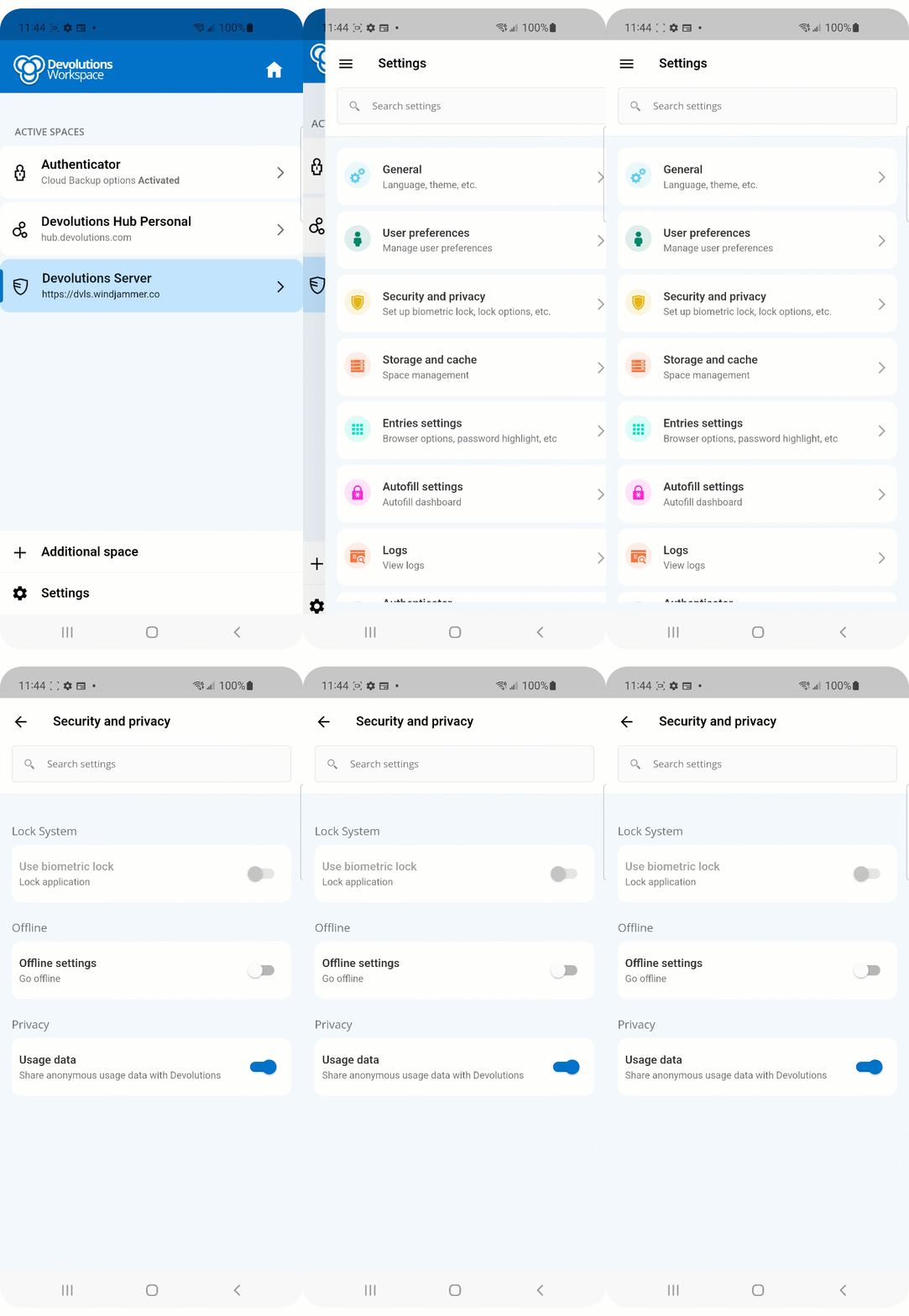
Protecting your mobile device is crucial, and securing your Password Manager app is just as important. Enable biometric locking to add an extra layer of security.
After setting up biometric locking on your device, enable it in Password Manager under Settings > Security and privacy > Use biometric lock.
We’d love to hear from you!
We value your feedback on how these tips have improved your experience. After trying them out, share your thoughts, suggestions, and experiences in the Password Manager Forum or the comments section below. Your feedback helps shape the future of our products!
About Devolutions Password Manager
Over the years, Devolutions Password Manager has evolved from a companion tool into a comprehensive access and management solution beloved by users worldwide. Available on desktop (Windows and Mac), mobile (iOS and Android), and as a browser extension, Password Manager brings together your Devolutions Cloud and Devolutions Server data under one roof, and includes Devolutions Authenticator, our two-step verification tool for securing your accounts.