








 Adam Listek
Updating one computer is ordinary maintenance. Doing that same update on every computer you look after needs a repeatable process, with clear output when something fails, installation choices that survive the next update, and a way to install an approved application without making the user a local administrator.
Devolutions UniGetUI is the tool for that work on a single endpoint, a lab system, a shared workstation, or a scripted setup. Here’s how to put updates on a schedule, repeat a setup from a bundle, script it with uniget, and approve installations through Devolutions Agent.
Put routine maintenance on a schedule
UniGetUI runs update checks, update installation, local backups, and cloud backups as separate tasks, and each task has its own schedule. Update installation can follow every update check, run every day, or run on the days you select. The tasks run while UniGetUI is open or minimized to the notification area.
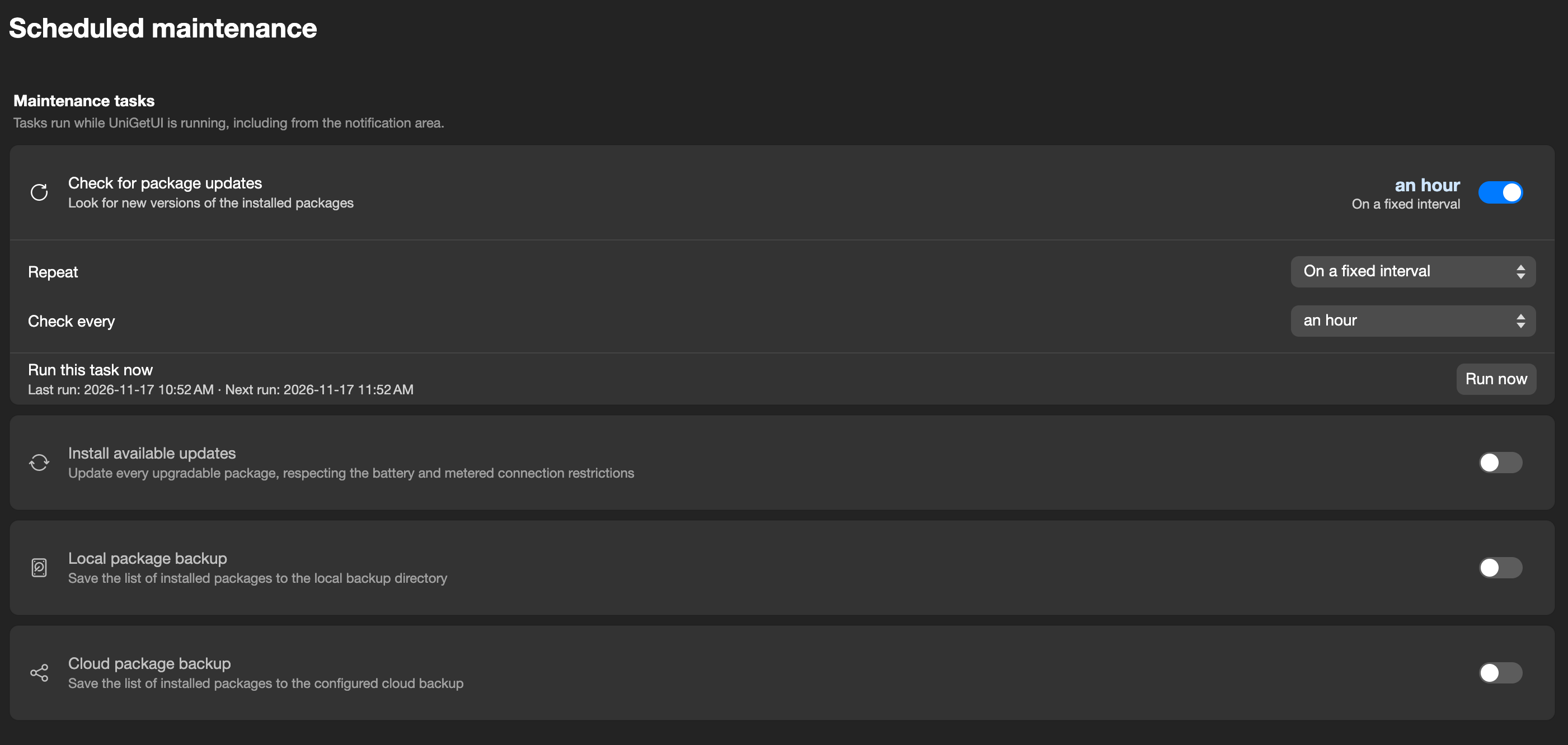
If a task is still running after 30 minutes, UniGetUI treats that run as failed. It tries again up to two times, 15 minutes apart, and then waits for the next scheduled time. A long run of one task does not stop the others.
You choose which packages those tasks may touch:
- With the installation task set to
Only packages marked for automatic updates, a test utility can update on its own while a production dependency waits for review. Skip this versionleaves the current release in place when that release has a known issue.- A minimum age holds a new version for a set number of days before UniGetUI offers it, when the package manager reports a release date.
Build a software setup you can run again
A package bundle stores the packages and the installation options for a setup you expect to repeat, such as a developer workstation, a training room, a replacement computer, or a test environment. You export the bundle and import it on the next computer, then check the result, because package versions, sources, and platform support change over time.
A backup is a copy of one computer’s package list, saved locally or to a private GitHub Gist, for recovery and migration. Use a bundle when the same setup should be applied to other computers.
Script it with the command line
When the same update has to run on every computer, a script repeats it with clear output. The command-line interface (CLI) covers packages, sources, bundles, backups, settings, and operations through the uniget command.
On Windows,
Add the uniget command to PATH (reopen terminals after installation)is selected by default for a regular installation. An upgrade keeps the choice from the previous installation, and a silent installation can opt out withADDTOPATH=0. Open a new terminal after installation. If the option is off, run.\uniget.exefrom the installation folder. On Linux, the .deb and .rpm packages putunigeton PATH, and an extracted archive is run as./uniget. On macOS, run/Applications/UniGetUI.app/Contents/MacOS/uniget.
Run uniget --help, or read the CLI reference, to see the commands in your version.
uniget status
uniget package updates
uniget package update --manager winget --id Microsoft.PowerToys
uniget package update-all
uniget operation list
--detach returns an operation ID immediately, and the script then calls operation wait, operation output, or operation cancel with that ID.
--headless runs UniGetUI without a window and keeps the automation API available until uniget app quit. From that session, uniget package update updates one package at a time. uniget package update-all and uniget package update-manager need the window, so they fail in a headless session. Updating every pending package without a window means running uniget package update once for each package. Keep those bulk commands for a session that shows the window.
Approve updates without permanent administrator rights
Installing an approved application shouldn’t require making the user a local administrator. On Windows, install Devolutions Agent and leave its service running before you turn the option on in UniGetUI. UniGetUI then sends the Agent each supported request to install, update, or uninstall a package. The Agent checks the request against a local package policy and performs the operation without a User Account Control (UAC) prompt, so the user does not need local administrator rights.
Turn this on under Settings > Administrator rights and other dangerous settings, with Delegate package operations to the Devolutions Agent broker. It stays off until you enable it.
Write the package policy
You write the policy in the built-in editor, which requires UniGetUI installed for all users and a Windows administrator approval when you save. The editor starts from a Deny decision, and each new rule stays disabled until you choose what it allows. A rule can match the package, source, operation, version or version range, scope, and architecture, and an allow rule can block skipping the hash check or running custom commands before or after the operation. The policy editor shipped with UniGetUI 2026.3.1.
Where this leaves an administrator
Updating one computer stays ordinary maintenance. With a schedule, a bundle, a script, and an approval policy on each computer, updating all of them becomes a process you can repeat, with Devolutions Agent handling approved installations on Windows.
Download UniGetUI and set up package management on the computers you manage.