












 Yannick Leblanc
Devolutions Server 2026.3 replaces system permissions, vault membership, and vault ownership with role assignments. Here’s how the workspace-level roles fit together, how we recommend adopting them, and how anyone can check the roles they hold.
You can manage users, licenses, templates, and vaults as containers without automatically seeing what those vaults hold: credentials, sessions, documents, and every other entry. The useful distinction is between managing a vault and seeing its content.
With this change, you can report a user’s system access from the role they hold. For example, Vault owner on a vault, Users administrator on all users, or Workspace owner for full access. Devolutions Server then checks whether that assignment permits the specific action (approving a request, editing a user, opening an entry) rather than checking whether the person is an administrator.
Access that used to be spread across three different places now lives in assignments you can read, export, and schedule.
After the upgrade, everyone who was an administrator is assigned the Workspace owner role and keeps the access they had. Nothing forces a redesign on day one. The practices below are how we recommend using the more flexible model when you’re ready.
Two workspace-level roles
Workspace owner |
Workspace administrator |
|
|---|---|---|
| Scope | Unlimited, same as the former Administrator |
Full administration, no vault content |
| Vault content | Yes | No |
| Typical use | Break-glass / emergency only | Managing the workspace |
These two roles run the workspace. The same model also added roles such as Auditor and Workspace log viewer, which we cover further down.
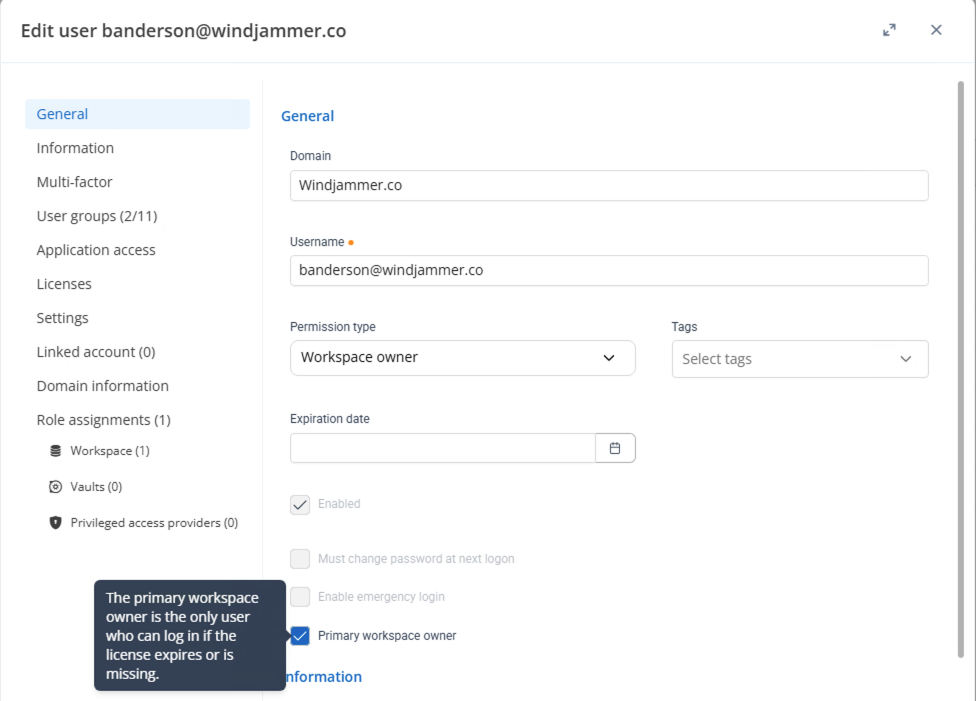
The distinction is who can see vault content. A Workspace owner is the successor to the former Administrator: nothing is off limits, including credentials, sessions, documents, and every other entry. Use that role only in a break-glass or emergency scenario, not as anyone’s everyday identity. You need at least one Primary workspace owner. That’s a setting on a Workspace owner account in user management, not a third role.
A Workspace administrator can still run the workspace: users, licenses, templates, vaults, and so on. They can create vaults for people; they simply don’t see what’s in them unless someone grants that access on purpose. That’s the role for day-to-day workspace management.
How we recommend you adopt the model
There’s no single correct IT org chart. For teams that want administration and vault content kept apart, this sequence works well:
- Upgrade to 2026.3. Existing administrators are assigned
Workspace ownerautomatically and keep the access they had. - Select which account is the
Primary workspace owner. You need at least one. - Move the people who need to manage the workspace to
Workspace administrator. KeepWorkspace ownerfor break-glass or emergency use. - Assign the appropriate vault role before you move anyone to
Workspace administrator. Anyone who reached a vault only throughWorkspace owner(their previous administrator status), without an explicit assignment, needs that role first. That lets them keep viewing the vaults they use every day. - Tidy up migration-created roles, if the upgrade left you any. Migration copies certain roles so your existing permission assignments survive the upgrade, and the copies carry the role type
Legacy. Where a current built-in role covers the same ground, move the assignments onto it and delete the legacy role. Migration-created roles can be deleted; standard built-in roles can’t. TheRedundant assignmentsreport is the quickest way to spot direct and group access that overlaps.
Auditor access, without vault content
Before 2026.3, giving someone a log-only view meant granting access in several places at once: the log, the target vault, and the content inside it. If they could see the log, they could usually open the entries too.
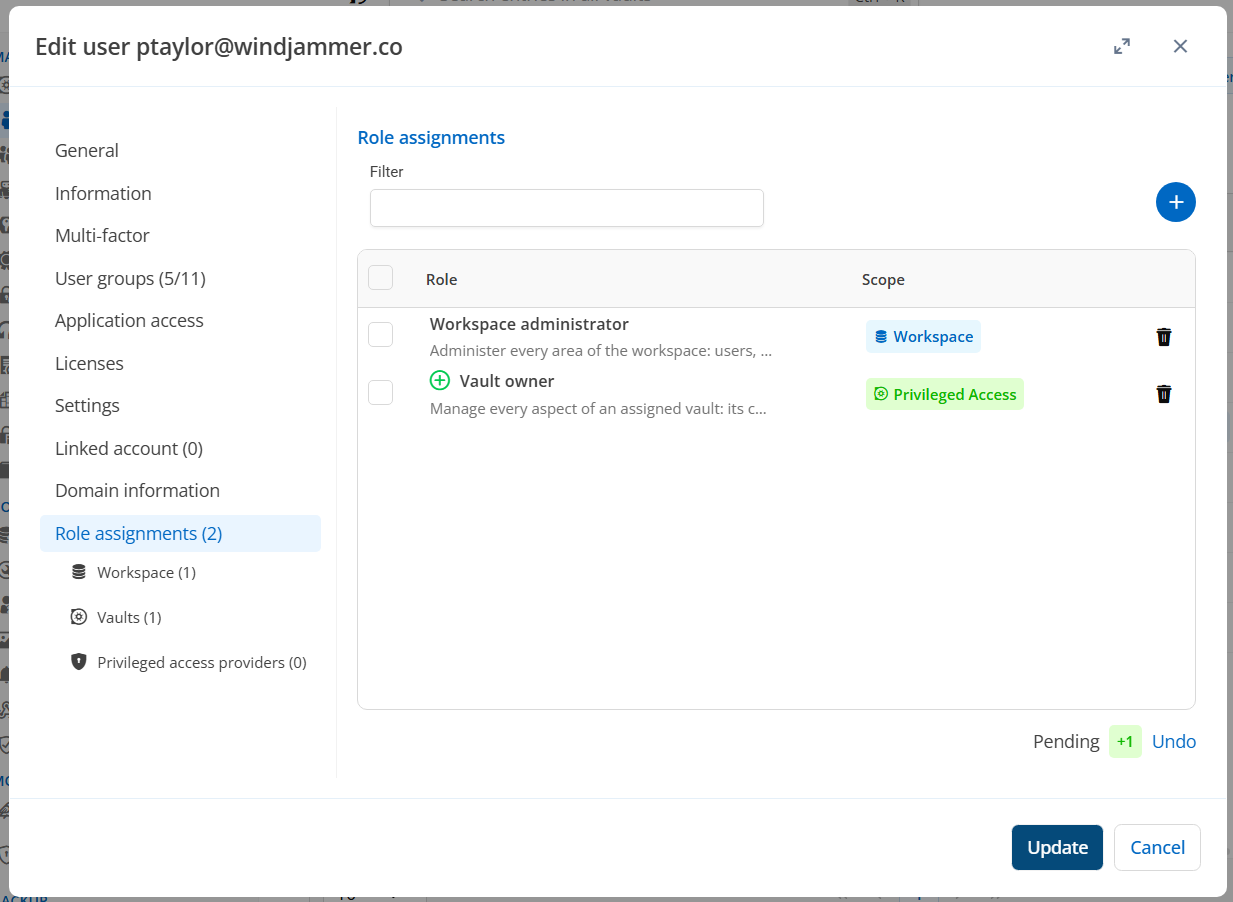
Now you assign Auditor, select the vault they should review, and stop there. No vault content. They get a view-only pass over administration and reports, with nothing to change. Add Workspace log viewer when they need the activity log on that vault.
To set this up, open Edit vault settings on the vault they should review, go to Role assignments, and add the security group (or named user) with Auditor, or Workspace log viewer for activity logs. Then ask them to open My roles and confirm they have that assignment, and nothing that opens entries. To cover every vault at once, assign Auditor on the workspace instead.
Two details shape an auditor-friendly design:
- Log and report visibility is no longer filtered entry by entry. If you can see a password strength report, you see every entry in scope, so the report is complete enough to use as an audit artifact.
- Privileged access management (PAM) users no longer need an assignment on an entry just to see its logs.
Put the reports your auditors ask for on a schedule: activity logs, PAM reports, vault role assignments, and redundant assignments. Quarterly access reviews get much easier when the product already answers “who has this, and why.”
How to see which role you have
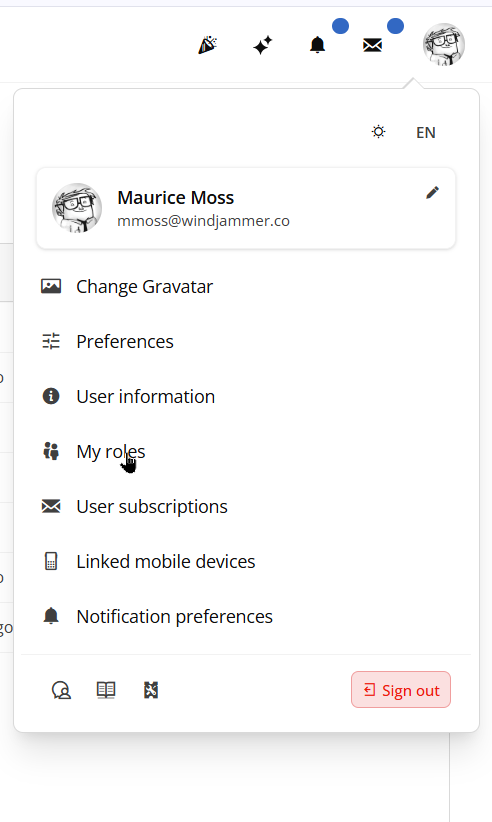
Open My roles in the side menu. Every user can see their own assignments, including the role, the scope, and whether each one is assigned directly or through a group.
Administrators have an activity log of assignments, which they can schedule and export. That’s the everyday way to answer who has a role, on which vault or workspace, and why.
Get 2026.3 and try the model
Separate administration from vault content where it helps your team, give security a log-only path, schedule the assignment reports, and keep Workspace owner for break-glass or emergency use.
If a role you need isn’t in 2026.3 yet, request it on the Devolutions Server forum. We add built-in roles to match the requests that come in.
Download the latest Devolutions Server and put the new roles to work.