









 Laurence Cadieux
As per David’s Devolutions 2022 Roadmap, we recently announced the release of Remote Desktop Manager 2022.1 and Devolutions Server 2022.1. Well, for those of you wondering if we forgot to invite Devolutions Cloud to the major update party: Please say hello to Devolutions Cloud 2022.1!
About Devolutions Cloud
Devolutions Cloud is our secure, flexible, and easy-to-use cloud-based password management solution for team environments. It enables organizations to securely vault, manage, and share business-user passwords and other sensitive data. It is also affordable for SMBs, which is very important these days considering that hackers are increasing their attacks against smaller companies.
In addition, Devolutions Cloud is a data source in Remote Desktop Manager. The connection management power of Remote Desktop Manager, combined with the credential management simplicity of Devolutions Cloud, allows users to securely and effectively get the best of both solutions.
Important Licensing Updates
In a moment, we will dive into some key new features in Devolutions Cloud 2022.1. First, we want to share some important licensing updates:
Register a Devolutions Cloud License in the Administration/Licenses Menu
Now in version 2022.1, users can manage licenses directly within Devolutions Cloud. Previously, licenses had to be managed in the Customer Portal.
To add or renew a Devolutions Cloud license, go to Administration > Licenses and add your Devolutions Cloud license.
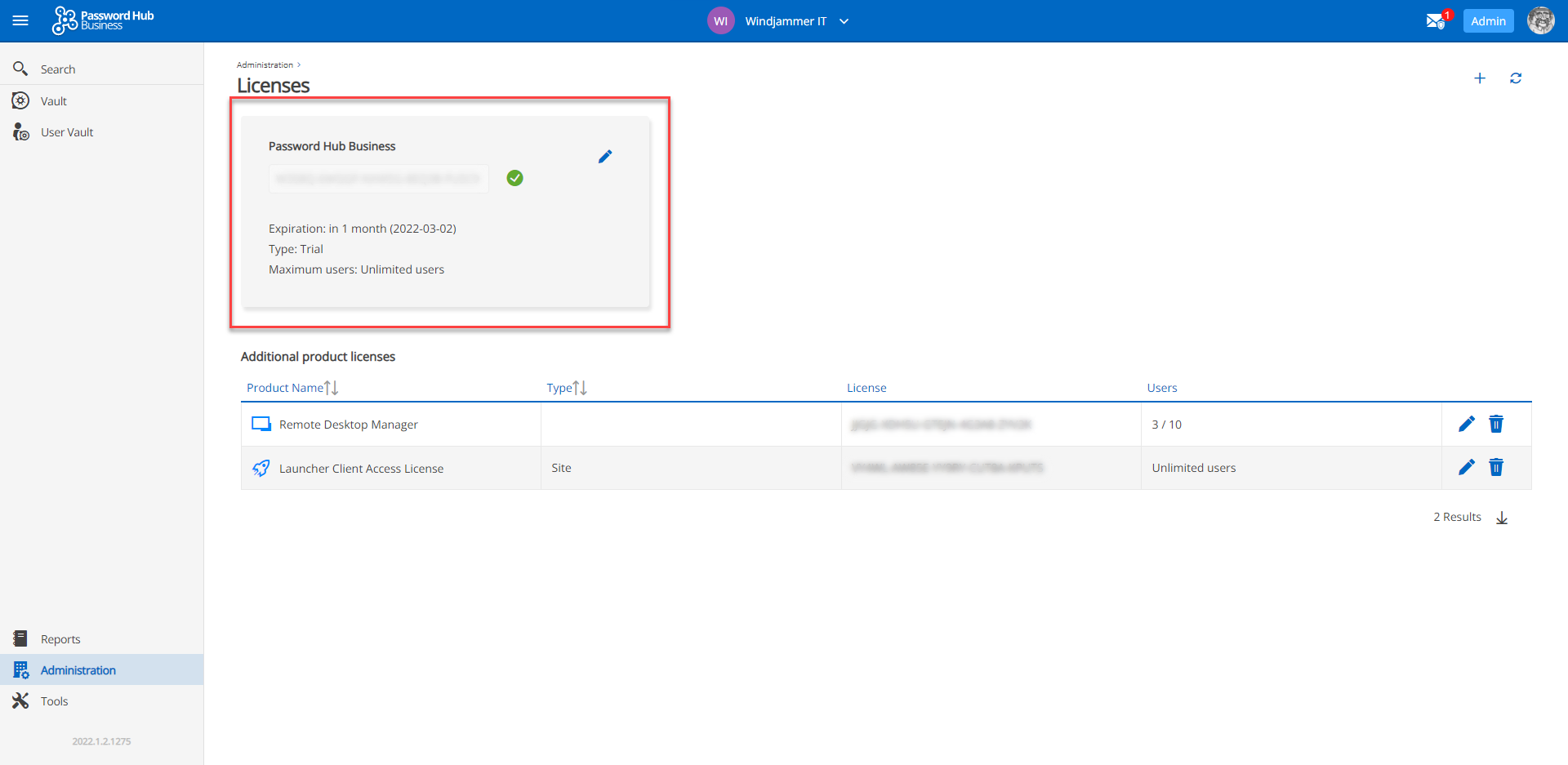
For additional guidance on registering a Devolutions Cloud license, please click hub register password hub business license.html
Validating Devolutions Launcher License
Users that augment Devolutions Cloud with Devolutions Launcher, our companion remote connection launching tool, will now need to validate their Devolutions Launcher license within the Devolutions Cloud Business interface.
To do this, simply go to Administration > Licenses and add a Devolutions Launcher license. It is also possible to add other licenses, such as Remote Desktop Manager.
Reminder: As noted earlier, Devolutions Cloud is also a data source in Remote Desktop Manager.
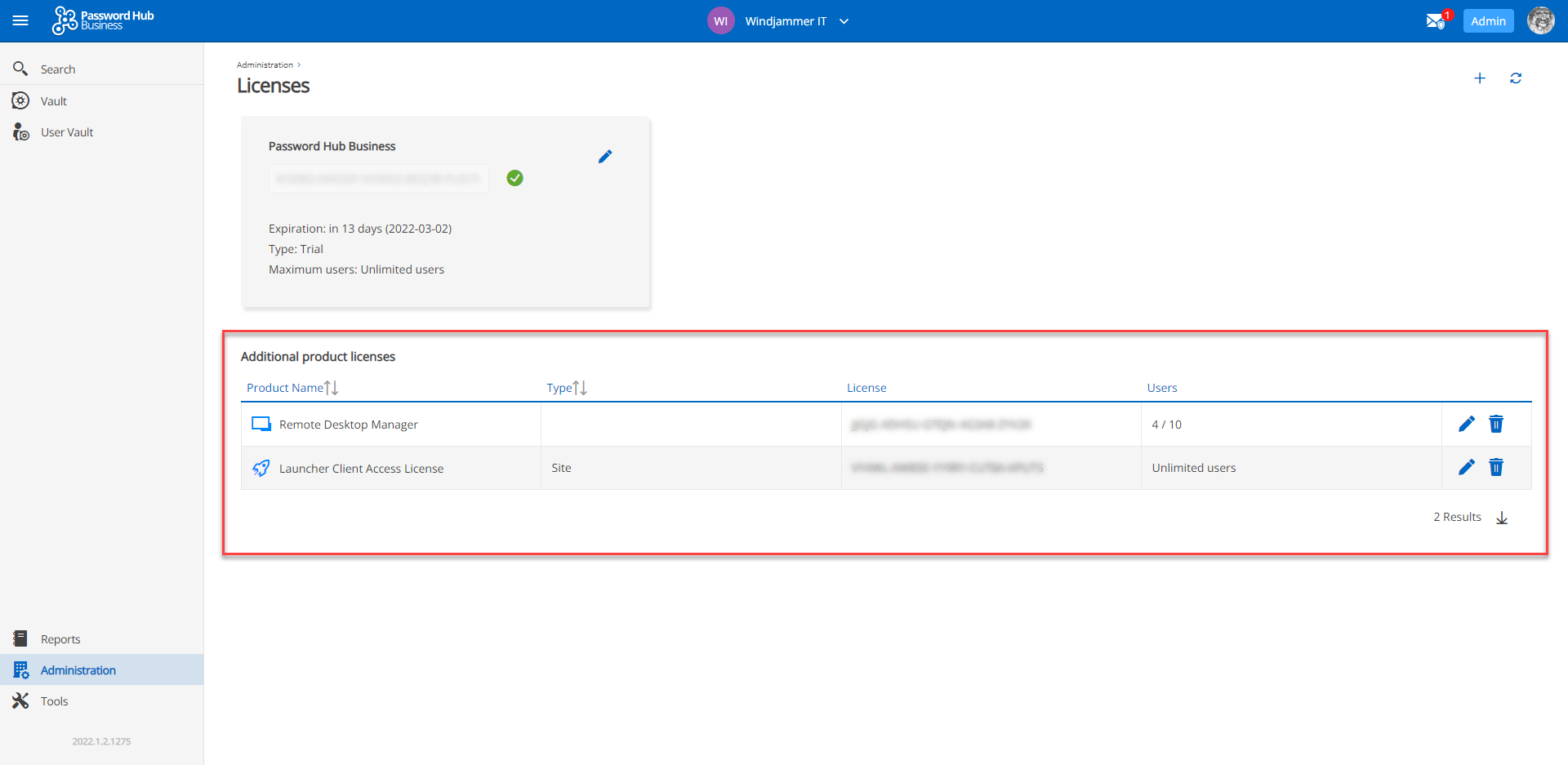
Please also note that when adding a license for a specific number of users, it is possible to directly assign the license to the individuals who are using it.
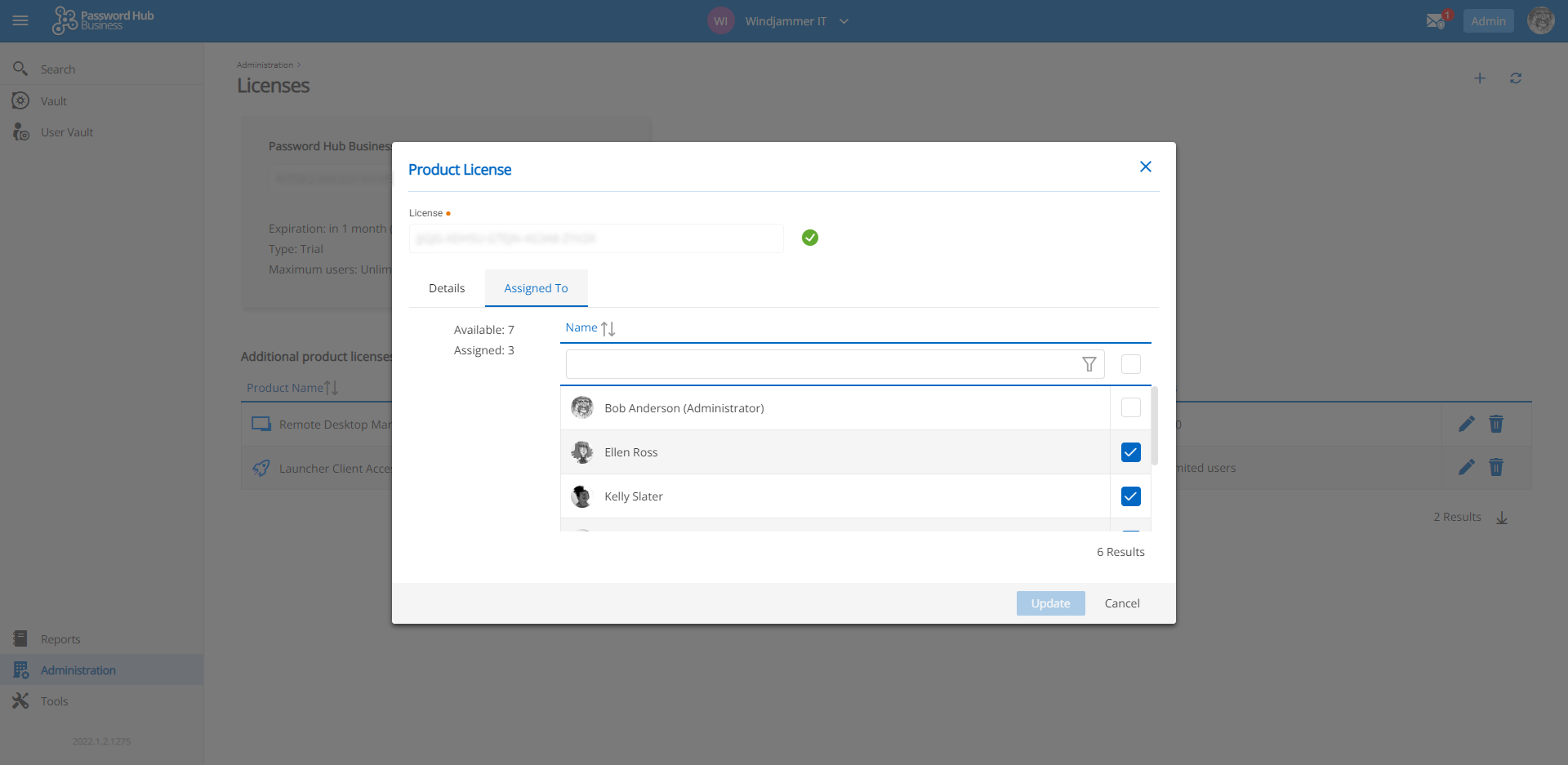
For additional guidance on registering product licenses in Devolutions Cloud, click hub register product licenses.html
What’s New and Improved
There are multiple improvements in Devolutions Cloud 2022.1. The full list of changes is available in the Release Notes. Below, we highlight some of the biggest and most-requested enhancements:
Single Sign-On (SSO)
Many users have asked us to add support for SSO in Devolutions Cloud, and as we like to say around here: Your wish is our command!
-
Authentication with Azure AD: Users can now log into Devolutions Cloud with Azure AD Office 365 credentials, instead of using Devolutions Account authentication. This makes things easier and faster for users who are more familiar with Azure AD. It is necessary to create an organization in the owner’s Devolutions Account, which will be linked to your Azure AD organization. Please the configuration steps and guidance on creating an organization (note that an Azure AD account is required).,
-
Enable SSO Within Devolutions Cloud: Users must be part of the organization and have Admin rights to perform this action. Please the configuration steps.
-
Invite Users and Groups to Access Devolutions Cloud with SSO: Once SSO is configured and activated in Devolutions Cloud, you can send out an email invitation to all users. The pre-written email contains the Devolutions Cloud URL, along with an invitation ID and key. It will lead the user to a simple Devolutions account set-up without having to create a Password since they will be authenticated through Azure AD. Please steps on inviting users and groups to enroll in SSO.
Transfer Cloud Ownership to Another Administrator
Previously, in order to assign Cloud ownership to another Administrator, it was necessary to contact our Support Team. And while we pride ourselves on being highly responsive and efficient, we understand that time is the most valuable commodity – and our users need to make every second count!
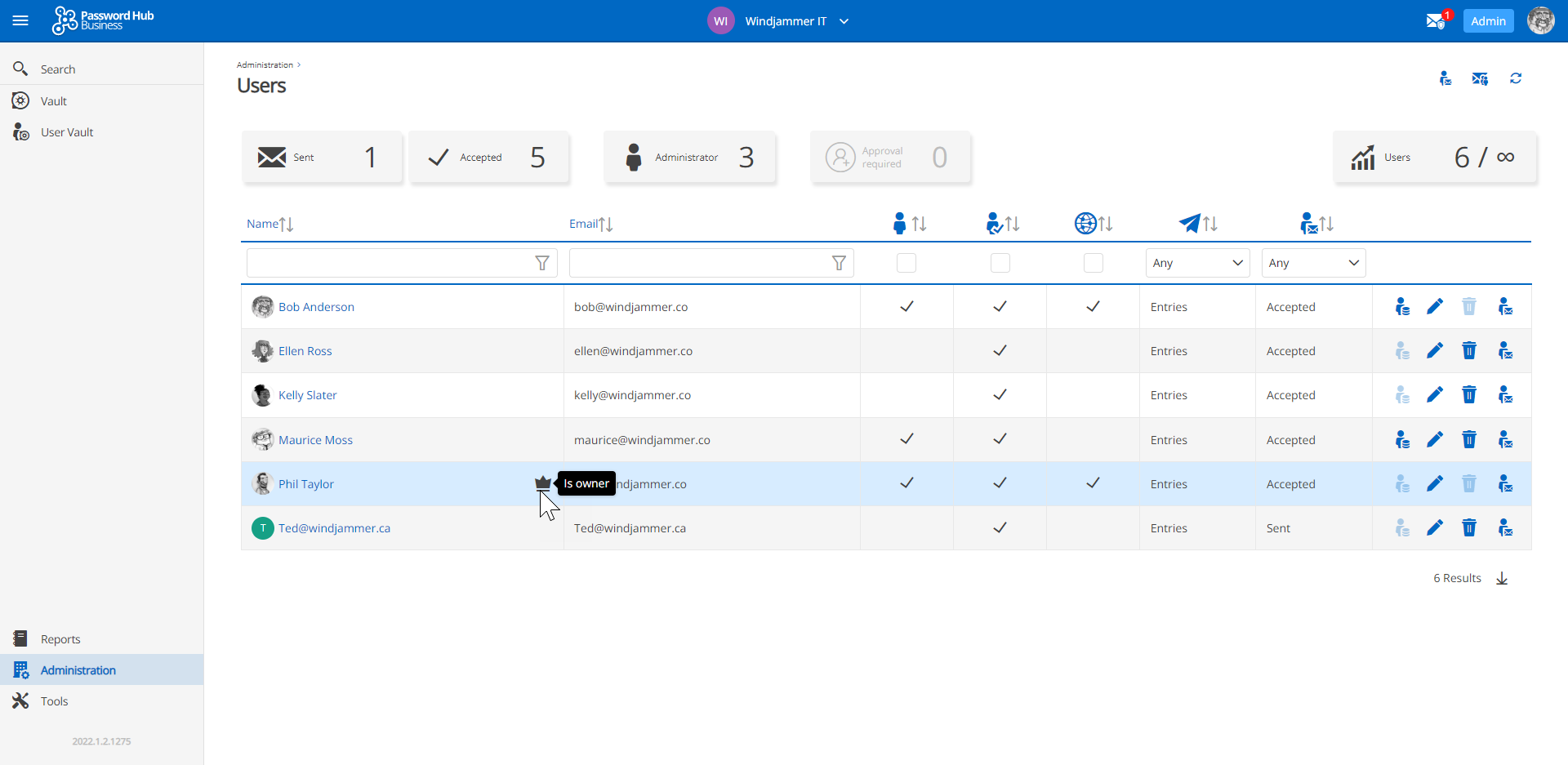
Now in version Devolutions Cloud 2022.1, Admins can transfer Cloud ownership to another Admin in the User Management portal (Note: Ownership can only be assigned to another Admin). The new owner is identified with a crown icon.
Submit a Support Ticket from Within Devolutions Cloud
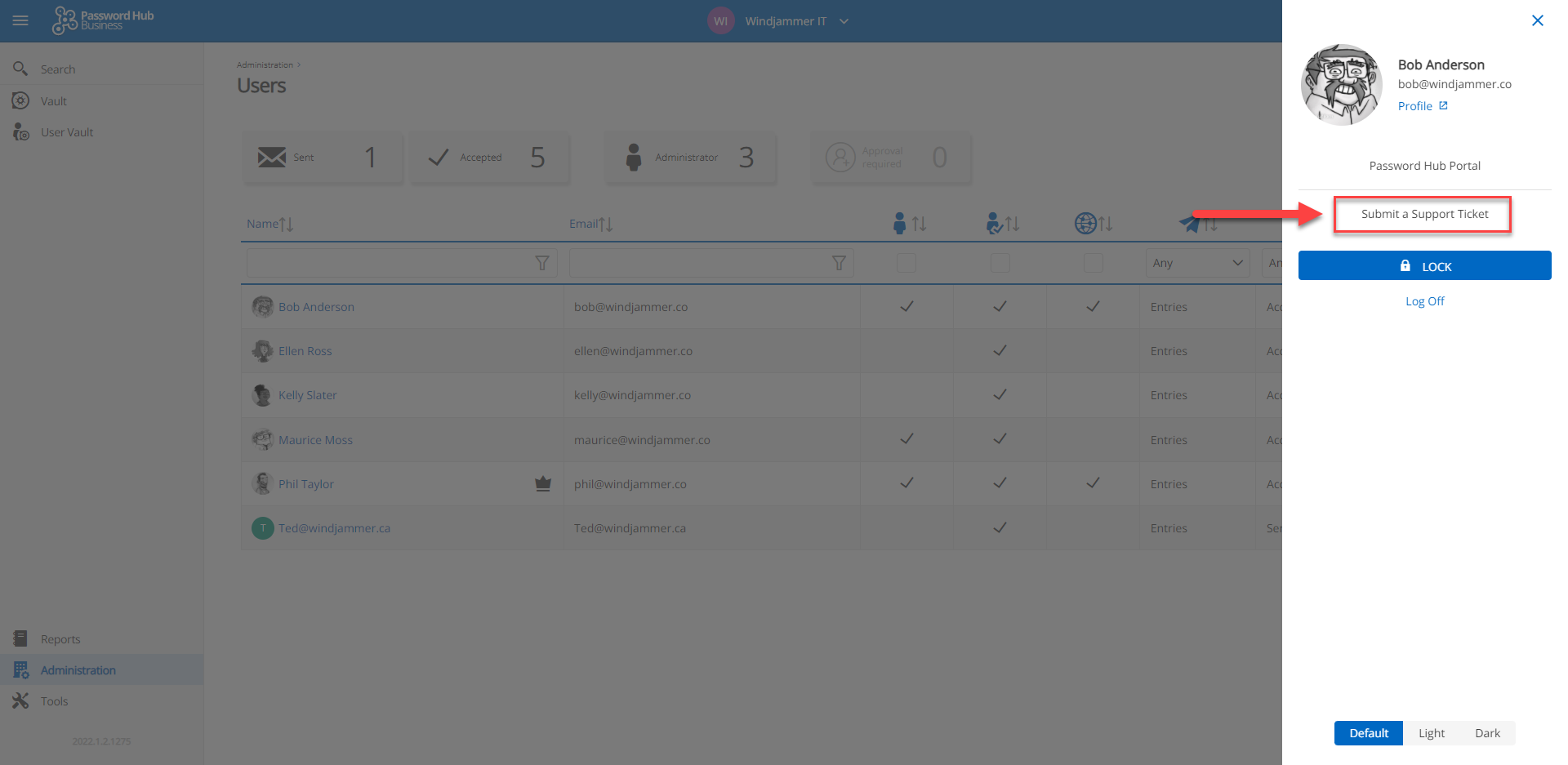
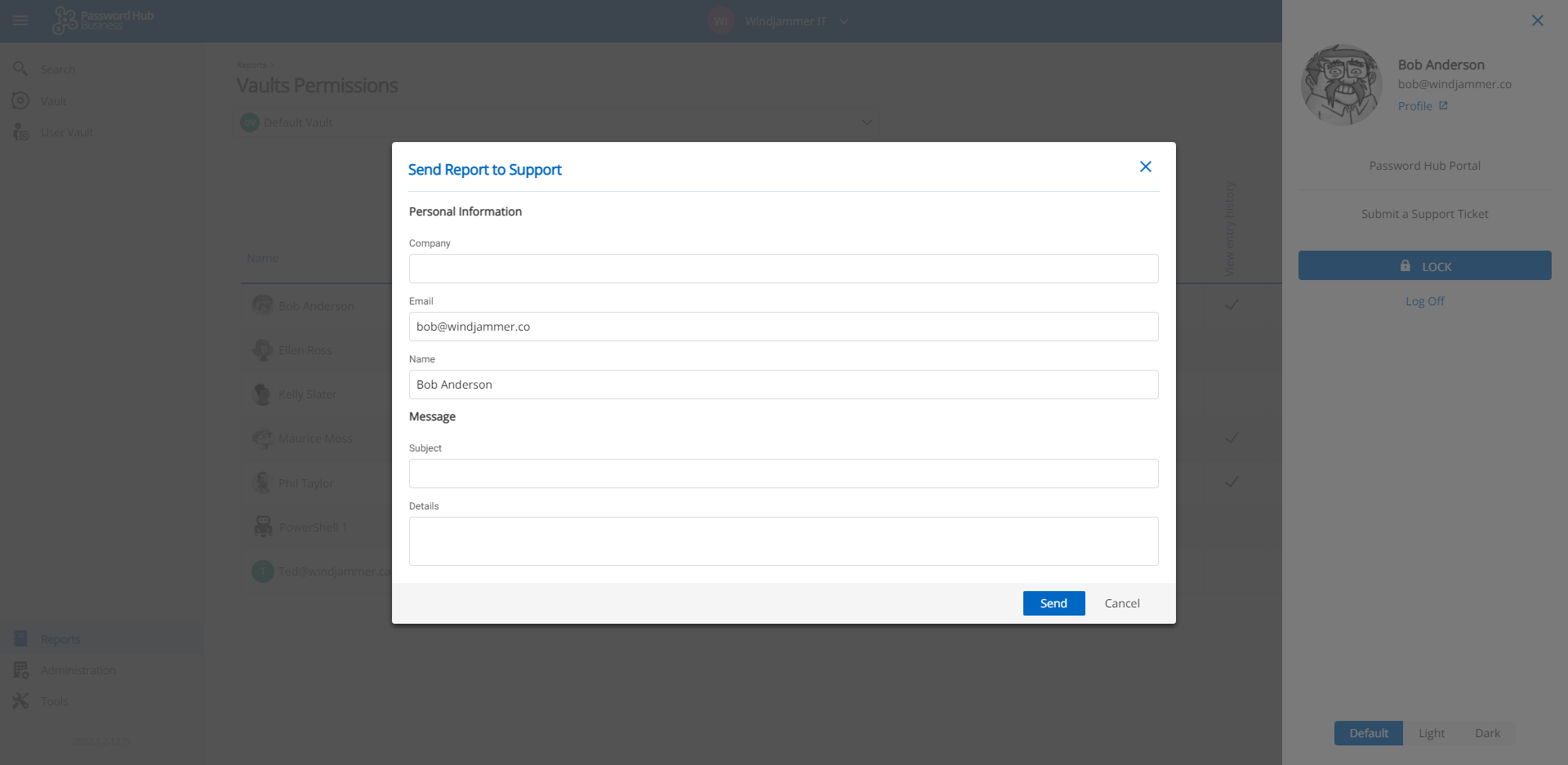
And here is another way we are helping our users save precious time: Support tickets can now be sent directly from a Devolutions Cloud profile. Here are the simple steps:
- Click the picture on the top-right of the screen.
- Click Submit Support Ticket.
- Complete the brief form to tell our Support Team about your problem or issue
New Add Entry Layout
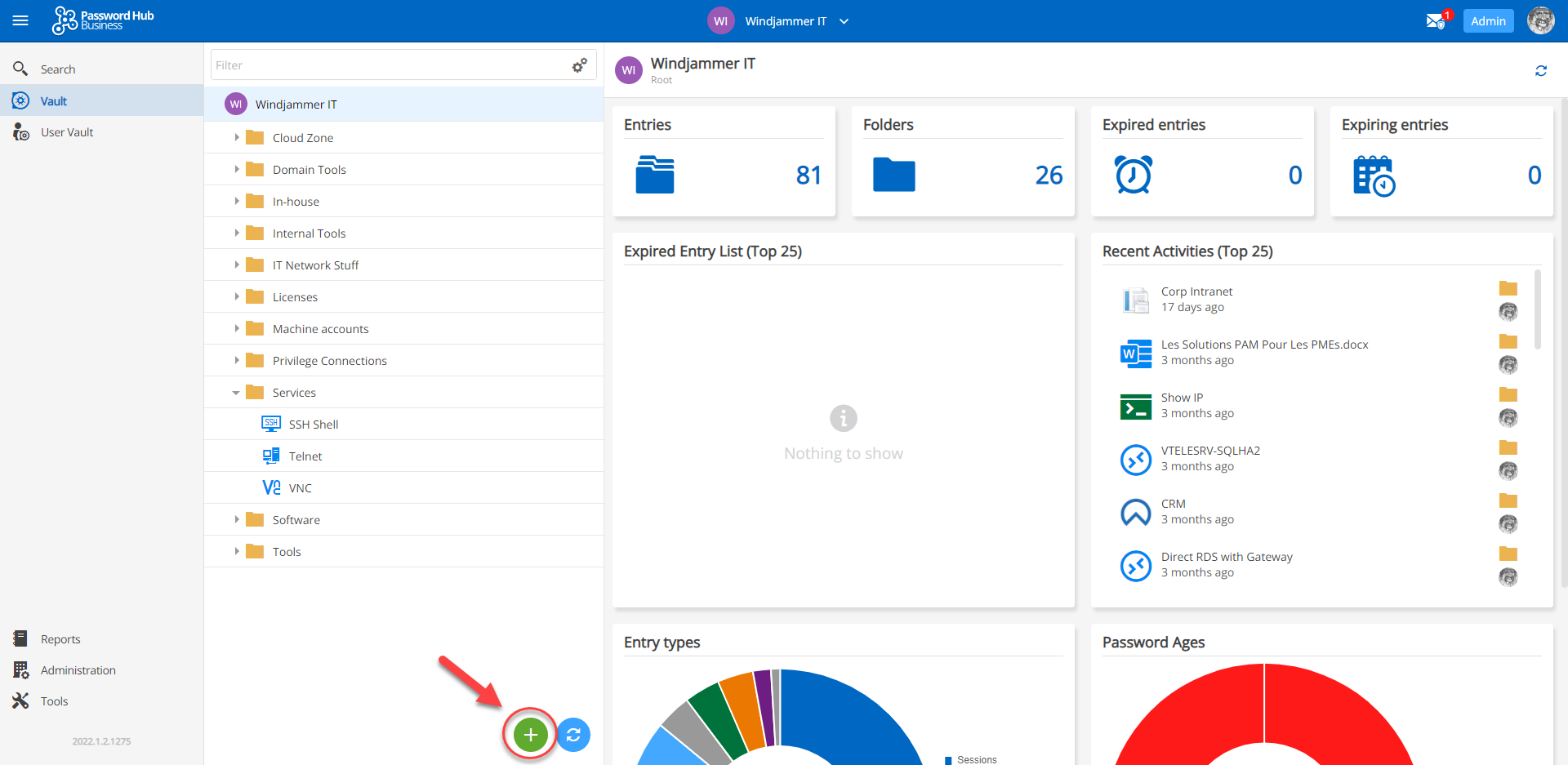
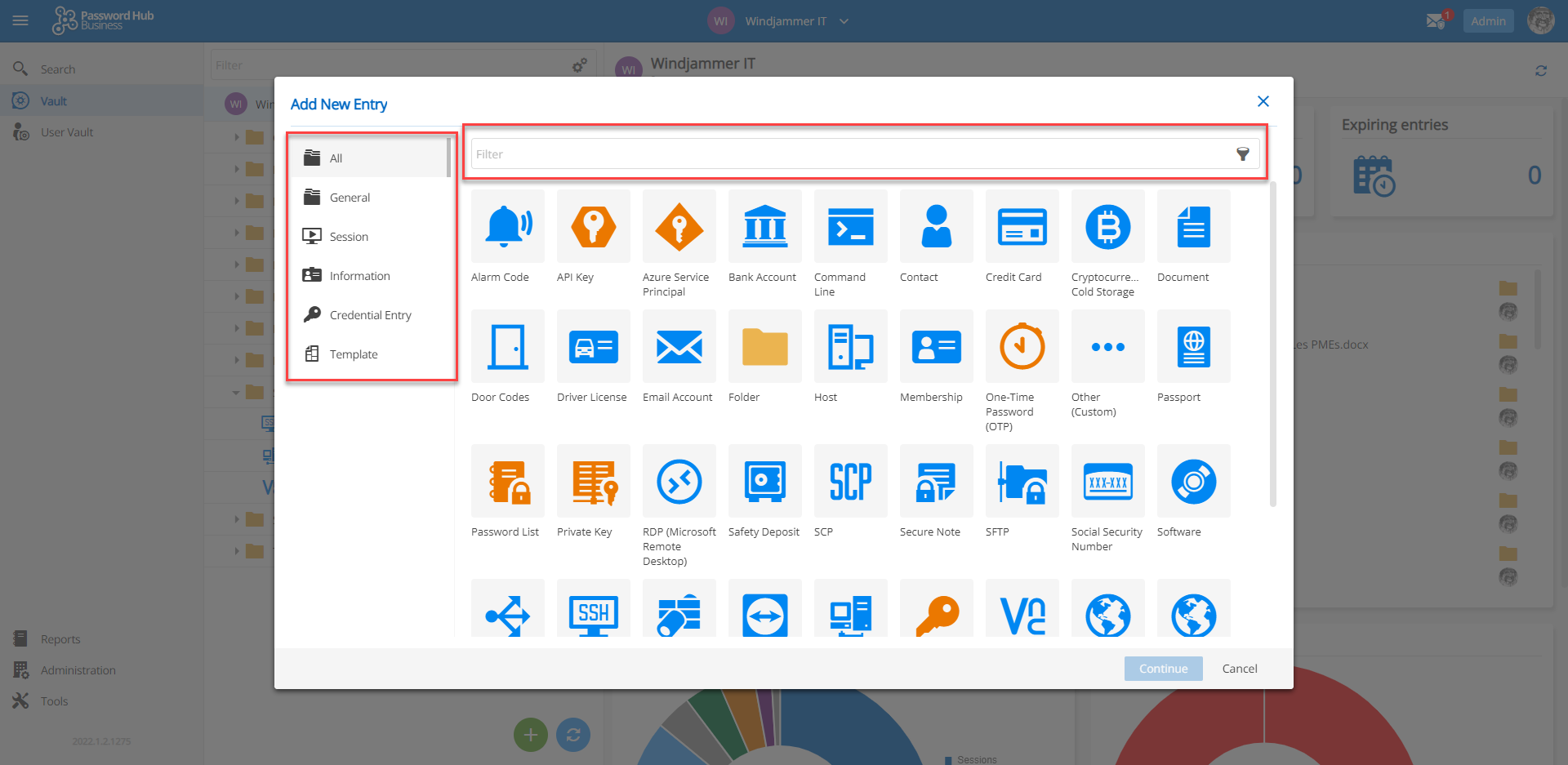
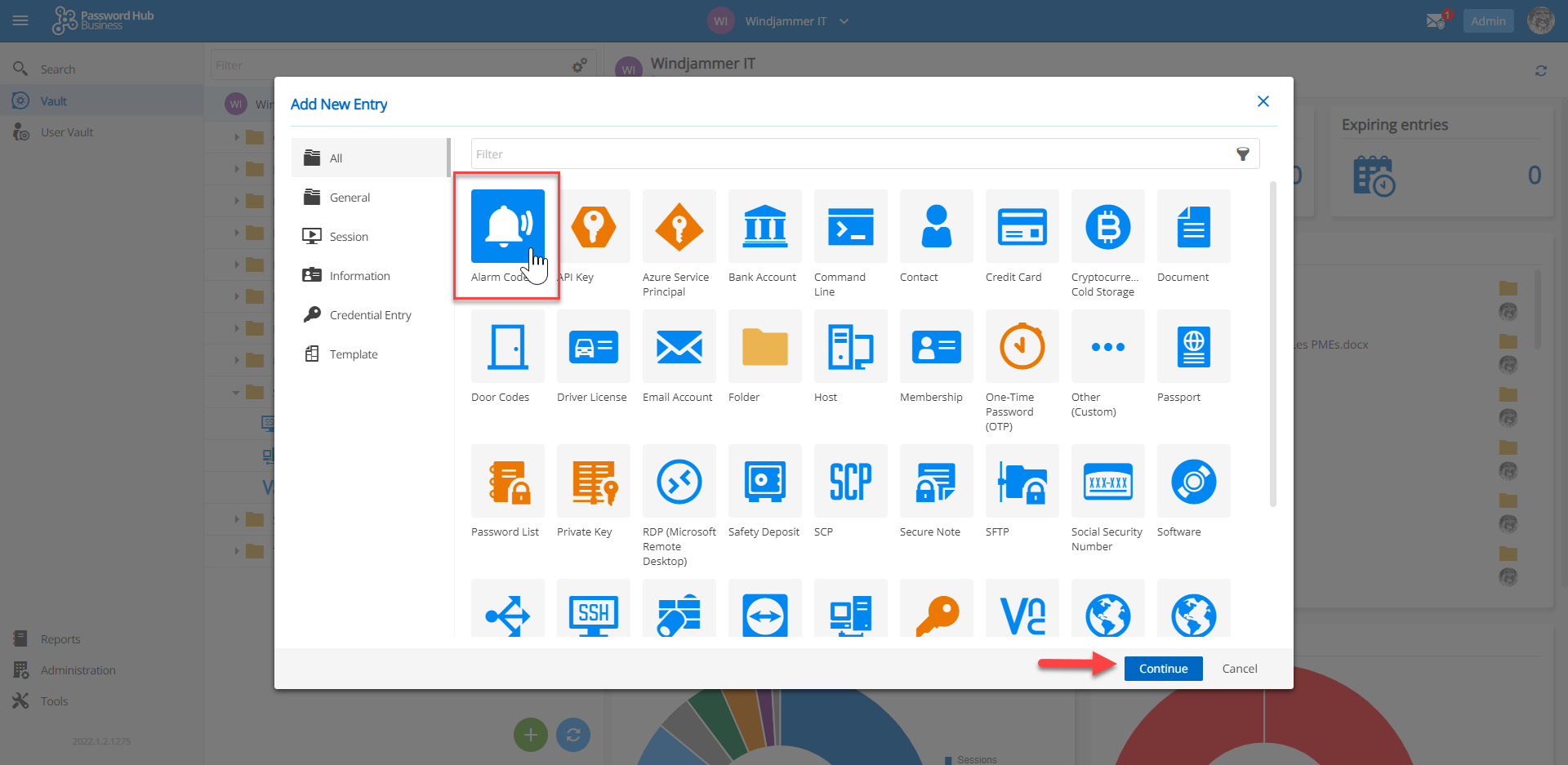
To make things clearer and more intuitive, we have improved the Add Entry layout. It is now separated by types (similar to Devolutions Server and Remote Desktop Manager).
To add an entry, simply click the green + button at the bottom of the interface.
Users can also choose between a variety of different entry types and search for a particular entry with the search field.
Entry Templates
Create an Entry Template
Here is yet another time-saving feature: In version 2022.1, users can add an entry from a pre-existing entry template. For users who integrate Devolutions Cloud and Remote Desktop Manager, this feature already existed. Now, it is available in either product. For example, if “User A” creates an entry template in Remote Desktop Manager, then “User B” can see and use it in Devolutions Cloud.
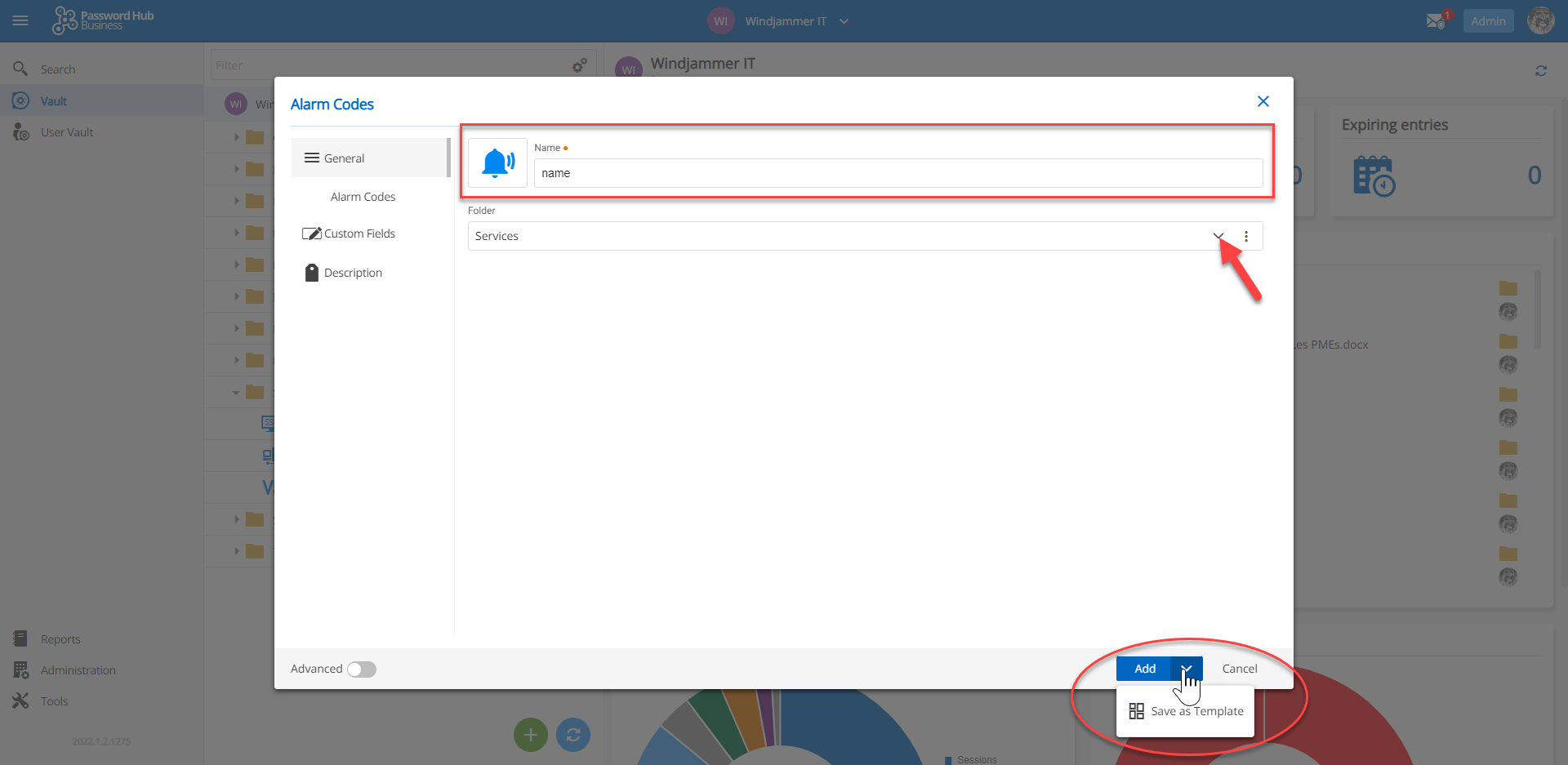
An entry template can be created from a new entry, or from an existing entry. Simply click on “Save as template” in the edit Entry dialog. Here are the steps:
- Click the green + icon.
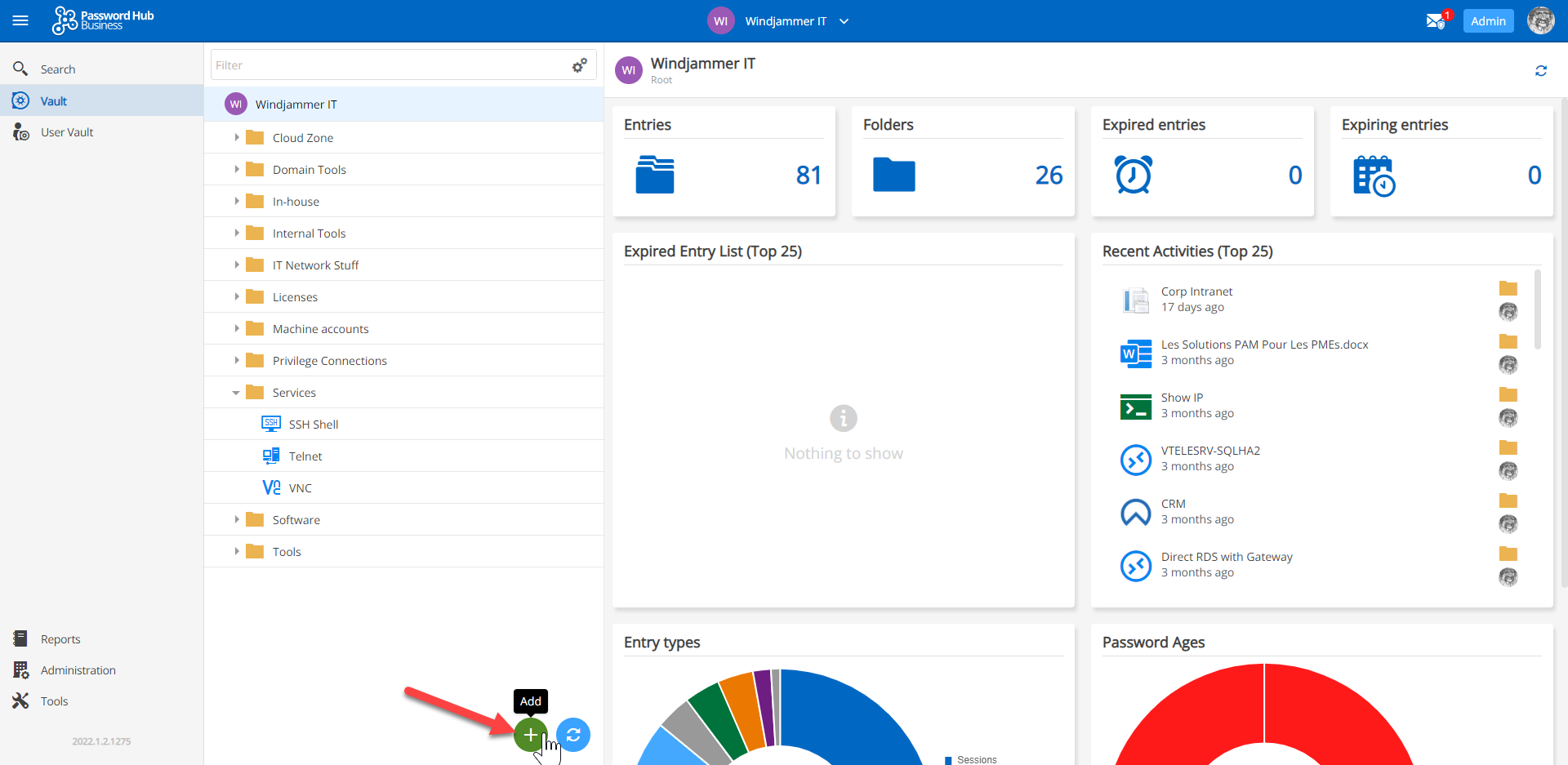
- Select the entry type.
- Add a name and value and click the drop-down arrow (located next to the Add button) to save it as a template.
Use an Entry Template
After creating a template, it is easy to create an entry from it. Here are the steps:
- Click the green + icon.
- Select Template from the side menu and choose the template you want to use.
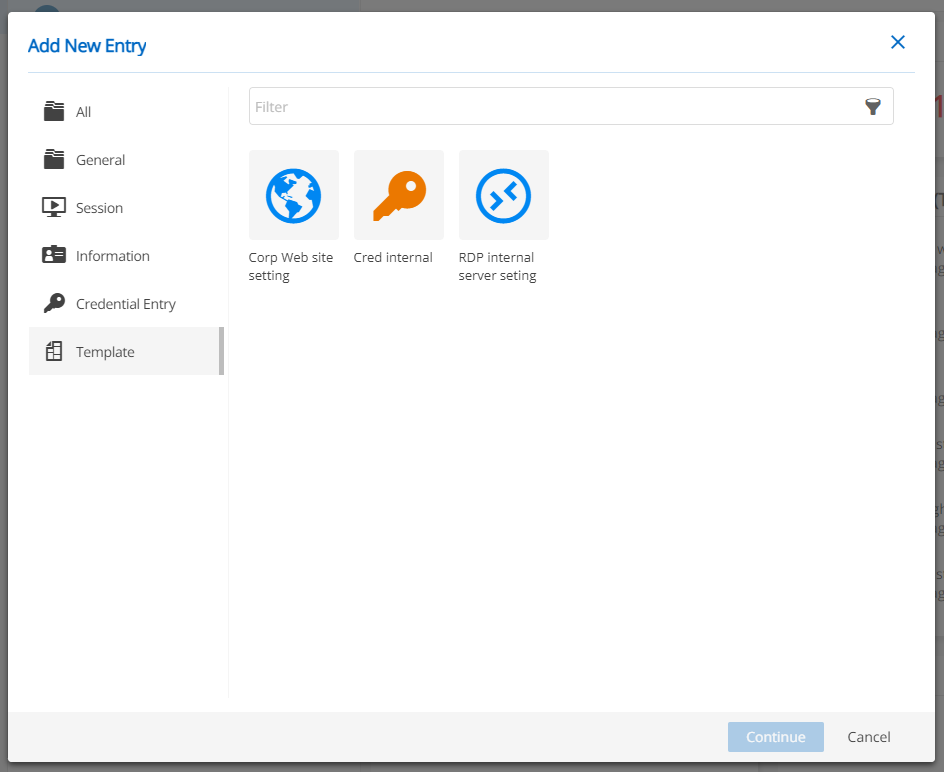
Before creating the entry from the template, you can edit or make any changes you want to the entry. Important: Please note that, for now, the entry templates can only be used or deleted. They are not editable in Devolutions Cloud. However, they can be edited in Remote Desktop Manager.
Manage and View Entry Templates
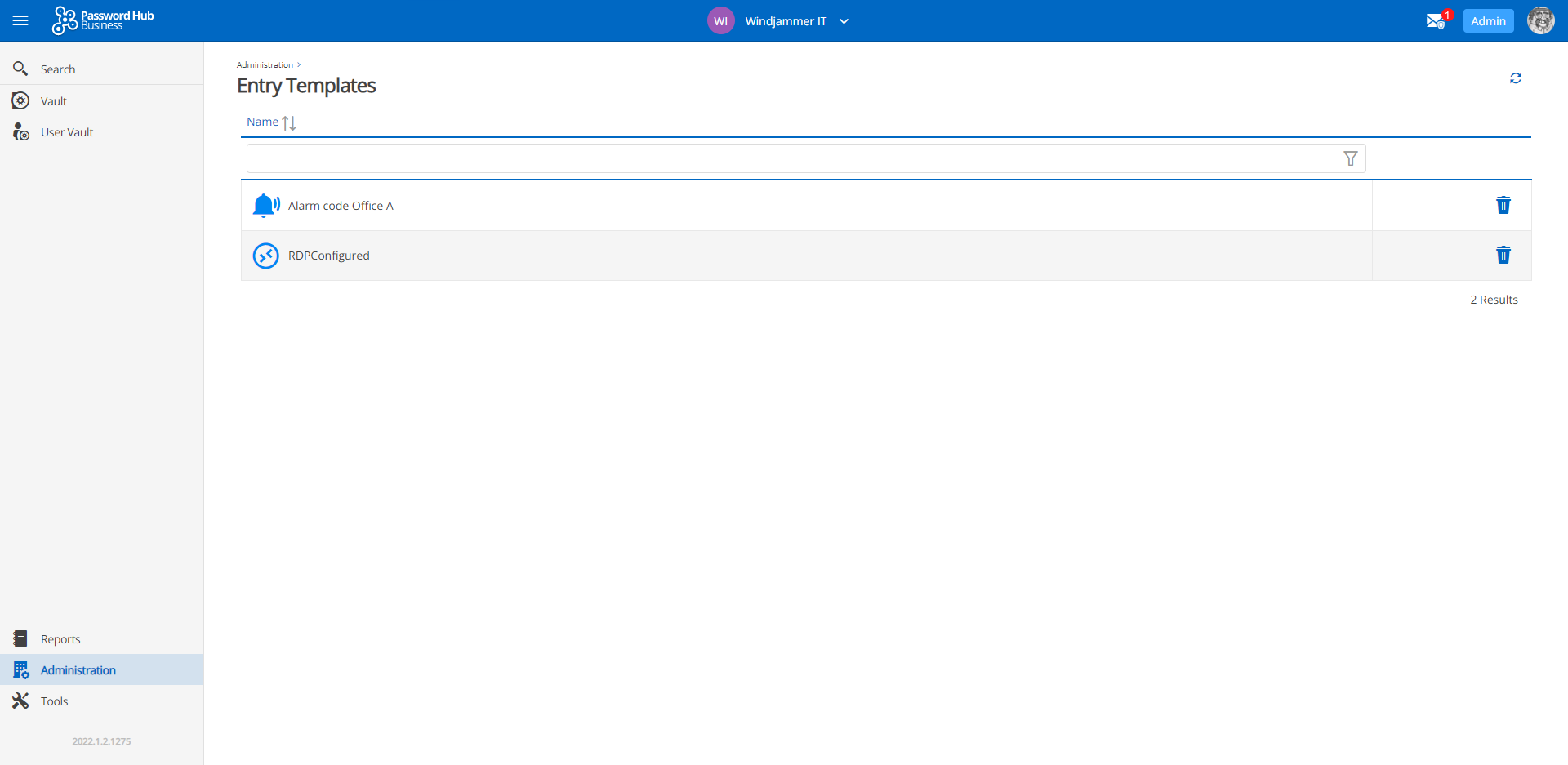
All the entry templates that are created in Devolutions Cloud, along with any entry templates that were created in Remote Desktop Manager, will appear in the Entry Templates list. This is accessible from the Administration Menu. Entry templates can also be deleted from this interface.
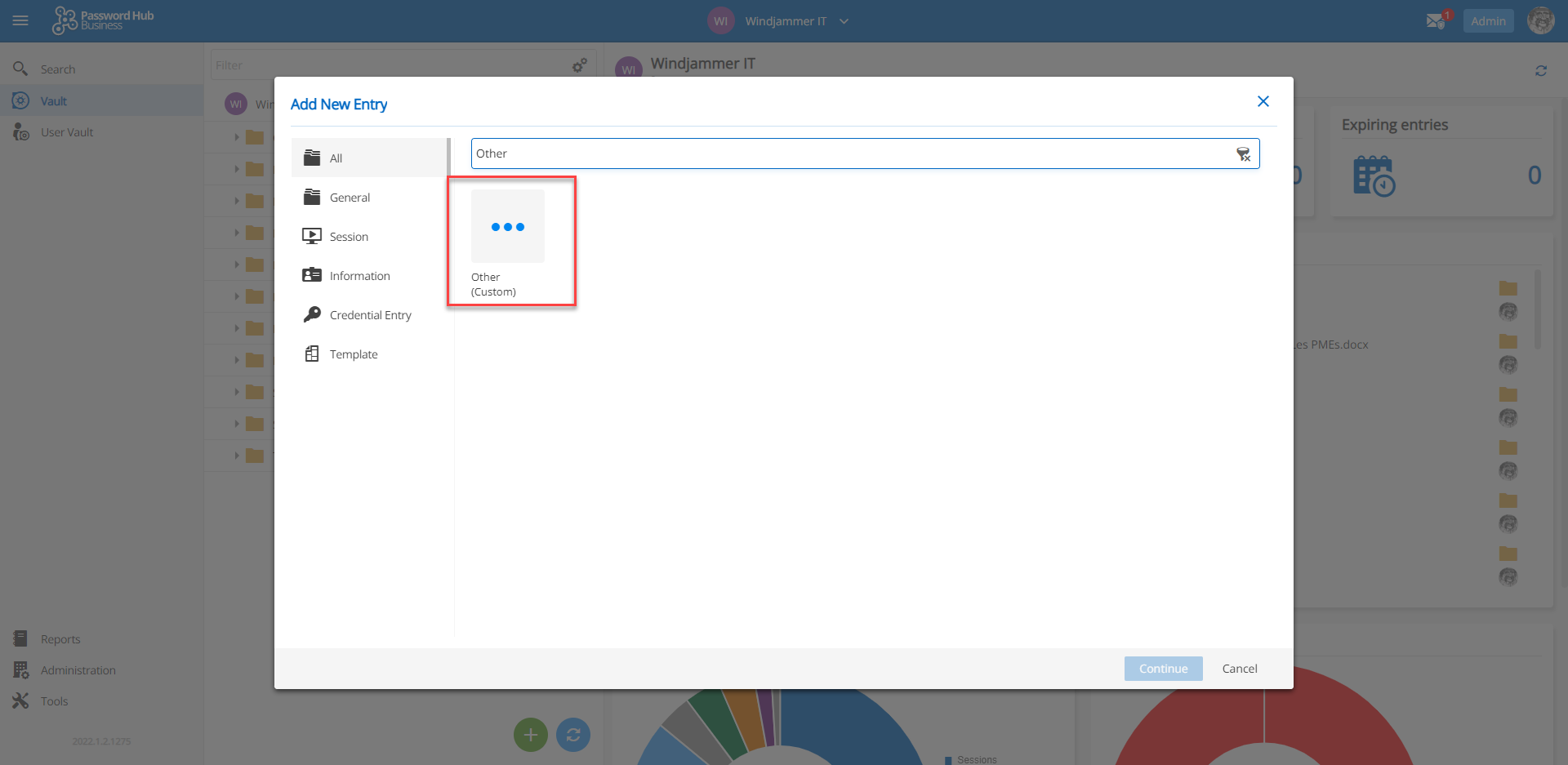
New Entry Type: Other
Sometimes, users have an entry type that does not fit into a conventional category. Well, now they can put them into the new Other entry type, and add a customized name. Previously, the Other entry type was only available in Remote Desktop Manager.
New Copy Entry Shortcut
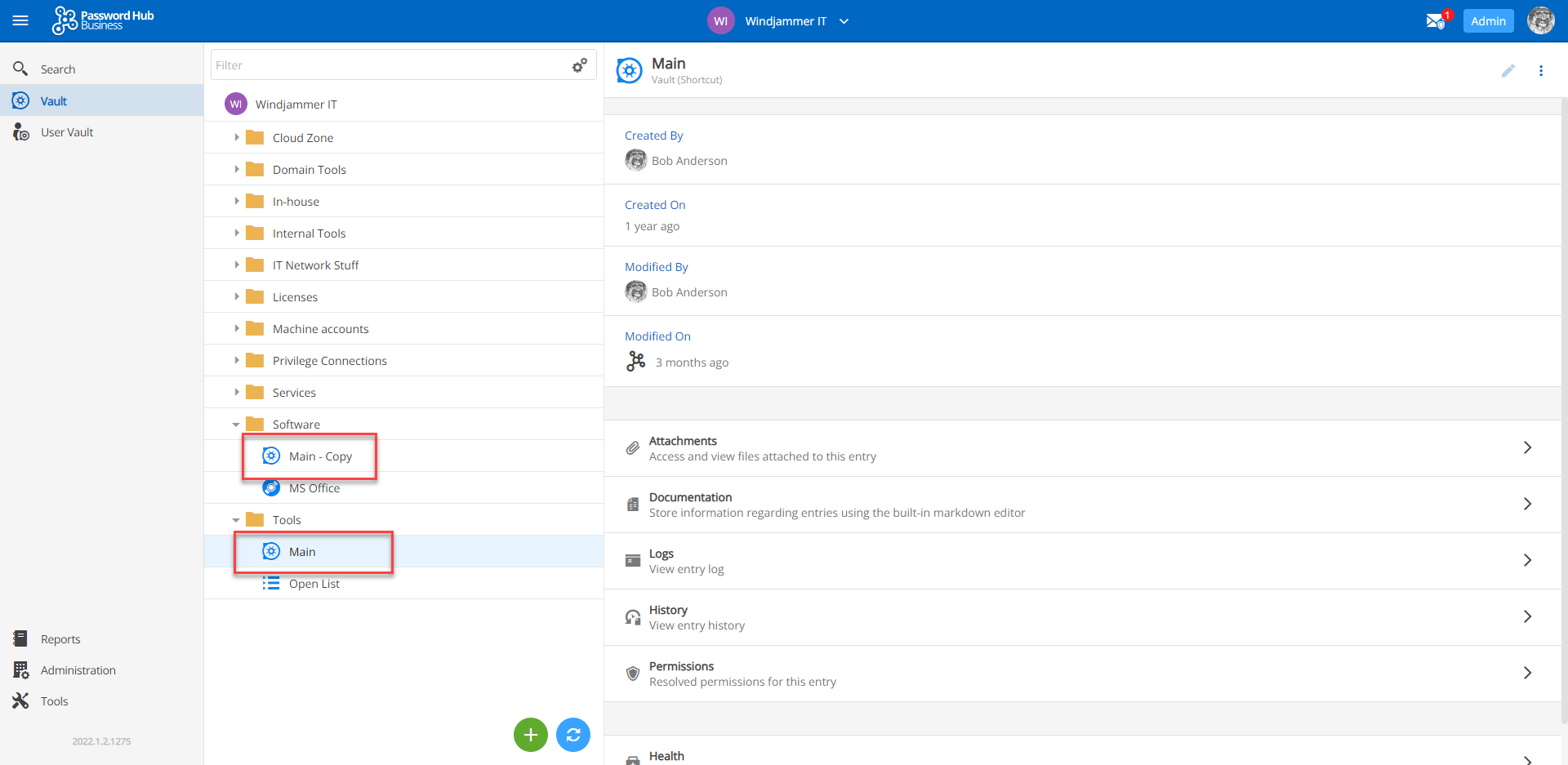
We have made it quicker and easier to copy an entry. Here are the steps:
Step 1: Press CTRL.
Step 2: Click on the entry to be copied.
Step 3: Drag the entry to the desired folder, and then unclick.
The entry will be instantly copied.
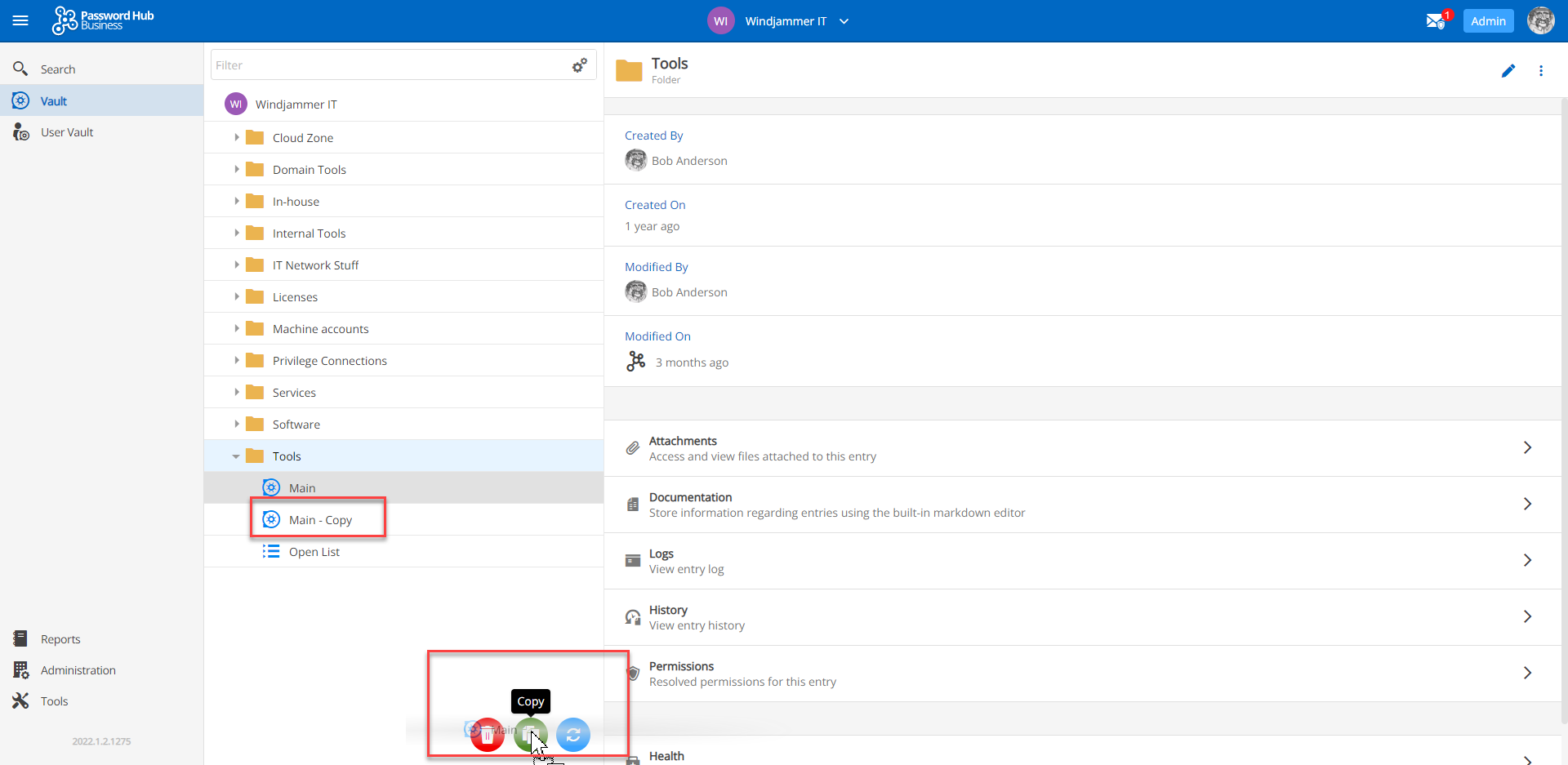
But what if users want to copy an entry to the SAME folder? That is easy as well: Just drag the entry over the green copy icon at the bottom of the page.
New Permission Levels
We recently introduced (in v2021.2) new permission levels in Devolutions Cloud. Here is a reminder of all the different permission possibilities:
- Vault Permissions: Give users access to an entire vault. It is also possible to quickly and easily see each pre-defined role and its respective permissions.
- Entry Permissions: Add user-specific permissions to an entry or folder inside a vault.
- (NEW in 2022.1) System Vault Permissions: This gives permissions to users or groups on all vaults at the same time, so that Admins do not have to do this manually. It applies to all current vaults, as well as new ones.
To see the impact of this new layer of security, we have updated the “Vaults Permissions” report that shows the vault permissions that are assigned to each user. To access this report, click the Report button, and then Vaults Permissions.
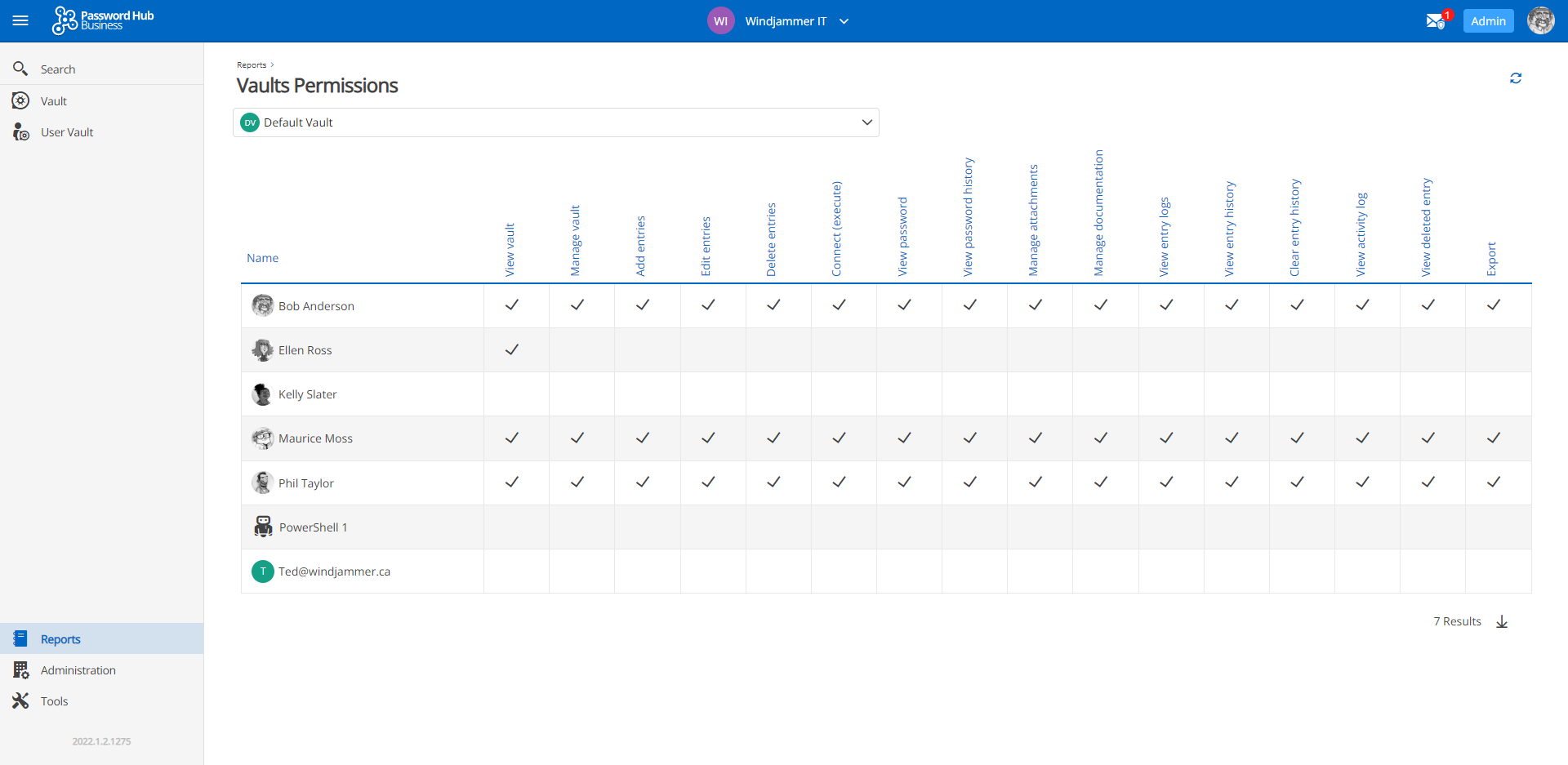
New Users Permissions Report
You can also access the “Users Permissions” report, in order to quickly see all the permission levels for individual users.
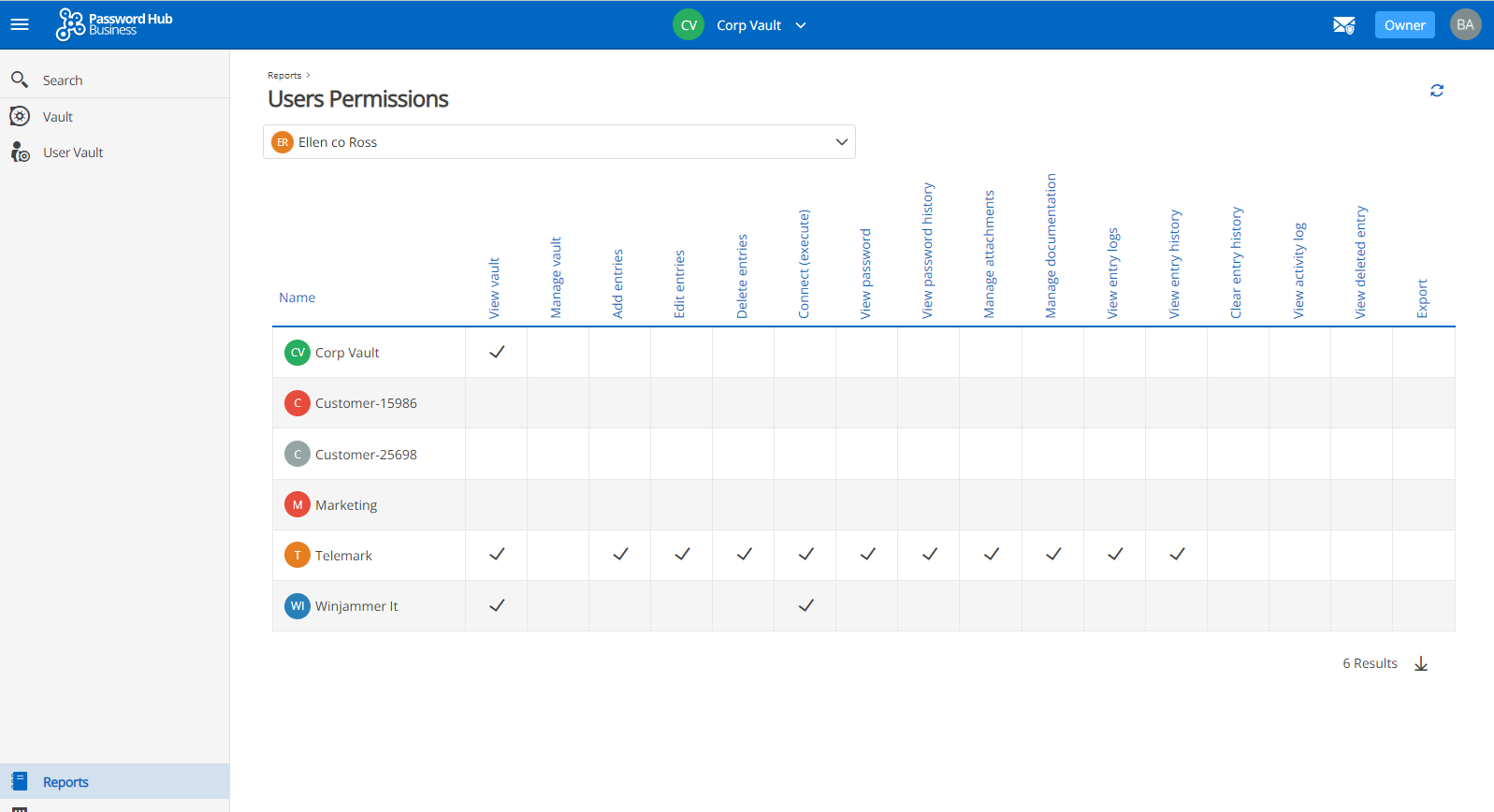
Note: User-specific permissions on entries will not appear in either the Vaults Permissions or Users Permissions reports.
Tell Us What You Think
Please tell us what you think of Devolutions Cloud 2022.1. Share what you like, what you don’t, and what you would like us to improve and change in future releases. The majority of enhancements we make are based on feedback from the most important people in our professional lives: YOU, our global community of IT pros.
You can share your thoughts, experience, and advice by commenting below, posting in our forum, or contacting our Support Team. We are always listening to you!