











 Adam Driscoll
In this post, we’ll walk through creating a password reset form for Azure Entra ID using Microsoft Graph and PowerShell Universal. We’ll use the Microsoft.Graph.Authentication and Microsoft.Graph.Users modules to connect to Graph as the current user and reset another user’s password.
Azure Entra ID configuration
The first step is to set up an Azure Entra ID app registration for PowerShell Universal. This will allow users to log in using OpenID Connect and their Entra ID credentials. We’ll also configure the API permissions to provide access to Microsoft Graph.
In the app registration, set the callback path to point to the PowerShell Universal server. HTTPS is required; the port can be whatever PowerShell Universal is listening on. Include a sign-in callback path. You will configure the same value in PowerShell Universal.
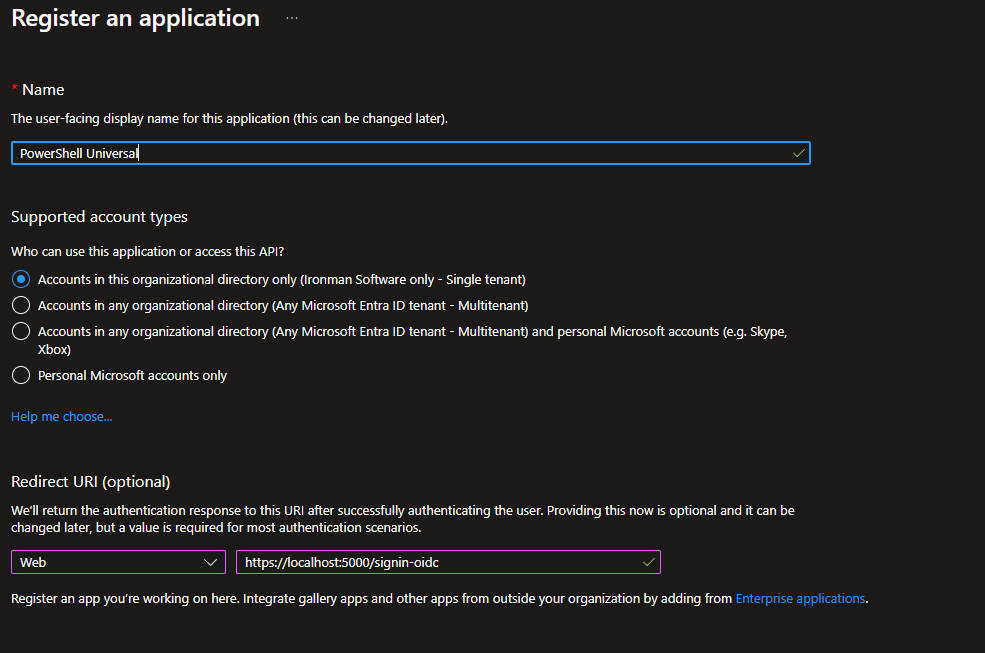
Next, ensure the following token types are selected.

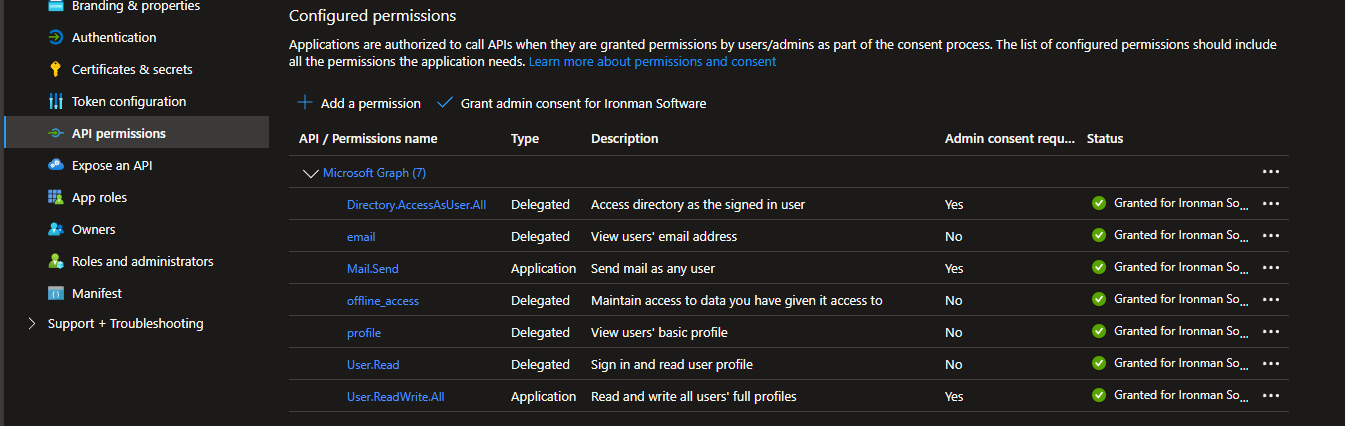
Now set up the permissions that you will delegate to the application and the user logging in. These permissions are required to look up users and reset their accounts. The Directory.AccessAsUser.All permission is required to set another user’s password. It cannot be granted to an application and needs to be provided via delegation. Users in the Global Administrator group have this permission.
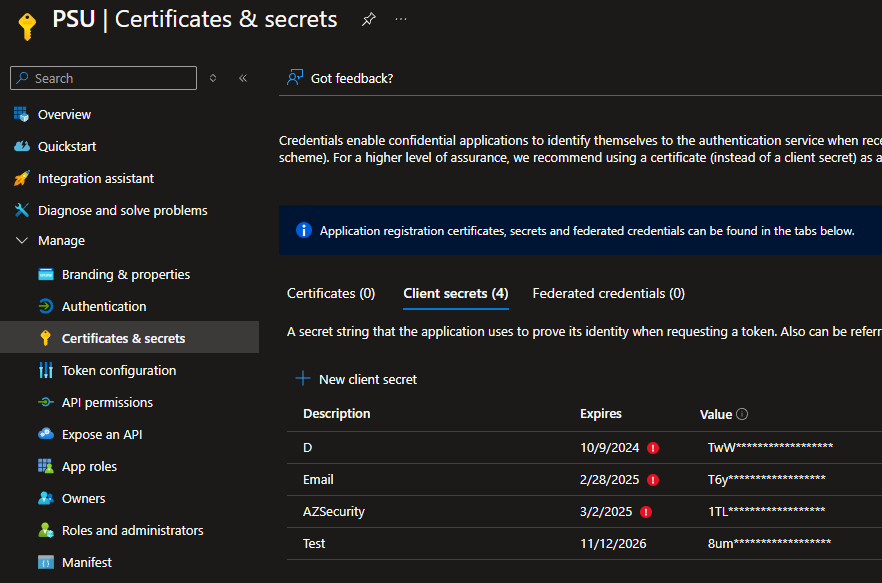
Finally, generate a new client secret for use in PowerShell Universal.
Configure authentication in PowerShell Universal
Now that the app registration is in Entra ID, configure PowerShell Universal to authenticate as the user and provide an access token to Microsoft Graph. Click Security > Authentication and add OpenID Connect to the list of methods. In the properties, connect the app registration to PowerShell Universal.
You will need to specify the following values. These are sample values; yours will be different according to your tenant:
- Callback Path:
https://localhost:5001/signin-oidc. This is the same URL you provided in your app registration. - Client ID:
21a267e2-893d-4e0d-a85e-ff21757f082b. The ID of the app registration, on the Overview page. - Client Secret:
xyz123. The client secret you generated in the app registration. - Authority:
https://login.microsoftonline.com/3eca8ff3-f62f-431b-88f5-b40183116004. The Microsoft Entra ID login service. The GUID is your tenant ID. - Resource:
https://graph.microsoft.com. The resource the access token should provide access to. - Save Tokens:
true. PowerShell Universal should save the access token so the app can use it. - Response Type:
id_token token. Entra ID should return tokens so you can delegate access later. - Scope:
openid profile groups offline_access. The access tokens should include group membership and profile info.
Once you have completed configuration, you will be able to log in to PowerShell Universal with OpenID Connect. To validate this, log out of your account and click the login with OpenID Connect button.
Install Microsoft Graph modules
You will need to install the following Graph modules to use this example. The versions used here are included below.
Microsoft.Graph.Authentication2.26.1Microsoft.Graph.Users2.26.1
You can do so by navigating to Platform > Modules > Galleries within the admin console. We used the following PowerShell Universal version for this demo.
- PowerShell Universal 5.5.0
Password reset app
Now that authentication is configured, we can create the password reset app. First, store some variables to access Microsoft Graph via the app registration. Navigate to Platform > Variables and create the following variables.
- PSUMgTenantId:
3eca8ff3-f62f-431b-88f5-b40183116004. The same tenant ID as in the OIDC configuration. - PSUMgClientSecret: a PS Credential whose user name is the app registration ID (
21a267e2-893d-4e0d-a85e-ff21757f082b) and whose password is the client secret.
Once these variables have been created, navigate to Apps > Apps and create a new app. Click Edit Code to define the app’s contents.
# Connect as the application. Use the process context scope to avoid affecting other apps.
# We are passing in the tenant ID and client secret.
# We are connecting when the app is starting to avoid connecting every time the page is loaded.
Connect-MgGraph -TenantId $PSUMgTenantId -ClientSecretCredential $Secret:PSUMgClientSecret -ContextScope Process -NoWelcome

New-UDApp -Content {

    New-UDForm -Children {
        New-UDAutocomplete -OnLoadOptions {
            Get-MgUser -ConsistencyLevel eventual -Count userCount -Search "`"DisplayName:$Body`"" | ForEach-Object {
                New-UDAutocompleteOption -Name $_.DisplayName -Value $_.Id
            }
        } -Label "User" -Id 'UserId'
        New-UDTextbox -Label 'Password' -Type password -Id 'Password'
        New-UDTextbox -Label 'Confirm Password' -Type password -Id 'ConfirmPassword'
    } -OnValidate {
        if ([string]::IsNullOrEmpty($EventData.UserId)) {
            New-UDValidationResult -ValidationError "User is required"
            return
        }

        if ([string]::IsNullOrEmpty($EventData.Password) -or [string]::IsNullOrEmpty($EventData.ConfirmPassword)) {
            New-UDValidationResult -ValidationError "Password is required"
            return
        }

        if ($EventData.Password -cne $EventData.ConfirmPassword) {
            New-UDValidationResult -ValidationError "Passwords do not match"
            return
        }

        $MgUser = Get-MgUser -UserId $EventData.UserId
        if ($MgUser -eq $null) {
            New-UDValidationResult -ValidationError "Unable to locate user."
            return
        }

        New-UDValidationResult -Valid
    } -OnSubmit {

        if ($AccessToken -eq $null) {
            throw "Access Token is required. Ensure you have Save Tokens enabled in your OpenID Connect authentication method."
        }

        Set-PSUCache -Key "MgAccessToken_$User" -Value $AccessToken

        $PasswordKey = (New-Guid).ToString()
        Set-PSUCache -Key $PasswordKey -Value $EventData.Password -AbsoluteExpiration (Get-Date).AddMinutes(5)

        Invoke-PSUScript -Name 'MgResetPassword.ps1' -Parameters @{
            ResetUser = $EventData.UserId
            PasswordKey = $PasswordKey
        } -Wait -Integrated | Out-Null

        Show-UDSnackbar -Message "Password reset!" -Variant success
    }
}
The app connects to Graph as the application when it starts, using Connect-MgGraph and the process context scope so other apps are not affected. The form searches users with Get-MgUser, validates that the passwords match, then caches the signed-in user’s access token and the new password. Caching avoids storing the access token as plain text in the job history and uses the temporary cache so the values do not persist across restarts.
The form then calls MgResetPassword.ps1 with Invoke-PSUScript. A script isolates the Microsoft Graph connection so it is tied only to this user (several people can use the app at the same time) and gives you automatic job history of which operator reset which account.
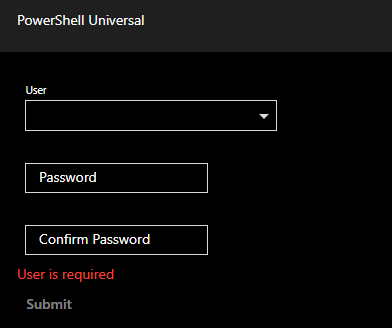
The resulting app looks like this.
Reset script
Now that the user interface is defined, set up the reset script that performs the actual operation. Click Automation > Scripts and create a new script. Name the script MgResetPassword.ps1. Click the Execution tab and set the Environment to PowerShell 7. Once created, click Edit Code and enter the following.
param($ResetUser, $PasswordKey)

try {
    $Password = Get-PSUCache -Key $PasswordKey
    if (-not $Password) {
        throw "Target password not found."
    }

    $AccessToken = Get-PSUCache -Key "MgAccessToken_$($UAJob.Identity.Name)"
    if (-not $AccessToken) {
        throw "Access token not found for $($UAJob.Identity.Name)"
    }

    Connect-MgGraph -AccessToken ($AccessToken | ConvertTo-SecureString -AsPlainText -Force) -NoWelcome

    $User = Get-MgUser -UserId $ResetUser

    if ($User -eq $null) {
        throw "Failed to look up user: $ResetUser"
    }

    $password = @{
        Password = $Password
        ForceChangePasswordNextSignIn = $false
    }
    Update-MgUser -UserId $User.Id -PasswordProfile $password
} finally {
    Remove-PSUCache -Key $PasswordKey
}
The script reads the password and the current operator’s access token from the cache, connects to Graph with that token, looks the target user up, then calls Update-MgUser with a password profile. It then removes the password from the cache.
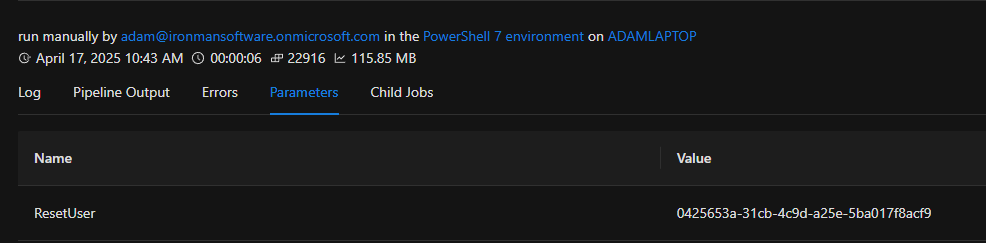
With the script created, try the app. You will need to log in as a user with the proper Entra ID permissions to perform these operations. After clicking submit on the form, you will see a success notification and a new job in the job history.
Ready to build? Download PowerShell Universal.