











 Adam Driscoll
PowerShell Universal is a platform for building custom, web-based tools with PowerShell. One of its strengths is the ability to build web forms for your PowerShell scripts. In this post, we’ll look at three ways to do this.
Automatic web forms with script parameters
PowerShell Universal can run ad-hoc scripts from the admin console. The platform parses the basic parameters in a script’s param block and presents a form based on those parameter types.
Creating a form with a param block
First, create a script. Click Automation > Scripts, then Create New Script. To create a basic form, specify a param block like you would in any PowerShell script. In the example below, we use several parameter types:
param(
    $String,
    [string]$String2,
    [string[]]$StringArray,
    [DateTime]$DateTime,
    [bool]$Switch,
    [int]$Number,
    [Switch]$Switch2,
    [System.DayOfWeek]$DayOfWeek
)

$String
$String2
$StringArray
$DateTime
$Switch
$Number
$Switch2
$DayOfWeek
When you click Run, you get a form with fields for each parameter.
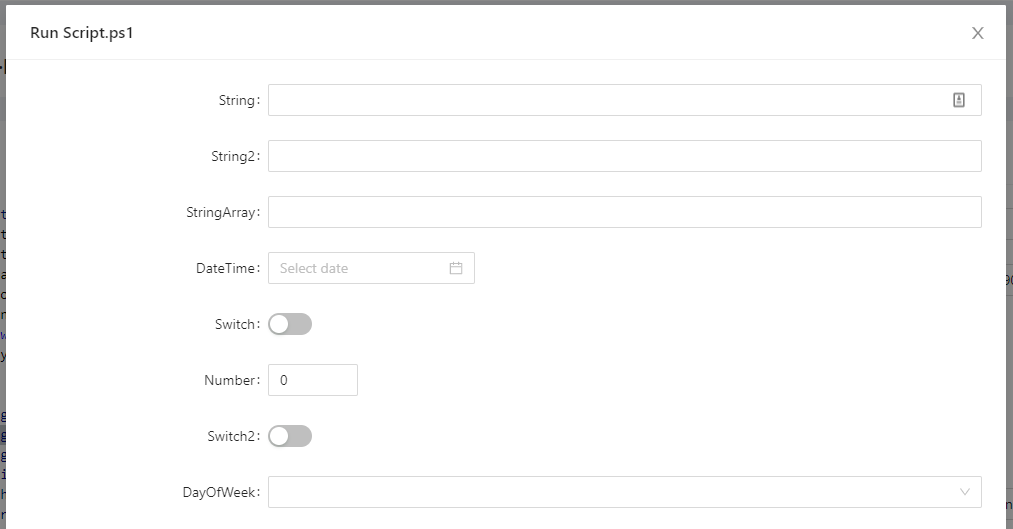
Once you run the script, you see the output for each parameter in the Output pane.
Help text
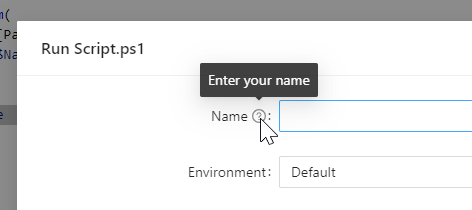
You can include help text in your forms with the HelpMessage property of ParameterAttribute:
param(
    [Parameter(HelpMessage = 'Enter your name')]
    $Name
)

$Name
Hover over the tooltip and the help message appears.
Required parameters
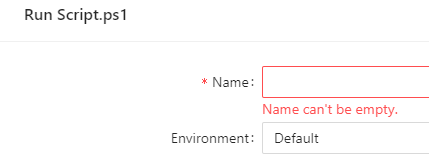
Mark required parameters with the Mandatory property of ParameterAttribute:
param(
    [Parameter(Mandatory)]
    $Name
)

$Name
Required parameters must be filled in before the script can run.
Simple web forms in pages
Pages give you more control over the user experience. A form on a page runs a script or API after the user enters their information.
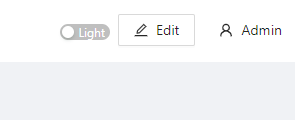
To create a page, click User Interfaces > Pages, then Create New Page. View the page and click Edit in the top right.
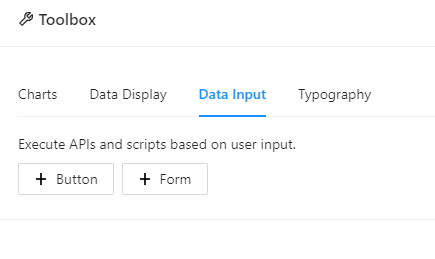
Next, open Toolbox and go to the Data Input tab.
Resize and reposition the form by dragging the bottom-right corner or the middle of the component. Click the blue edit button in the top right to change the form properties. The first setting to configure is the script to run. Each field the user fills in is passed as a parameter to that script.
Next, define the fields for your page. There are 10 field types to choose from, including text boxes, check boxes, and selects.
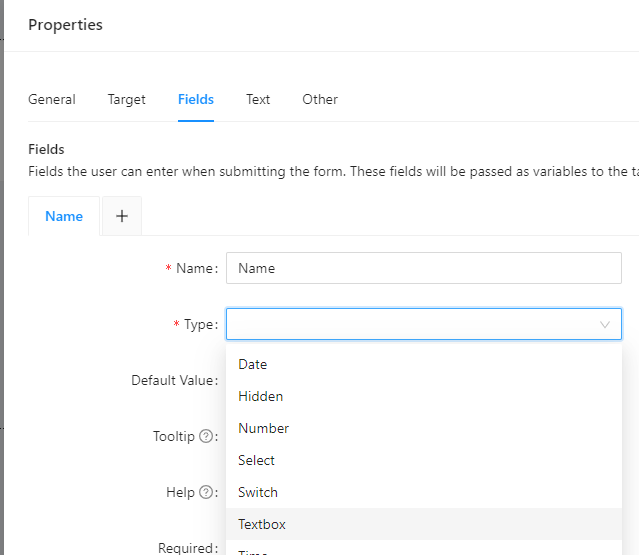
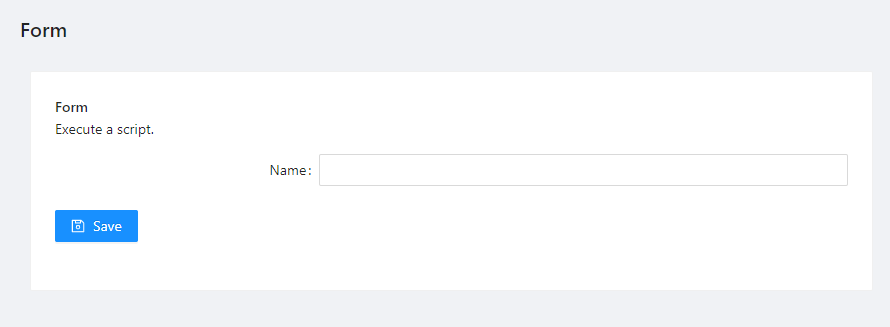
Once you’ve defined your fields, save the form and then save the page. The resulting page contains the form. Users can enter data and the script is called.
Complex, dynamic forms in dashboards
Dashboards let you build complex, dynamic websites (including forms) with PowerShell. The Universal Dashboard framework provides over 70 controls for interactive sites. You can use the input and form controls to build more advanced forms.
To create a new dashboard, click User Interfaces > Dashboards, then Create New Dashboard. Once it exists, click the details button. You’ll see the code editor for the interface contents.
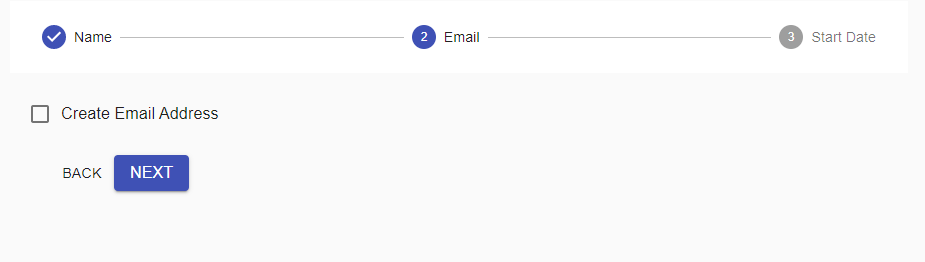
The example below is a multi-step form with several pages of input controls. With a stepper, you can validate input, adjust steps based on user data, and call any PowerShell cmdlet when the form is submitted:
New-UDStepper -Steps {
    New-UDStep -OnLoad {
        New-UDTextbox -Id 'firstName' -Label "First Name" -Value $EventData.Context.firstName
        New-UDTextbox -Id 'lastName' -Label "Last Name" -Value $EventData.Context.lastName
    } -Label "Name"
    New-UDStep -OnLoad {
        New-UDCheckbox -Id 'email' -Label 'Create Email Address'
    } -Label "Email"
    New-UDStep -OnLoad {
        New-UDDatePicker -Id 'startDate' -Label 'Specify a start date for this employee'
    } -Label "Start Date"
} -OnFinish {
    New-UDTypography -Text 'User has been created!' -Variant h3
    New-UDElement -Tag 'div' -Id 'result' -Content {$Body}
}
The resulting dashboard shows a single page with the stepper. As you move through the steps, data is collected and displayed at the end.
Try it yourself
You can use the Developer edition for free. Ready to build? Download PowerShell Universal.