












 Adam Driscoll
As part of our PowerShell Universal v5 release, we are adding some custom PSScriptAnalyzer rules to the platform to make it easier to spot problems when building scripts. In this post, we’ll walk through how to create custom PSScriptAnalyzer rules.
PSScriptAnalyzer
PSScriptAnalyzer is a static code analysis tool for PowerShell scripts. It checks the quality of the code based on a set of rules. The built-in rules check all kinds of things like alias usage, spaces at the ends of lines, $null checks, and more. When using editors like VS Code, PSScriptAnalyzer runs in the background to provide real-time feedback on your scripts.
Internally, the PowerShell extension is running Invoke-ScriptAnalyzer to provide this feedback. You can run this command yourself to see the results of the analysis. Running with just the path will run all the default rules.
Invoke-ScriptAnalyzer -Path .\MyScript.ps1You can also exclude rules using parameters on the cmdlet.
Invoke-ScriptAnalyzer -Path .\MyScript.ps1 -ExcludeRule PSAvoidUsingCmdletAliasesTo customize PSScriptAnalyzer behavior without modifying the command line, you can also use a configuration file. This file covers the same options as the different parameters on Invoke-ScriptAnalyzer.
# PSScriptAnalyzerSettings.psd1
@{
    Severity=@('Error','Warning')
    ExcludeRules=@('PSAvoidUsingCmdletAliases', 'PSAvoidUsingWriteHost')
}
You can use script analyzer settings files by passing the -Settings parameter to Invoke-ScriptAnalyzer.
Invoke-ScriptAnalyzer -Path MyScript.ps1 -Settings PSScriptAnalyzerSettings.psd1You can also use this settings file with VS Code by setting PowerShell > Script Analysis: Settings Path to PSScriptAnalyzerSettings.psd1.

Custom rules
Custom rules are defined using PowerShell modules. They can accept a list of tokens or an abstract syntax tree (AST) and return diagnostic records. For example, in PowerShell Universal, we have a rule that checks for the use of built-in variables like $PSUEnvironment or $UniversalClient. Assigning those variables can cause undefined behavior, so we want users to know up front when they try to override them.
The first step is to create a new .psm1 module file and define a function that will analyze the script. In this example, we’ve chosen Universal.Rules.psm1 as the file name and defined the Measure-PSUBuiltInVariables function. Comment-based help is required, and there are some specific details of this function that should be noted.
First, you need to include the OutputType attribute to specify the type of object that the function will return. In this case, it will return an array of Microsoft.Windows.PowerShell.ScriptAnalyzer.Generic.DiagnosticRecord objects. You also need to accept a ScriptBlockAst object as a parameter. This object represents the script block of the script that is being analyzed.
<#
.SYNOPSIS
    Locates built-in PowerShell Universal variables
.DESCRIPTION
    Checks to make sure that built-in PowerShell Universal variables are not being used in the script.
.EXAMPLE
    Measure-PSUBuiltInVariables -ScriptBlockAst $ScriptBlockAst
.INPUTS
    [System.Management.Automation.Language.ScriptBlockAst]
.OUTPUTS
    [Microsoft.Windows.PowerShell.ScriptAnalyzer.Generic.DiagnosticRecord[]]
.NOTES
    None
#>
function Measure-PSUBuiltInVariables {
    [CmdletBinding()]
    [OutputType([Microsoft.Windows.PowerShell.ScriptAnalyzer.Generic.DiagnosticRecord[]])]
    Param
    (
        [Parameter(Mandatory = $true)]
        [ValidateNotNullOrEmpty()]
        [System.Management.Automation.Language.ScriptBlockAst]
        $ScriptBlockAst
    )
The body of this function does the heavy lifting of analyzing the script block. In our example, we check the AST to find assignment statements. If we find assignment statements, we then check to see if the left side of the assignment is a variable. If that’s the case, we then use a static method to verify whether it’s one of the built-in variables in PowerShell Universal.
If the conditions are met, we create new DiagnosticRecord objects and populate the necessary information. $_.Extent is important because it tells editors, like VS Code or Monaco, what part of the script to highlight with the warning or error.
    Process {
        $results = @()

        try {
            #region Define predicates to find ASTs.
            [ScriptBlock]$predicate1 = {
                param ([System.Management.Automation.Language.Ast]$Ast)

                if ($Ast -is [System.Management.Automation.Language.AssignmentStatementAst]) {
                    if ($Ast.Left -is [System.Management.Automation.Language.VariableExpressionAst]) {
                        return [PowerShellUniversal.BuiltInVariables]::IsBuiltInVariable($Ast.Left.VariablePath.UserPath)
                    }
                }

                return $false
            }

            #endregion

            #region Finds ASTs that match the predicate.

            [System.Management.Automation.Language.Ast[]]$methodAst = $ScriptBlockAst.FindAll($predicate1, $true)

            $methodAst | ForEach-Object {
                $result = New-Object `
                    -Typename "Microsoft.Windows.PowerShell.ScriptAnalyzer.Generic.DiagnosticRecord" `
                    -ArgumentList "Overriding built in PowerShell Universal variables can cause undefined behavior.", $_.Extent, $PSCmdlet.MyInvocation.InvocationName, Warning, $null
                $results += $result
            }

            return $results

            #endregion
        }
        catch {
            $PSCmdlet.ThrowTerminatingError($PSItem)
        }
    }
Finally, we make sure to export the function from our module.
Export-ModuleMember -Function Measure-PSUBuiltInVariablesInside PowerShell Universal, we use Invoke-ScriptAnalyzer to run code analysis. As you type in the editor, this function is called to provide real-time feedback. To use our custom rule, we pass the -CustomRulePath parameter to Invoke-ScriptAnalyzer.
Invoke-ScriptAnalyzer -ScriptDefinition $code -CustomRulePath $InstallDir\Modules\Universal.Rules\Universal.Rules.psm1 -IncludeDefaultRulesWe then process the output of PSScriptAnalyzer to provide feedback to the user.
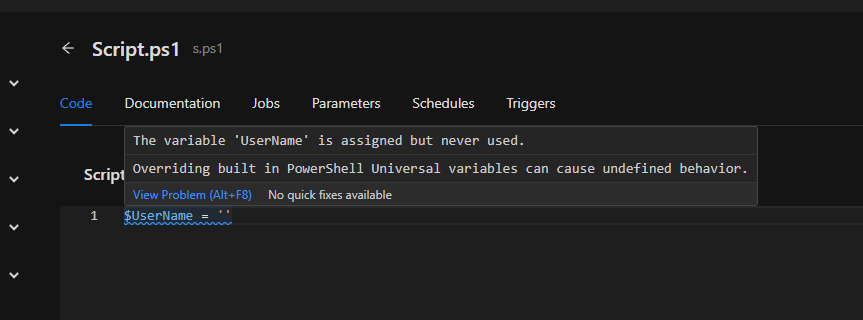
Have some ideas for custom rules for PowerShell Universal? Let us know.
Ready to build? Download PowerShell Universal.