












 Adam Driscoll
In this post, we’ll look at how to use dynamic parameters in PowerShell Universal to provide a form that adapts to your user’s input.
What are dynamic parameters?
Dynamic parameters provide a way to add new parameters to a cmdlet or advanced function based on the current parameters provided to it. For example, if the user specifies that the value of an -AuthenticationType parameter is Credential, you could then add a new -Credential parameter to the cmdlet. While this typically may be better achieved with parameter sets, it may be necessary to provide a bit more logic when deciding which parameters to display.
Disadvantages of dynamic parameters are typically that they are less discoverable than static ones because they are only surfaced at runtime.
Below is an example of dynamic parameters in a PowerShell script. Dynamic parameters require manually defining each aspect of the parameter. This includes the attributes, type, and name, then adding them all to a dictionary to return from the DynamicParam block.
[CmdletBinding()]
param(
    [ValidateSet("Credential", "AppToken")]
    [string]$AuthenticationType
)

DynamicParam {
    $paramAttributes = [System.Management.Automation.ParameterAttribute]::new()
    $paramAttributes.Mandatory = $true
    $paramAttributesCollect = New-Object -Type System.Collections.ObjectModel.Collection[System.Attribute]
    $paramAttributesCollect.Add($paramAttributes)
    $paramDictionary = [System.Management.Automation.RuntimeDefinedParameterDictionary]::new()

    if ($AuthenticationType -eq 'Credential') {
        $dynParam1 = [System.Management.Automation.RuntimeDefinedParameter]::new("Credential", [PSCredential], $paramAttributesCollect)
        $paramDictionary.Add("Credential", $dynParam1)
    }

    if ($AuthenticationType -eq 'AppToken') {
        $dynParam1 = [System.Management.Automation.RuntimeDefinedParameter]::new("AppToken", [SecureString], $paramAttributesCollect)
        $paramDictionary.Add("AppToken", $dynParam1)
    }

    return $paramDictionary
}
Dynamic forms in PowerShell Universal
PowerShell Universal supports inspecting scripts that define dynamic parameters. This provides the ability to create dynamic forms for your users to take advantage of. They won’t even know you are using PowerShell behind the scenes.
In this example, we will define a script that uses a more complex dynamic parameter setup. We will have a division and system select list, and they will decide whether one or more components will be displayed based on their values.
First, we define the static parameters. Each is a set of possible values in our fake organization.
param(
    [ValidateSet("Sales", "HR", "Development")]
    [string]$Division,
    [ValidateSet("Entra ID", "Exchange", "Azure DevOps")]
    [string]$System
)
Next, we will define a DynamicParam block and set up the basic structure for dynamic parameters.
DynamicParam {
    $paramAttributes = [System.Management.Automation.ParameterAttribute]::new()
    $paramAttributesCollect = New-Object -Type System.Collections.ObjectModel.Collection[System.Attribute]
    $paramAttributesCollect.Add($paramAttributes)
    $paramDictionary = [System.Management.Automation.RuntimeDefinedParameterDictionary]::new()
    return $paramDictionary
}
The resulting script displays a form with the two drop-downs.
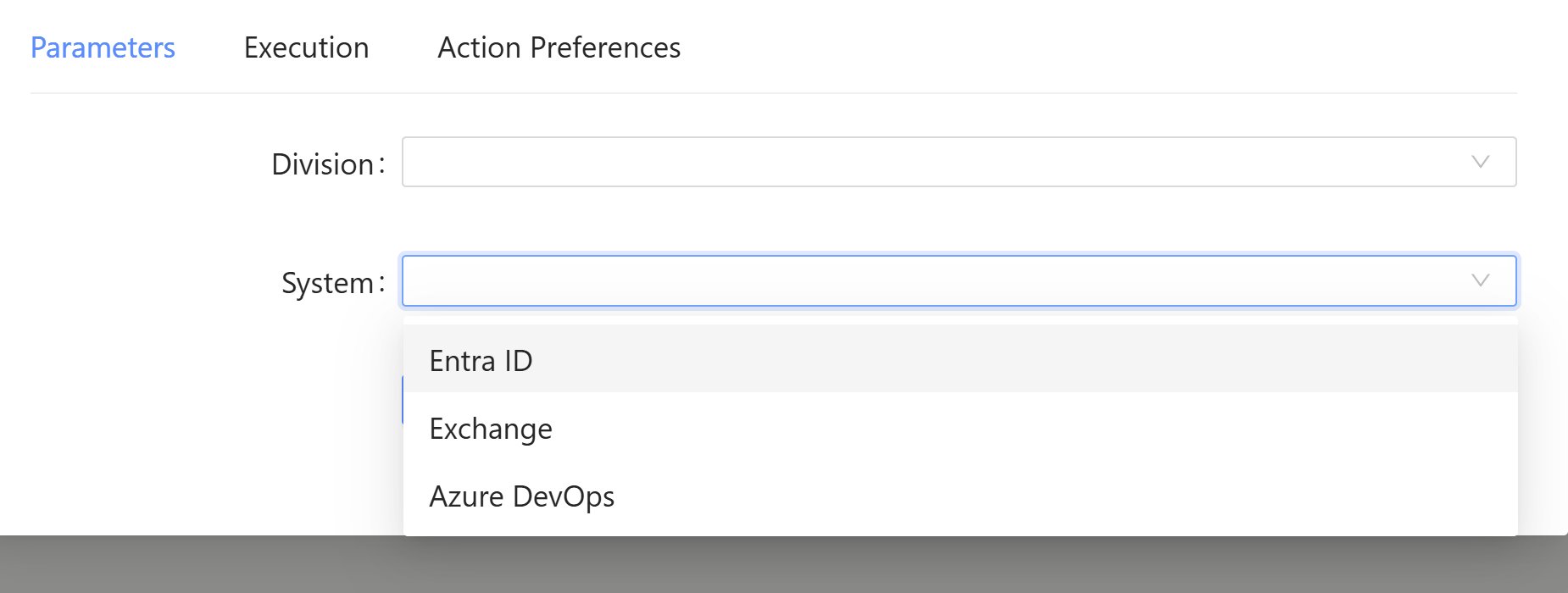
First, we’ll add some logic to determine what happens when a division is selected. In our fake company, our divisions are spread across some locations and will display another drop-down with possible values for each division.
Based on the division selected, we will decide which locations are available and assign a ValidateSetAttribute to enforce some possible values.
$paramAttributes = [System.Management.Automation.ParameterAttribute]::new()
$paramAttributes.Mandatory = $true

if ($Division -eq 'Sales') {
    $validateAttribute = [System.Management.Automation.ValidateSetAttribute]::new("Washington DC", "Phoenix", "Chicago")
} elseif ($Division -eq 'HR') {
    $validateAttribute = [System.Management.Automation.ValidateSetAttribute]::new("London", "Seattle", "Orlando")
} elseif ($Division -eq 'Development') {
    $validateAttribute = [System.Management.Automation.ValidateSetAttribute]::new("Madison", "Boise", "Denver")
}
We can then add a Location parameter to our runtime parameter collection.
$paramAttributesCollect = New-Object -Type System.Collections.ObjectModel.Collection[System.Attribute]
$paramAttributesCollect.Add($paramAttributes)
$paramAttributesCollect.Add($validateAttribute)

$dynParam1 = [System.Management.Automation.RuntimeDefinedParameter]::new("Location", [string], $paramAttributesCollect)
$paramDictionary = [System.Management.Automation.RuntimeDefinedParameterDictionary]::new()
$paramDictionary.Add("Location", $dynParam1)
The result is that our form now changes the values of the location drop-down based on the division that is selected.
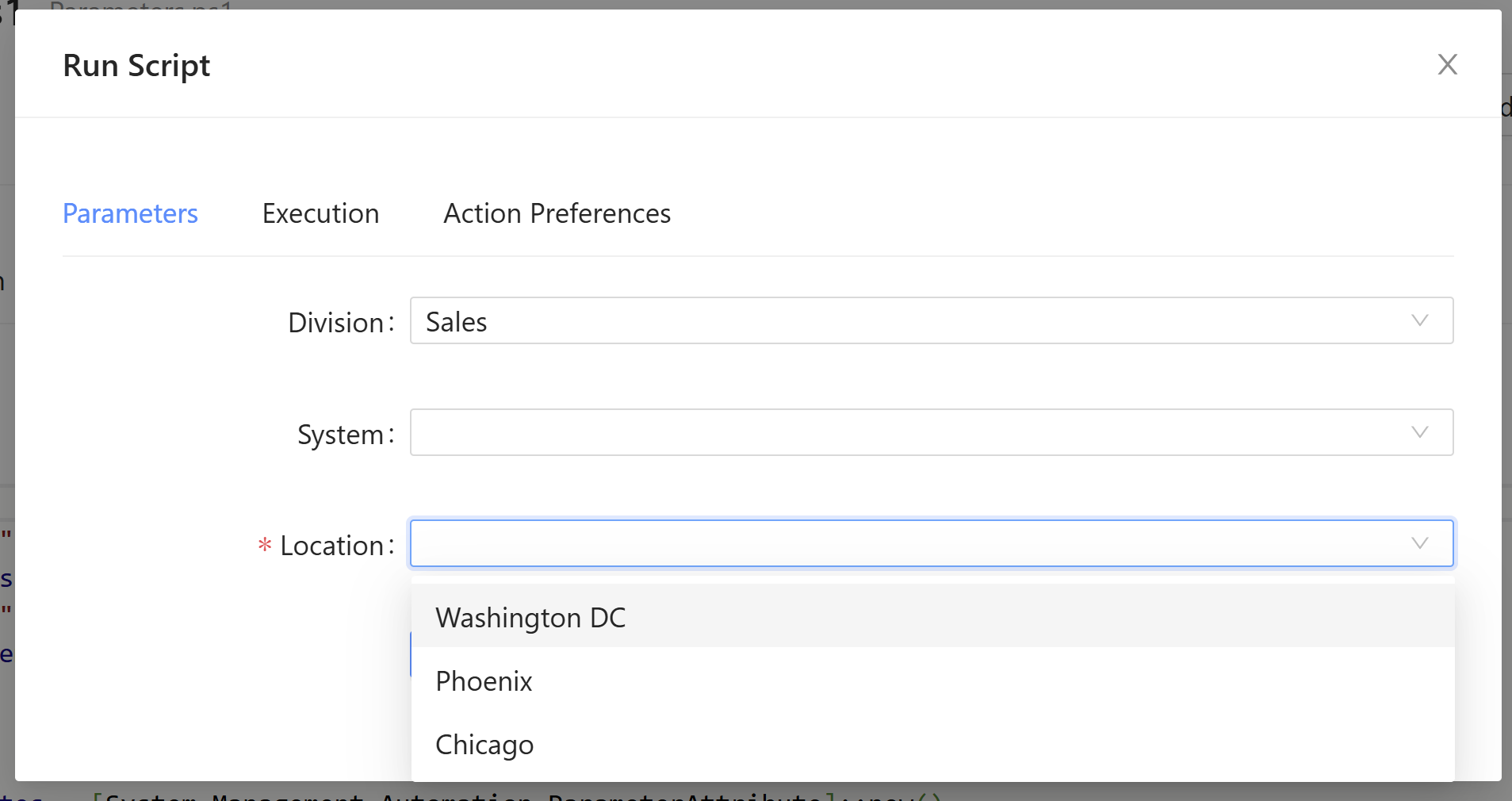
Finally, we’ll add some additional logic to check both the division and system parameters to add one more parameter to the form. We can use the same parameter dictionary and add our new parameter to it. This parameter is defined as a boolean rather than a string.
if ($Division -eq 'Development' -and $System -eq 'Azure DevOps') {
    $paramAttributes = [System.Management.Automation.ParameterAttribute]::new()
    $paramAttributesCollect = New-Object -Type System.Collections.ObjectModel.Collection[System.Attribute]
    $paramAttributesCollect.Add($paramAttributes)
    $dynParam2 = [System.Management.Automation.RuntimeDefinedParameter]::new("RunPipeline", [bool], $paramAttributesCollect)
    $paramDictionary.Add("RunPipeline", $dynParam2)
}
The result is our form now adapts to changes in both the division and system parameters.
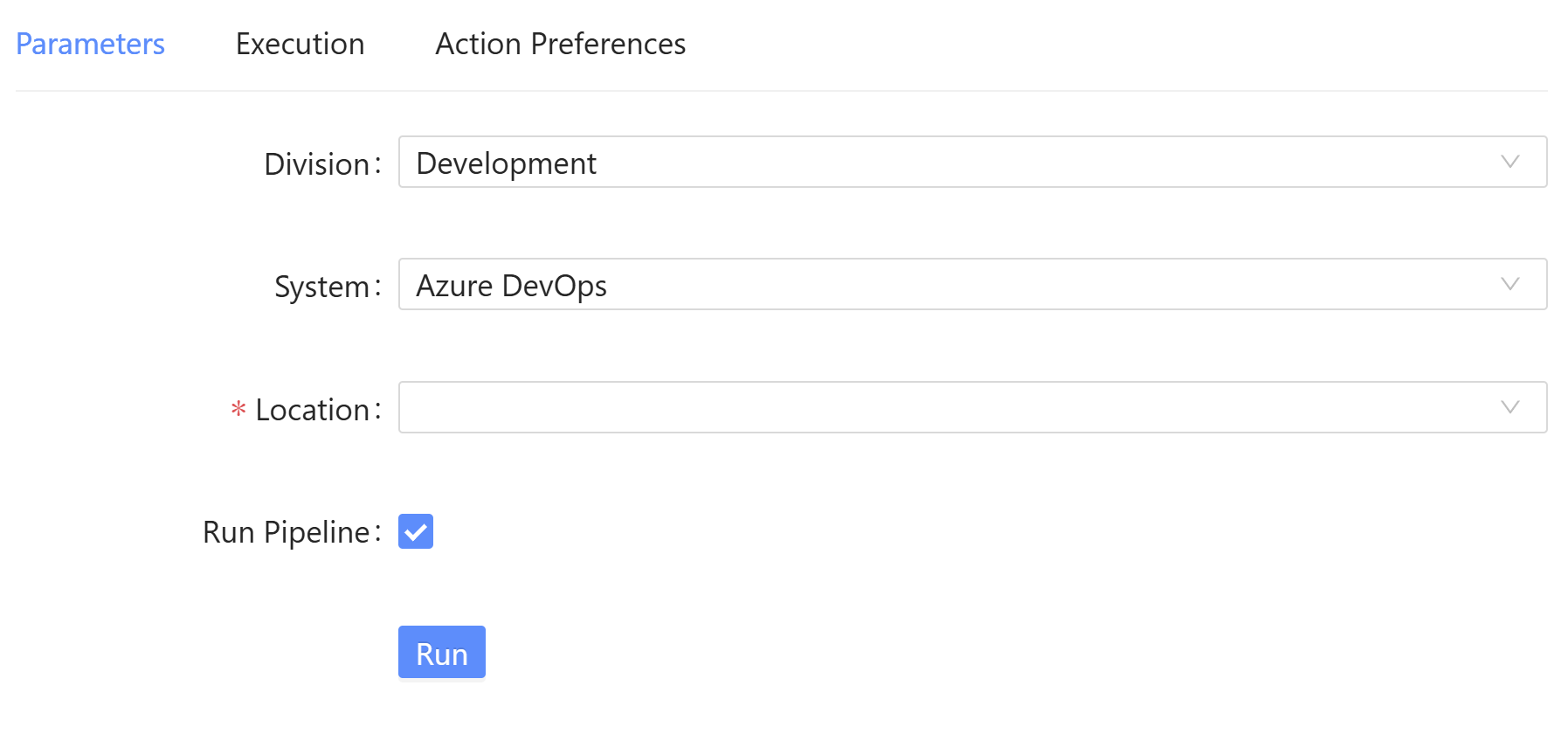
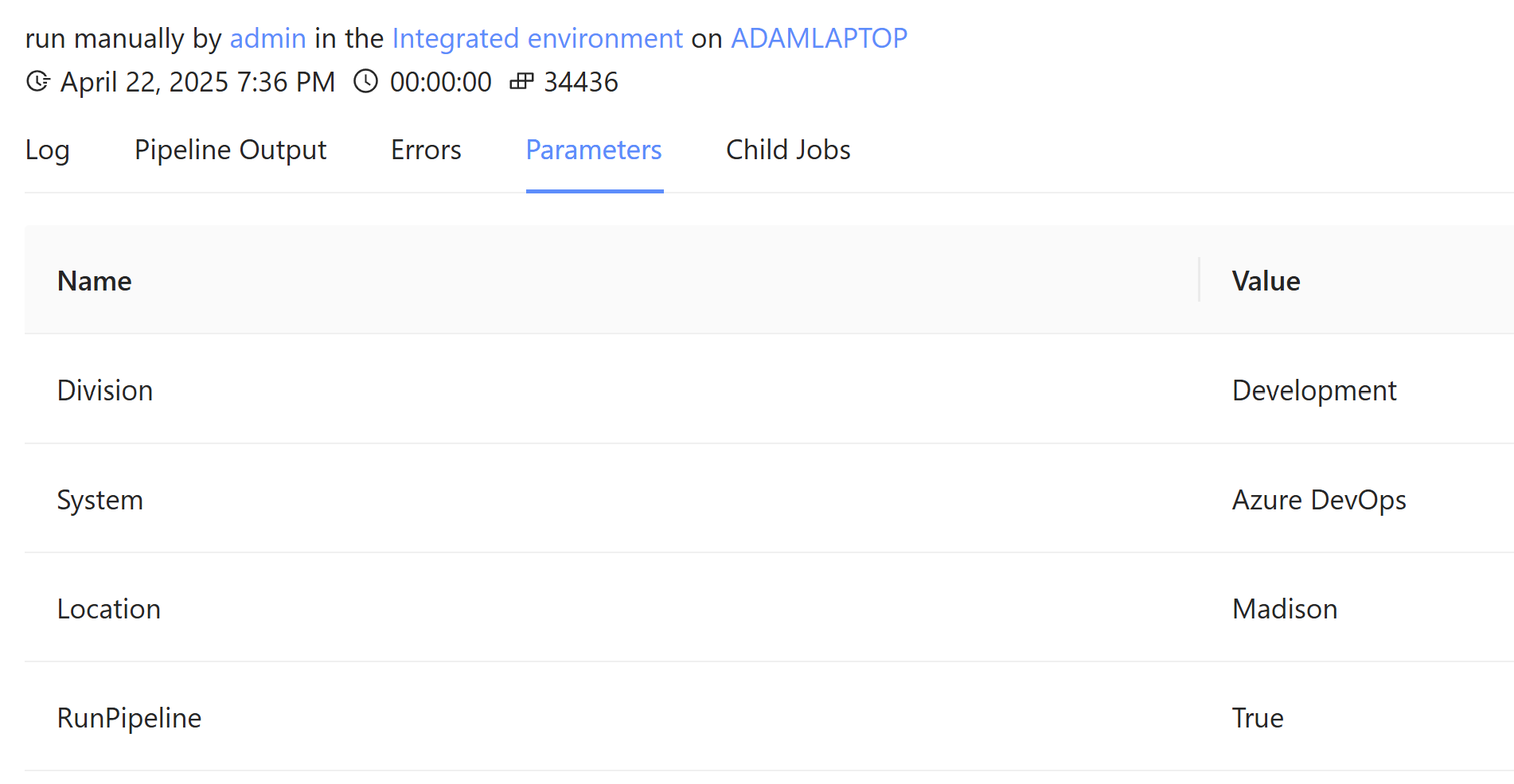
After entering the parameters into the script and running it, you’ll see that the dynamic parameter values are passed in alongside the static ones.
Caveats
While dynamic parameters are useful, they are limited in scope. This primarily becomes a problem when you want to adjust your parameters based on the value of the dynamic parameters themselves. For example, you couldn’t add new dynamic parameters based on the Location or RunPipeline parameters in our example above.
Dynamic parameters can also reduce the discoverability of parameters in features like the help system and make it more difficult to understand your functions. Dynamic parameter definitions are difficult to read and may be hard for other developers on your team to understand.
Consider taking advantage of parameter sets over dynamic parameters, where possible. In PowerShell Universal, you could also consider using apps to define more robust forms and leave your scripts with static parameters.
Script
You can find the entire script from this post below.
param(
    [ValidateSet("Sales", "HR", "Development")]
    [string]$Division,
    [ValidateSet("Entra ID", "Exchange", "Azure DevOps")]
    [string]$System
)

DynamicParam {
    $paramAttributes = [System.Management.Automation.ParameterAttribute]::new()
    $paramAttributes.Mandatory = $true

    if ($Division -eq 'Sales') {
        $validateAttribute = [System.Management.Automation.ValidateSetAttribute]::new("Washington DC", "Phoenix", "Chicago")
    } elseif ($Division -eq 'HR') {
        $validateAttribute = [System.Management.Automation.ValidateSetAttribute]::new("London", "Seattle", "Orlando")
    } elseif ($Division -eq 'Development') {
        $validateAttribute = [System.Management.Automation.ValidateSetAttribute]::new("Madison", "Boise", "Denver")
    }

    $paramAttributesCollect = New-Object -Type System.Collections.ObjectModel.Collection[System.Attribute]
    $paramAttributesCollect.Add($paramAttributes)
    $paramAttributesCollect.Add($validateAttribute)

    $dynParam1 = [System.Management.Automation.RuntimeDefinedParameter]::new("Location", [string], $paramAttributesCollect)
    $paramDictionary = [System.Management.Automation.RuntimeDefinedParameterDictionary]::new()
    $paramDictionary.Add("Location", $dynParam1)

    if ($Division -eq 'Development' -and $System -eq 'Azure DevOps') {
        $paramAttributes = [System.Management.Automation.ParameterAttribute]::new()
        $paramAttributesCollect = New-Object -Type System.Collections.ObjectModel.Collection[System.Attribute]
        $paramAttributesCollect.Add($paramAttributes)
        $dynParam2 = [System.Management.Automation.RuntimeDefinedParameter]::new("RunPipeline", [bool], $paramAttributesCollect)
        $paramDictionary.Add("RunPipeline", $dynParam2)
    }

    return $paramDictionary
}
Ready to build? Download PowerShell Universal.