










 Adam Driscoll
In this post, we’ll look at how to create custom navigation in PowerShell Universal Dashboard.
Setting up a dashboard with pages
The first step is to create a dashboard and add some pages to it. To create a dashboard, click User Interfaces > Dashboards, then the Create New Dashboard button. To view the script that generates the dashboard, click the Edit Details button.
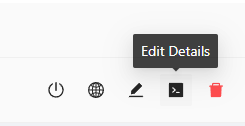
If this is the first dashboard you have created, a template script will be added to the content of the dashboard. You can delete the template and insert the script below. Save the dashboard script by pressing Ctrl+S or clicking the save button.
New-UDDashboard -Title 'Navigation' -Pages @(
    New-UDPage -Name 'Home' -Content {
        New-UDTypography -Text 'Home'
    }
)
Next, click the View button to see what the dashboard looks like.
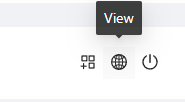
You should have a single page with the text Home on it. If you navigate back to the editor, you will notice that any changes that you make will be reflected on the dashboard once it has been saved.
Next, update your dashboard script to contain another page.
New-UDDashboard -Title 'Navigation' -Pages @(
    New-UDPage -Name 'Home' -Content {
        New-UDTypography -Text 'Home'
    }
    New-UDPage -Name 'Settings' -Content {
        New-UDTypography -Text 'Settings'
    }
)
When you view your dashboard, you will see you now have a hamburger menu that includes navigation to the second page. This is the default navigation behavior.
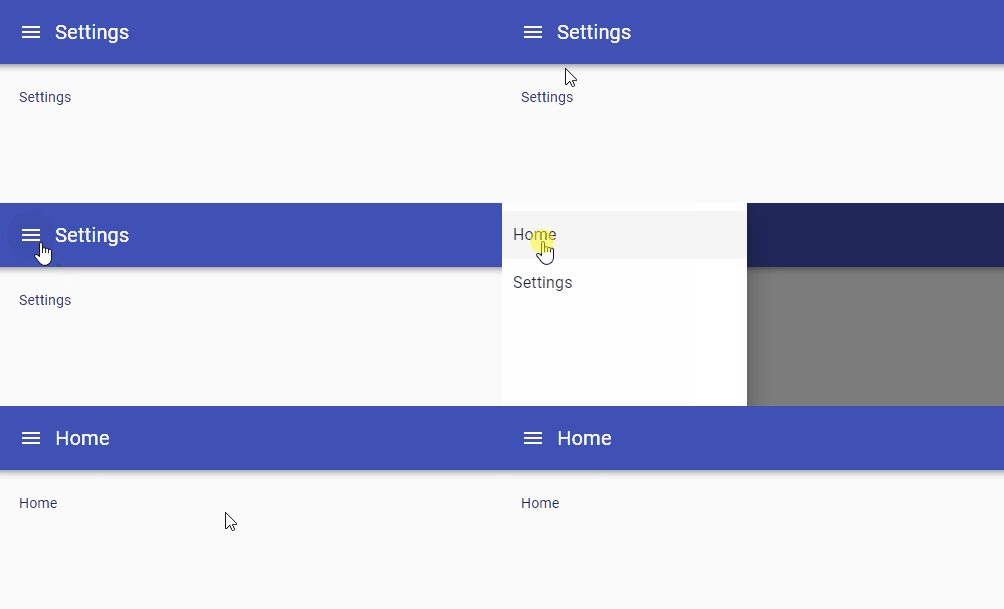
Additionally, you can include icons to be shown within the navigation drawer.
New-UDDashboard -Title 'Navigation' -Pages @(
    New-UDPage -Name 'Home' -Content {
        New-UDTypography -Text 'Home'
    } -Icon (New-UDIcon -Icon Home -Size 1x)
    New-UDPage -Name 'Settings' -Content {
        New-UDTypography -Text 'Settings'
    } -Icon (New-UDIcon -Icon Cog -Size 1x)
)
Configuring custom navigation
Now that we have a dashboard with multiple pages, we can configure custom navigation. Custom navigation allows us to organize how the pages are ordered, create nested drop-downs, and link to external pages. To create custom navigation, we use the New-UDList and New-UDListItem cmdlets. Using the list, we can recreate our existing navigation and add a new, external link to a documentation site.
$Nav = New-UDList -Content {
    New-UDListItem -Label "Home" -OnClick { Invoke-UDRedirect '/home' } -Icon (New-UDIcon -Icon Home -Size 1x)
    New-UDListItem -Label "Settings" -OnClick { Invoke-UDRedirect '/settings' } -Icon (New-UDIcon -Icon Cog -Size 1x)
    New-UDListItem -Label "Documentation" -OnClick { Invoke-UDRedirect 'https://docs.powershelluniversal.com/' } -Icon (New-UDIcon -Icon Book -Size 1x)
}

New-UDDashboard -Title 'Navigation' -Pages @(
    New-UDPage -Name 'Home' -Content {
        New-UDTypography -Text 'Home'
    }
    New-UDPage -Name 'Settings' -Content {
        New-UDTypography -Text 'Settings'
    }
) -Navigation $Nav
The resulting navigation should look like this.
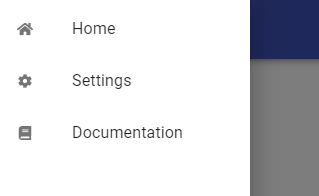
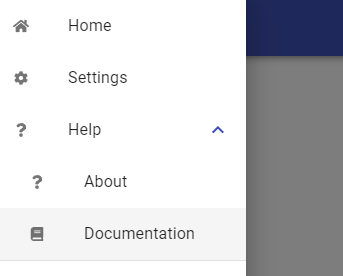
You may want to group navigation items by nesting them together in a drop-down list. The -Children parameter of New-UDListItem can be used to accomplish this.
$Nav = New-UDList -Content {
    New-UDListItem -Label "Home" -OnClick { Invoke-UDRedirect '/home' } -Icon (New-UDIcon -Icon Home -Size 1x)
    New-UDListItem -Label "Settings" -OnClick { Invoke-UDRedirect '/settings' } -Icon (New-UDIcon -Icon Cog -Size 1x)
    New-UDListItem -Label "Help" -Icon (New-UDIcon -Icon Question -Size 1x) -Children {
        New-UDListItem -Label "About" -OnClick { Invoke-UDRedirect 'https://devolutions.net/powershell-universal/' } -Icon (New-UDIcon -Icon Question -Size 1x) -Nested
        New-UDListItem -Label "Documentation" -OnClick { Invoke-UDRedirect 'https://docs.powershelluniversal.com/' } -Icon (New-UDIcon -Icon Book -Size 1x) -Nested
    }
}

New-UDDashboard -Title 'Navigation' -Pages @(
    New-UDPage -Name 'Home' -Content {
        New-UDTypography -Text 'Home'
    }
    New-UDPage -Name 'Settings' -Content {
        New-UDTypography -Text 'Settings'
    }
) -Navigation $Nav
Now, the resulting navigation has a Help drop-down menu that includes an About and Documentation link.
Setting navigation layouts
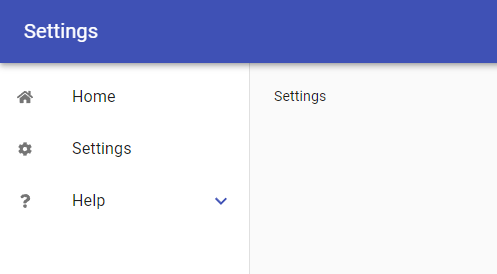
By default, the navigation layout is set to temporary. You need to click the hamburger menu to expose the navigation. If you wish to have the navigation permanently on the side, you can use the permanent layout.
$Nav = New-UDList -Content {
    New-UDListItem -Label "Home" -OnClick { Invoke-UDRedirect '/home' } -Icon (New-UDIcon -Icon Home -Size 1x)
    New-UDListItem -Label "Settings" -OnClick { Invoke-UDRedirect '/settings' } -Icon (New-UDIcon -Icon Cog -Size 1x)
    New-UDListItem -Label "Help" -Icon (New-UDIcon -Icon Question -Size 1x) -Children {
        New-UDListItem -Label "About" -OnClick { Invoke-UDRedirect 'https://devolutions.net/powershell-universal/' } -Icon (New-UDIcon -Icon Question -Size 1x) -Nested
        New-UDListItem -Label "Documentation" -OnClick { Invoke-UDRedirect 'https://docs.powershelluniversal.com/' } -Icon (New-UDIcon -Icon Book -Size 1x) -Nested
    }
}

New-UDDashboard -Title 'Navigation' -Pages @(
    New-UDPage -Name 'Home' -Content {
        New-UDTypography -Text 'Home'
    } -NavigationLayout 'permanent'
    New-UDPage -Name 'Settings' -Content {
        New-UDTypography -Text 'Settings'
    } -NavigationLayout 'permanent'
) -Navigation $Nav
The permanent layout will move the navigation below the header and shift the content of the page to the right.
Adjust per-page navigation
Navigation is inherited on each page based on what is set on the New-UDDashboard command. If you wish to change the navigation on a particular page, you can use the -Navigation parameter on that page.
In this example, the Settings page has its own custom navigation that other pages will not.
$Nav = New-UDList -Content {
    New-UDListItem -Label "Home" -OnClick { Invoke-UDRedirect '/home' } -Icon (New-UDIcon -Icon Home -Size 1x)
    New-UDListItem -Label "Settings" -OnClick { Invoke-UDRedirect '/settings' } -Icon (New-UDIcon -Icon Cog -Size 1x)
    New-UDListItem -Label "Help" -Icon (New-UDIcon -Icon Question -Size 1x) -Children {
        New-UDListItem -Label "About" -OnClick { Invoke-UDRedirect 'https://devolutions.net/powershell-universal/' } -Icon (New-UDIcon -Icon Question -Size 1x) -Nested
        New-UDListItem -Label "Documentation" -OnClick { Invoke-UDRedirect 'https://docs.powershelluniversal.com/' } -Icon (New-UDIcon -Icon Book -Size 1x) -Nested
    }
}

$SettingsNav = New-UDList -Content {
    New-UDListItem -Label "Home" -OnClick { Invoke-UDRedirect '/home' } -Icon (New-UDIcon -Icon Home -Size 1x)
}

New-UDDashboard -Title 'Navigation' -Pages @(
    New-UDPage -Name 'Home' -Content {
        New-UDTypography -Text 'Home'
    } -NavigationLayout 'permanent'
    New-UDPage -Name 'Settings' -Content {
        New-UDTypography -Text 'Settings'
    } -NavigationLayout 'permanent' -Navigation $SettingsNav
) -Navigation $Nav
Dynamic navigation
In some scenarios, you may wish to adjust navigation based on some conditions during runtime. Navigation by default is generated when the dashboard is started and will remain constant as it runs. To create dynamic navigation that is generated while the page is loaded, use the -LoadNavigation parameter. You’ll still return a New-UDList from it but can adjust the navigation based on things like the user’s roles or state of the environment.
This trivial example changes the navigation based on the time of day.
New-UDDashboard -Title 'Navigation' -Pages @(
    New-UDPage -Name 'Home' -Content {
        New-UDTypography -Text 'Home'
    }
    New-UDPage -Name 'Settings' -Content {
        New-UDTypography -Text 'Settings'
    }
) -LoadNavigation {
    New-UDList -Children {
        if ((Get-Date).Hour -ge 12)
        {
            New-UDListItem -Label 'Afternoon'
        }
        else
        {
            New-UDListItem -Label 'Morning'
        }
    }
}
Conclusion
In this post, we looked at the various ways to configure navigation in PowerShell Universal Dashboard.
Ready to build? Download PowerShell Universal.