












 Adam Driscoll
As defined by Microsoft, NuGet is the package manager for .NET. The NuGet client tools provide the ability to produce and consume packages.
nuget.org and the PowerShell Gallery are examples of NuGet feeds. They allow users to publish packages so other users can consume them. When you use Publish-PSResource or Publish-Module, you are creating a NuGet package and publishing it to a feed.
Creating a NuGet feed in PowerShell Universal
Typical NuGet feeds are based on thousands of lines of code to provide robust mechanisms for storing metadata, caching, and searching packages. For users with a limited number of packages, a tool exists that can create static feeds: Sleet. The Sleet command line tool creates static JSON files and storage for NuGet packages. It does not support a lot of the options that other technologies do, but it does provide simplicity.
For the rest of this post, we’ll look at how to use Sleet to create a NuGet feed in PowerShell Universal.
Install Sleet
You can install Sleet as a dotnet global tool if you have the .NET SDK installed.
dotnet tool install -g sleetOnce installed, you can simply run sleet to access the tool.
Configure a Sleet feed
Next, let’s set up a simple Sleet feed. Create a directory and then create a local Sleet config.
New-Item -ItemType Directory C:\sleet\
Set-Location C:\sleet
sleet createconfig --local
Open the generated sleet.json file and configure the properties of the feed. The base URI will be set to a published folder within PowerShell Universal.
{
  "username": "",
  "useremail": "",
  "sources": [
    {
      "name": "myLocalFeed",
      "type": "local",
      "path": "C:\\sleet\\myfeed",
      "baseURI": "http://localhost:5000/feed/"
    }
  ]
}
Publish a package
To publish a package, you can use the following Sleet command against a single NuGet package or a directory of packages. I published Posh-SSH.
Invoke-WebRequest 'https://www.powershellgallery.com/api/v2/package/Posh-SSH/3.0.8' -OutFile "C:\Users\adamr\Downloads\posh-ssh.3.0.8.nupkg"
Set-Location C:\sleet
sleet push -s myLocalFeed "C:\Users\adamr\Downloads\posh-ssh.3.0.8.nupkg"
Sleet will update all the necessary feed files, create the proper folder structure, and move the nupkg into the flatcontainer storage folder.
Host in PowerShell Universal
Next, we’ll need to set up PowerShell Universal to serve the NuGet feed. We can do this with a published folder. You will need to set the path to the NuGet feed folder.
New-PSUPublishedFolder -Path C:\sleet\myfeed -RequestPath /feedYou can verify that the feed is accessible by visiting the following URL.
http://localhost:5000/feed/index.jsonRegister a PowerShellGet repository
PowerShellGet v3 is required because PowerShellGet v2 does not support v3 NuGet feeds. Sleet only generates v3 NuGet feeds.
Install-Module PowerShellGet -AllowPrerelease -ForceOnce you have PowerShellGet v3 installed, you can use Register-PSResourceRepository to register your new feed.
Register-PSResourceRepository -Name 'MyLocalFeed' -Uri 'http://localhost:5000/feed/index.json'You can verify the repository was registered properly by using Find-PSResource.
Find-PSResource -Name posh-sshName Version Prerelease Repository Description
---- ------- ---------- ---------- -----------
Posh-SSH 3.0.8.0 MyLocalFeed Provide SSH and SCP functionality for executing commands against remot…You’ll also be able to use commands like Save-PSResource.
Save-PSResource -Name posh-ssh -Path .\ -Repository MyLocalFeedUpload new packages in PowerShell Universal
Instead of having to manually run the Sleet commands on the PowerShell Universal machine, you can do so by creating a PSU script that accepts a file. Create a new script in PSU with the following contents.
param(
     [File]$File
)

$Package = [IO.Path]::GetTempFileName()
[System.IO.File]::WriteAllBytes($Package, $File.Content)
Set-Location C:\sleet
sleet push -s myLocalFeed $Package
Once the script has completed, the NuGet feed files will have been updated and the package will be available through the PowerShellGet commands.
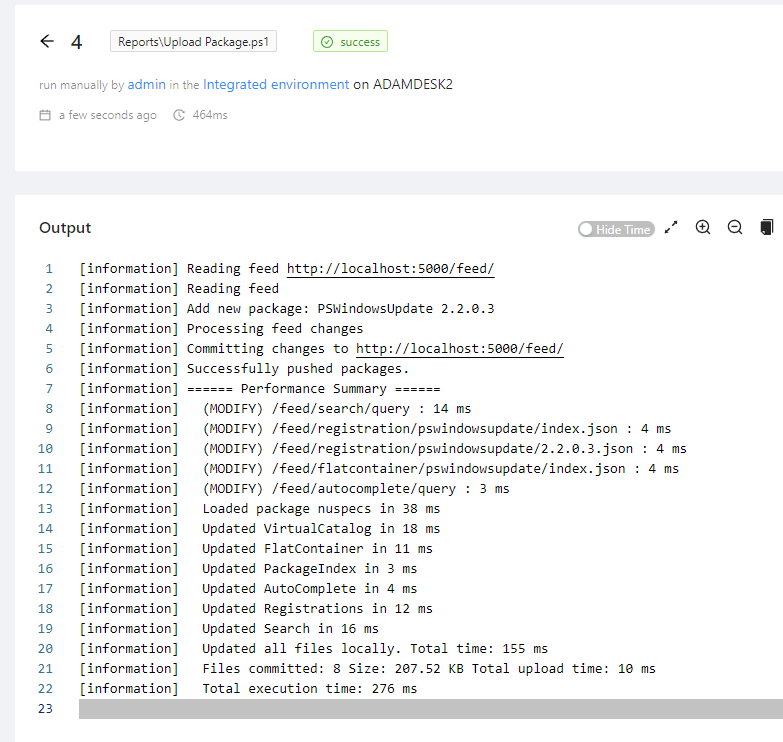
Find-PSResource -Name pswindowsupdateName Version Prerelease Repository Description
---- ------- ---------- ---------- -----------
PSWindowsUpdate 2.2.0.3 MyLocalFeed This module contain cmdlets to manage Windows Update Client.Display packages in a dashboard
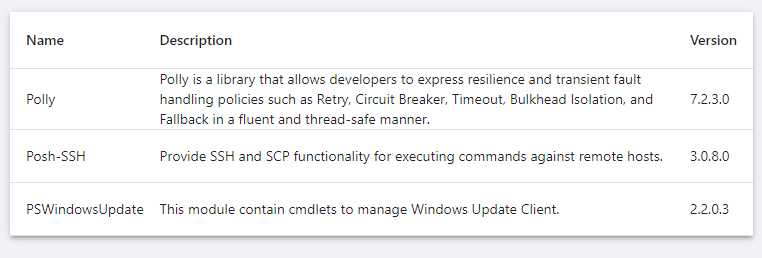
You can use the Find-PSResource cmdlet to display all the packages in your feed.
New-UDDashboard -Title 'PowerShell Universal' -Content {
    $Packages = Find-PSResource -Name * -Repository MyLocalFeed | Select Name,Version,Description
    New-UDTable -Data $Packages
}
Conclusion
In this post, we went over how to set up a semi-static NuGet feed using Sleet and PowerShell Universal.
Ready to build? Download PowerShell Universal.