








 Jenny Knafo
Updated April 14, 2020
Please look below for the added Remote Desktop software review and also take a look at our updated comparison table.
AnyDesk vs Chrome Remote Desktop vs Windows Remote Desktop Connection vs UltraVNC vs Remote Utilities vs TeamViewer (Personal Use) vs ConnectWise Control vs LiteManager Free vs Zoho Assist
[We had to remove join.me from our review since it no longer offers a free version - you may still access a free meeting but will not be able to launch one. Join.me has said: “To keep empowering our customers to host professional, feature rich meetings we have decided to discontinue the join.me free product and focus our efforts on improving our paid versions.”]
In the same way there is an abundance of Password Manager software and 2 Factor-Authentication methods to choose from, finding the perfect remote connection software can be as hard as finding the perfect date on Tinder. But don’t worry, we’ve worked hard and done the background research so you won’t have to. After much research and in-house debate, the following are our favorites free remote connections: AnyDesk, Chrome Remote Desktop, Windows Remote Desktop Connection, UltraVNC, Remote Utilities, TeamViewer(Personal Use), ConnectWise Control, LiteManager Free and Zoho Assist.
Remote connection software helps users work on a computer through another computer. These programs are a must for technical support staff, as they enable IT pros to help when physical access is impossible. It also allows anyone to start or attend meetings, collaborate on projects, and discuss business, even when they are nowhere near their desktops.
So let the comparing begin!
AnyDesk

AnyDesk is a fast remote-access program that doesn’t require any installation and works without having to configure a router.
Where it needs improvement
Confusing at first
First-time users might get a little confused at first. For example, if you transfer a file, then you might need to search for your main window at first. Once you get the hang of it though, it gets much more intuitive.
Whiteboard
The addition of a whiteboard tool to allow drawing or writing on the screen would be a plus value for AnyDesk.
Whate we love
No installation required
AnyDesk makes it easy to access all your programs and files from anywhere, without having to entrust your information to a cloud service. You simply need to download and launch the very small 1.1MB program file to get started, so no installation is required.
Customizable settings
We love how AnyDesk makes it easy to customize your settings, enabling you to show the remote cursor, transmit sound, take a screenshot, disable view-only or turn off clipboard syncing.
Unattended access
A much-requested feature is unattended access, which allows you to access a computer without any user interaction. You can connect to the computer as soon as it is powered on, and you can also connect directly to the logon screen.
No router configuration required
AnyDesk doesn’t require any modifications to the router, like port forwarding. This means that the program can be downloaded quickly and you can start a connection in just moments.
Who it’s for
The free version of AnyDesk is for casual personal use rather than commercial use.
Security
AnyDesk uses TLS 1.2 encryption, which is also used in online banking. Both ends of a connection are cryptographically verified, which makes it impossible to take over your AnyDesk ID and pretend to be you.
Chrome Remote Desktop

Chrome Remote Desktop is a remote desktop program from Google that runs on the Chrome web browser.
Where it needs improvement
Simple screen sharing application
Chrome Remote Desktop is a simple screen sharing application and not a complete remote access program, meaning that file transfers only work through copy-and-pasting a file. It also lacks a built-in feature to let you chat across computers.
Missing features
Other than window resizing and the print screen option, Chrome Remote Desktop is lacking many features, such as audio support, video or instant messaging, printing remote files to a local printer and sending custom keyboard shortcuts.
Whate we love
Easy installation
Both parties need the Google Chrome browser installed, but once that is done, the installation and setup is quick and easy.
Works with different operating systems
Since Chrome Remote Desktop runs solely from the browser, almost any operating systems can use it. This means you can provide support to practically anyone.
Directly linked to your Google account
Chrome Remote Desktop is linked to your Google account, so there is no need to create another account or generate a one-time code.
Access any computer on the web
You can easily access any computer on the web without changing network or firewall settings.
Who it’s for
Chrome Remote Desktop is mostly for personal use, and it is best suited for users who need a simple screen sharing application.
Security
Sessions are fully encrypted using Chrome’s SSL features, including support for AES. Your session data are never recorded, and no session data are transmitted in a way that would let Google or anyone else (besides the participants) access it.
Remote Desktop Connection

Remote Desktop Connection is Windows’ tool for accessing and controlling a computer from a remote location.
Where it needs improvement
Can’t reboot and reconnect
Remote Desktop Connection doesn’t allow you to reboot the remote machine and automatically reconnect, which is a key feature for a remote connection solution.
Professional version of Windows required
All versions of Windows can connect to other machines via the RDP client, but only the professional versions (and above) of Windows have an RDP server. Most people you would help in your circle of friends and relatives are likely running a home release of Windows, meaning you wouldn’t be able to connect to them.
Whate we love
Clear display
The display is crisp, fast, and colorful, and the connection is quick and responsive. Other than the small blue toolbar at the top of the screen, which shows that you’re using Windows Remote Desktop, you wouldn’t know you weren’t using the computer on the desk next to you.
Easy for Windows users
If you mostly use Windows, enabling RDC on your home server and directly connecting it over your LAN is faster and much easier than downloading and setting up a third party application.
Minimal effort
Once past the initial set up, which takes minimal effort on the client side, there is not much to do after that. You have tons of options and features that allow you to manage, access, and troubleshoot the remote computer. It’s totally free and without restrictions.
Unattended access
Remote Connection offers unattended access, which allows you to access a computer with no one sitting at the host PC.
Who it’s for
Windows Remote Desktop was made for home and office use with Windows computers. It is perfect for local network administration in a professional environment, but certainly not for worldwide technical support calls.
Security
WindowsRemote Desktop is more secure than some remote administration tools, such as VNC, that do not encrypt the entire session. It can be secured using SSL/TLS in Windows Vista, Windows 7, and Windows Server 2003/2008.
Ultra VNC

Ultra VNC is a free remote access software that can display the screen of another computer (via internet or network) on your own screen.
Where it needs improvement
Router configurations required
To allow the server to accept incoming connections from an UltraVNC client, you must configure port forwarding on the server; and for the port forwarding to be configured, you also need to setup a static IP address for the server.
Settings can be confusing
UltraVNC is a bit more complex to use than other applications. If you aren’t too tech-savvy, UltraVNC settings can get confusing since it is an open-source project that was made exclusively for Microsoft Windows.
Whate we love
File transfer
Compared to other solutions, sending files using Ultra VNC is more stable between units. Just select the file you wish to send from and the folder of the computer you wish to send to, making it easy for remote file retrieval.
Advanced settings
Ultra VNC has an abundance of advanced settings like cursor tracking, view only mode, custom encoding options, automatic clipboard synchronization, and send custom keyboard commands. It can even connect to a remote computer that’s in Safe Mode.
Connect over a browser
UltraVNC offers the option of bypassing the UltraVNC Viewer program and instead connecting to the server over a browser.
Blank computer screen
In a corporate environment, you can use UltraVNC’s ability to blank a computer screen to reduce the user ability to see passwords, setting changes, or other confidential information he or she doesn’t need to see. This could also work well in an educational context, as you can monitor a student’s activity in a silent mode.
Who it’s for
UltraVNC is enterprise-driven, since it might be too complicated to set up for basic users. It’s made for IT enthusiasts or those with an advanced knowledge of computers and remote access, as most of the settings can be fine-tuned, making it perfect for them.
Security
All UltraVNC versions are thread-safe, allowing the server to host multiple viewers simultaneously. Default configuration uses 2048-bit RSA keys and 256-bit AES keys.
Remote Utilities

Remote Utilities is a free remote access program. You can connect to as many as 10 computers for free from a mobile device or desktop program.
Where it needs improvement
Configuring host
Configuring Remote Utilities may be confusing on the host computer, since there are tons of different options.
Doesn’t work on macOS
If you’re working on a Mac, then you should look at other remote access solutions since Remote Utilities doesn’t support macOS at the moment. [Note: Remote Utilities is currently working on Host/Agent support for Mac. Remote Utilities Viewer is available for Mac in a Beta version at the moment.]
Whate we love
Inventory Manager
Remote Utilities has an Inventory Manager that contains remarkable details about the hardware, host operating system, and installed software, including the version numbers and manufacturer names.
USB drive
With Remote Utilities, you can launch the client and host program from a USB drive without having to install any software. The host software can be easily run without installation for spontaneous support.
Remote command prompt
There is a remote command prompt that looks just like a normal one, but it actually runs commands against the host computer rather than the client. The remote command prompt running processes can be easily shut down remotely.
Notification panel
One of the neat feature of Remote Utilities is the notification panel, which lets you inform a remote user about who is connected to their computer; the remote user can even stop the remote session if necessary.
Who it’s for
Because of its complexity, Remote Utilities is a better fit for power users than for average home users.
Security
The transferred data are encrypted with the secure encryption algorithms of RSA 2048 and AES 256.
TeamViewer

TeamViewer is a computer software package for remote control, desktop sharing, online meetings, web conferencing and file transfer between computers.
Where it needs improvement
Not free for commercial use
TeamViewer cannot be used for free in commercial settings, and it might stop working if it thinks you’re using it for commercial reasons.
Complex security settings
Security is one of the major reasons a lot of people are searching for alternatives to TeamViewer. It does offer high-end security, but it is complicated to set up and if not properly configured, your system could be put at risk.
Whate we love
Great support
TeamViewer has a great online support for its users. They offer user guides, a few how-to videos and a searchable FAQs section. However, if you can’t find your answer among these options and wish to submit a ticket, don’t forget that their tech support only speaks to licensed users.
File sharing feature
TeamViewer has one of the easiest file sharing features on the market. You can easily transfer files with the standard dual-window interface, or you can simply drag and drop from one computer to another. If you need to share just one piece of information, you could also do a simple copy-and-paste, thereby cutting out the need for a file transfer.
Easy solution
It has very few setup steps, a fast connection, easy interface and fast transfer time, making it a dependable solution for remote computer access. No need to make any changes to the router or firewall configurations.
Connection Logs
The TeamViewer Management Console automatically logs your connection data. Combined with your individual comments, this documentation is perfect for invoicing and reporting.
Who it’s for
The free version is only for personal use and it will disconnect your session if commercial usage is detected. The price for the enterprise version is steep.
Security
TeamViewer offers 256-bits encryption, which is higher than the industry standard.
ConnectWise Control

ConnectWise Control is a remote computer access software that offers high performance and outstanding security.
Where it needs improvement
Can’t be used as a single-user solution
ConnectWise Control would be difficult to use as a single-user solution since someone must be at both ends to create the admin controls, initiate a remote connection and, on the host side, grant permission for the session to begin.
Missing features in their free plan
The ConnectWise Control free personal plan is only available for personal use and has minimal remote access features. If you need remote access for work, you’ll need to use one of their paid versions, which don’t come cheap.
Whate we love
Advanced security solutions
ConnectWise Control has multiple layers of protection to help keep your data safe. It offers plenty of customization for security settings, including: audit logs of every session, limited access to certain sessions, screen recording, session timeouts, two-factor authentication, and restricting IP addresses. ConnectWise Control not only offers the most security options, but it also gives the user more control over session security.
Help and support
ConnectWise Control has numerous resources to help you learn how to use the software. In addition to a searchable knowledgebase, ConnectWise Control has how-to videos and user forums, as well as several ways to contact technical support. The support team can be reached by email, live chat or telephone.
Fast and efficient
Once the set-up is complete and you launch your first session, ConnectWise Control is fast and efficient to use. The icon-based toolbar makes it easy to swiftly find the function you need. You can easily access the control panel, download programs and stream videos between the two computers.
Great platform performance
ConnectWise Control performs admirably on all platforms, whether you are connecting via Mac, PC or tablet.
Who it’s for
ConnectWise Control is free for personal use only, not for commercial use. The free plan includes a single technician license, 3 access agents and remote connection to one end user per session.
Security
The software offers end-to-end 256-bit SSL encryption, which is above the industry standard.
LiteManager

LiteManager Free is a secure remote access and support tool.
Where it needs improvement
Free version missing features
As great as LiteManager Free is, it lacks some of the full version’s features like RDP, device manager, screen recorder, capture overlay video, audio video chat, timer, address books and remote change server settings.
Incomplete documentation
LiteManager Free documentation could use some improvement; at the moment, it is missing information and, without a searchable tool, finding the precise information you are searching for is overly challenging.
Whate we love
Great user interface
LiteManager Free is as user-friendly as it gets. It allows you to easily reposition panels where you’d like, while the main elements are positioned separately. The list of remote computers can be displayed in different styles: as regular icons, as a table or as thumbnails.
Remote commands
The ability to remotely execute commands and run console apps is great; you can, for example, install MSI packages on the remote machine and run power functions like Shutdown.
Event log
LiteManager Free allows you to get reliable information about the current status of the computer and about what is going on it at the moment.
Flawless remote access mode
The program offers additional control modes like file transfer and remote installation, as well as open utilities like task manager, registry editor, CMD and much more. The application works on Windows, Mac and Linux, and both 32-bit and 64-bit OS editions are supported.
Who it’s for
Lite Manager Free is a great option for home and commercial use.
Security
All data are transferred over the network in a compressed and encrypted format using the most advanced technologies and key exchange protocols: a 2048-bit RSA signature key and a 256-bit AES session key.
Zoho Assist

Zoho Assist is an easy-to-use, all-in-one, web-based solution for remote support, unattended desktop access, and screen sharing.
Where it needs improvement
Missing features
The Free version is indeed free, but is missing some basic features such as file transfer, multi-monitor navigation, mobile apps support, session recording and screen sharing, to name just a few.
Unattended Access
I think that Unattended Access should be included in the Remote Support plan and shouldn’t be an extra to pay for since it really raises the price of licenses for small and medium businesses who would need that feature.
Whate we love
Instant Chat
Zoho Assist offers instant messaging to quickly launch live chat with the user while in a support session.
Easy-to-use
Zoho Assist is simple to setup and easy to use, even for non-techies. Simply generate a number, send a link to the end-user email address and from there, the user can easily follow the instructions provided, allowing the technician to quickly connect and offer support.
File Transfer
Easily transfer files up to 2GB between devices. The transfer process is intuitive and synchronized, allowing you to send and receive files at the same time.
2FA Support
With security being on everyone’s mind, the fact that Zoho Assist supports multi-factor authentication to provide an extra layer of security is quite impressive. Use SMS and time-based OTP as a secondary factor of authentication to protect your information.
Who it’s for
Zoho Assist is a great remote access solution for small to medium businesses. It can also be a great solution for individuals who needs a simple remote control to support friends and family. The free plan allows access for one remote support technician and five unattended computers, including the options for one concurrent session.
Security
Zoho Assist provides end-to-end SSL and AES 256-bit encryption.
Here is a table for a quick overview of some advanced options supported by the different Remote Connection software.
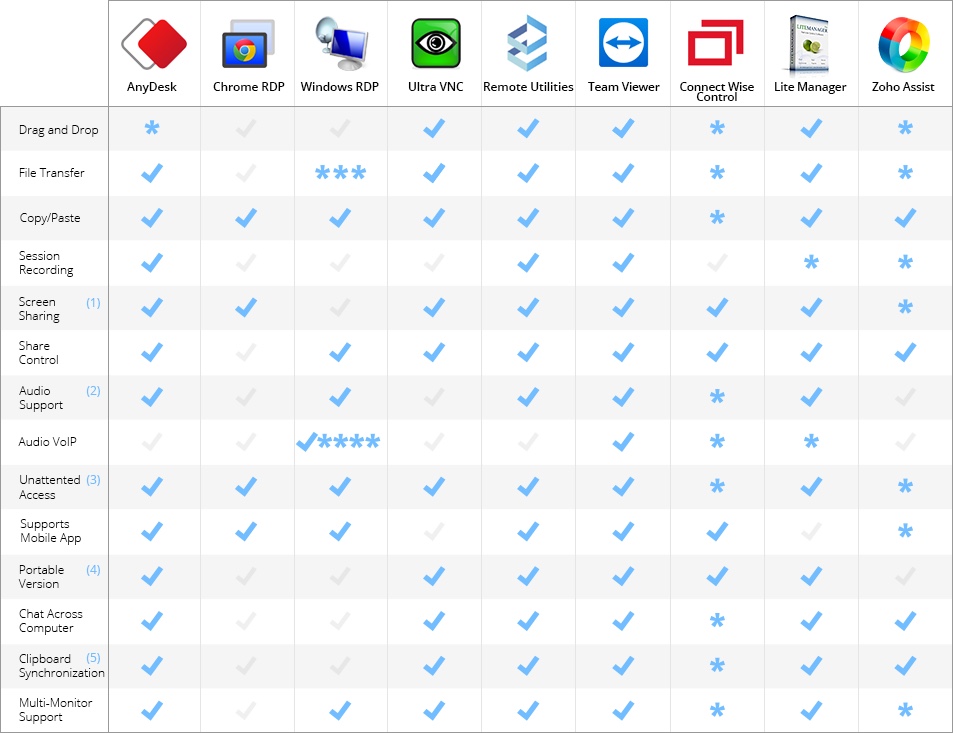
* Only available with the paid version.
** Presently working on that feature.
*** Windows 7 and later doesn’t support file transfer but Windows XP and Vista does support file transfer.
**** Only in 32-bit not currently supported in 64-bit.
- Screen sharing: Share everything that is on your desktop with coworkers as if they were there looking over your shoulder.
- Audio support: The remote control software transfers audio signals across the network and plays the audio through the speakers attached to the local computer.
- Unattended access: Setting up unattended access on a customer’s computer or server allows you to access their computer when the customer is not sitting in front of it, enabling you to provide unattended technical support at any time.
- Portable version: A portable version means that it is not installed and can therefore be started from any data carrier (such as a USB stick or a CD)
- Clipboard synchronization: If the option is enabled, any text copied to the clipboard will automatically be available on the other side.
After taking your time in choosing and doing some careful comparison-shopping, all there is left to do, is to pick out the right one for you!
Have fun shopping!