











 Adam Driscoll
Learn how to write tests against PowerShell Universal with Pester 5.
Installing prerequisites
In this post, we’ll use InvokeBuild and Pester. You’ll need to install these modules to follow along.
Install-Module Pester
Install-Module InvokeBuild
Downloading PowerShell Universal
The first step is to download and install the version of PowerShell Universal that you want to test against your configuration. You can do this in two ways. You can use Invoke-WebRequest directly to download the ZIP, or you can use Install-PSUServer to download the MSI and install the service.
In this example, I’ll use Invoke-WebRequest since I’ll be downloading the nightly build. The following script reads the nightly blob storage, finds the latest build, downloads the ZIP, extracts it, and unblocks the files.
[xml]$Xml = (Invoke-RestMethod 'https://imsreleases.blob.core.windows.net/universal-nightly?restype=container&comp=list').Substring(3)

$MaxBlob = $null
foreach($blob in $Xml.EnumerationResults.Blobs.Blob.Where({$_.Url.Contains('win7') -and $_.Url.Contains(".zip")}))
{
    if ($null -eq $MaxBlob -or ([int]$blob.Name.Split('/')[0]) -gt ([int]$MaxBlob.Name.Split('/')[0]))
    {
        $MaxBlob = $blob
    }
}

Invoke-WebRequest $MaxBlob.Url -OutFile "$PSScriptRoot\Universal.zip"
Expand-Archive -Path "$PSScriptRoot\Universal.zip" -Destination "$PSScriptRoot\Universal"
Get-ChildItem "$PSScriptRoot\Universal" -Recurse | Unblock-File
You could also update the script above to download a released version.
Invoke-WebRequest "https://imsreleases.blob.core.windows.net/universal/production/2.5.4/Universal.win7-x64.2.5.4.zip" -OutFile "$PSScriptRoot\Universal.zip"Configuring PowerShell Universal
Once we have PowerShell Universal downloaded, we can configure PSU with some pre-built configuration files. In our integration test suite, we have .ps1 files that we load into the configuration directory before starting the server.
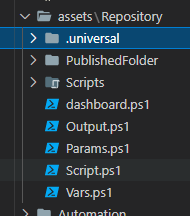
Our test files have many permutations of PSU configuration. This is a sample of our endpoints.ps1.
New-PSUEndpoint -Url "/get" -Method 'GET' -Endpoint {
    "Hello"
}

New-PSUEndpoint -Url "/get/header" -Method 'GET' -Endpoint {
    $Headers["X-MYHEADER"]
}

New-PSUEndpoint -Url "/get/:id" -Method 'GET' -Endpoint {
    $Id
}

New-PSUEndpoint -Url "/post" -Method 'POST' -Endpoint {
    $Body
}

New-PSUEndpoint -Url "/post/params" -Method 'POST' -Endpoint {
    param($Name, $Value)

    @{
        Name = $Name
        Value = $Value
    }
}

New-PSUEndpoint -Url "/error" -Endpoint {
    throw "Uh oh!"
} -ErrorAction stop
We then take this configuration and deploy it to the configuration directory C:\ProgramData\UniversalAutomation\Repository.
New-Item C:\ProgramData\UniversalAutomation -ItemType Directory
Copy-Item "$PSScriptRoot\assets\Repository" C:\ProgramData\UniversalAutomation -Recurse
Setting up for a Pester test
Next, we can get the PSU server up and running and ready for our Pester test suite. The following script starts the PSU server, waits for it to become active, logs in, and then grants an app token we can use later in our tests.
Import-Module "$PSScriptRoot\Universal\Universal.psd1"
$Process = Start-Process "$PSScriptRoot\Universal\Universal.Server.exe" -PassThru

# Wait for the PSU server to start
while($true)
{
    try
    {
        Invoke-RestMethod "http://localhost:5000/api/v1/alive"
        break;
    }
    catch
    {

    }
}

try
{
    # Sign in using default forms auth.
    Invoke-RestMethod "http://localhost:5000/api/v1/signin" -Method Post -Body (@{
        Username = "admin"
        Password = "admin"
    } | ConvertTo-Json) -SessionVariable Session -ContentType "application/json"

    # Grant an app token using the login session
    $ENV:TestAppToken = (Invoke-RestMethod "http://localhost:5000/api/v1/apptoken/grant" -Method GET -WebSession $Session).Token

    # Connect to the PSU server so we can use cmdlets
    Connect-PSUServer -AppToken $ENV:TestAppToken -ComputerName "http://localhost:5000"

    # Set the current location and start executing tests
    Set-Location $PSScriptRoot
    $Results = Invoke-Pester -PassThru
    if ($Results.Result -ne 'Passed')
    {
        throw "Tests failed!"
    }
}
finally
{
    Stop-Process $Process
}
Writing a Pester test
The next step is to run the validation scripts using Pester. This post was written against Pester 5.3.1.
Here is a subset of some of the tests we run for scripts. We take advantage of a data-driven test that lets us run against multiple environments by providing a -ForEach array to the Describe block.
All of our tests in this example will run three times, once for each environment. We also use the BeforeAll block to set the environment before each environment’s tests run.
Finally, each It block validates individual functionality with cmdlets such as Invoke-PSUScript.
Describe "Scripts.<_>" -ForEach @('pwsh', 'powershell', 'integrated') {
    BeforeAll {
        Set-PSUSetting -DefaultEnvironment $_
    }

    Context "Run" {
        It "should have correct variables" {
            $Vars = Invoke-PSUScript -Name 'Vars.ps1' -Wait
            $Vars.Environment | Should -be $_
            $Vars.Script.Name | Should -be "Vars.ps1"
            $Vars.Job | Should -not -be $null
            $Vars.JobId | Should -not -be $null
            $Vars.ScriptId | should -not -be $null
            $Vars.Simple | Should -be "123"
        }
        It "should run a script by name" {
            $Job = Invoke-PSUScript -Name 'Script.ps1'
            $Job | Should -not -be $null
        }

        It "should run a script by pipeline" {
            { Get-PSUScript -Name 'Script.ps1' | Invoke-PSUScript } | Should -Throw
        }

        It "should return a hashtable" {
            $Output = Invoke-PSUScript -Name 'Output.ps1' -Wait
            $Output.Name | Should -be 'Tutorial'
            $Output.Description | Should -be 'Tutorial'
        }

        It "should pass parameters to script" {
            $Output = Invoke-PSUScript -Name 'Params.ps1' -Wait -One 1 -Two 2
            $Output.One | Should -be 1
            $Output.Two | Should -be 2
        }

        It "should call script in folder" {
            Invoke-PSUScript -Name 'Script2.ps1' -Wait | Should -be 'Hello'
        }
    }
}
Packaging into an InvokeBuild script
Now that we have the test framework and the tests, we can wrap them in an InvokeBuild script. That makes it easier to call individual portions of the workflow.
Here’s the full example. We have set up three build tasks. One cleans up after previous test runs. The second downloads and extracts the nightly build. The final task runs the test suite.
task Clean {
    Remove-Item -Path "C:\ProgramData\PowerShellUniversal" -Force -ErrorAction SilentlyContinue -Recurse
    Remove-Item -Path "C:\ProgramData\UniversalAutomation" -Force -ErrorAction SilentlyContinue -Recurse
    Remove-Item -Path "$PSScriptRoot\Universal" -Force -ErrorAction SilentlyContinue -Recurse
    Remove-Item -Path "$PSScriptRoot\Universal.zip" -Force -ErrorAction SilentlyContinue
}

task DownloadNightly {
    [xml]$Xml = (Invoke-RestMethod 'https://imsreleases.blob.core.windows.net/universal-nightly?restype=container&comp=list').Substring(3)

    $MaxBlob = $null
    foreach($blob in $Xml.EnumerationResults.Blobs.Blob.Where({$_.Url.Contains('win7') -and $_.Url.Contains(".zip")}))
    {
        if ($null -eq $MaxBlob -or ([int]$blob.Name.Split('/')[0]) -gt ([int]$MaxBlob.Name.Split('/')[0]))
        {
            $MaxBlob = $blob
        }
    }

    Invoke-WebRequest $MaxBlob.Url -OutFile "$PSScriptRoot\Universal.zip"
    Expand-Archive -Path "$PSScriptRoot\Universal.zip" -Destination "$PSScriptRoot\Universal"
    Get-ChildItem "$PSScriptRoot\Universal" -Recurse | Unblock-File
}

task RunTests {

    New-Item C:\ProgramData\UniversalAutomation -ItemType Directory
    Copy-Item "$PSScriptRoot\assets\Repository" C:\ProgramData\UniversalAutomation -Recurse

    Import-Module "$PSScriptRoot\Universal\Universal.psd1"
    $Process = Start-Process "$PSScriptRoot\Universal\Universal.Server.exe" -PassThru

    while($true)
    {
        try
        {
            Invoke-RestMethod "http://localhost:5000/api/v1/alive"
            break;
        }
        catch
        {

        }
    }

    try
    {
        Invoke-RestMethod "http://localhost:5000/api/v1/signin" -Method Post -Body (@{
            Username = "admin"
            Password = "admin"
        } | ConvertTo-Json) -SessionVariable Session -ContentType "application/json"

        $ENV:TestAppToken = (Invoke-RestMethod "http://localhost:5000/api/v1/apptoken/grant" -Method GET -WebSession $Session).Token

        Connect-PSUServer -AppToken $ENV:TestAppToken -ComputerName "http://localhost:5000"

        Set-Location $PSScriptRoot
        $Results = Invoke-Pester -PassThru
        if ($Results.Result -ne 'Passed')
        {
            throw "Tests failed!"
        }
    }
    finally
    {
        Stop-Process $Process
    }
}

task CleanAndRun Clean, RunTests

task . Clean, DownloadNightly, RunTests
Running Pester tests in GitHub Actions
In our environment, we use GitHub Actions for CI and CD pipelines. We have a self-hosted agent designated for running integration tests. From within the Universal repository, we’ve set up a GitHub Actions workflow YAML file to run our tests on our custom agent. The workflow runs each morning and can be triggered manually.
We call Invoke-Build to run our integration tests. If a test fails, an exception is thrown and the workflow fails as well.
name: Integration Tests
on:
    schedule:
        - cron: "0 4 * * *"
    workflow_dispatch:

jobs:
    build:
      name: Build
      runs-on: self-hosted
      steps:
        - uses: actions/checkout@v1
        - name: Run Integration Test
          run: Invoke-Build -File .\test\integration-test.ps1
          shell: pwsh
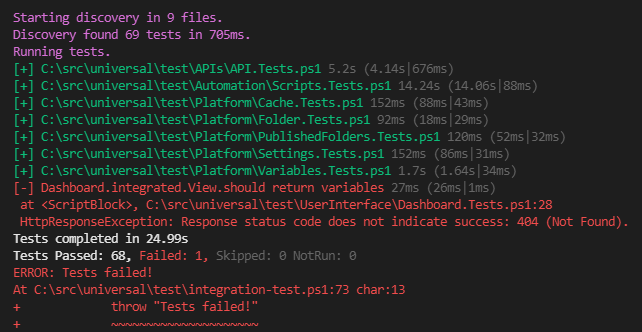
The Action output shows which tests succeeded and which failed. Here’s the result of one of our test suites.
Ready to build? Download PowerShell Universal.