







 Adam Listek
Hand a PAM checkout to the next technician. Run sign-in and checkout decisions through one IF / ELSE workflow. Use devo secret run so scripts never hold secrets in files.
The 2027.1 Beta is ready to try on Windows, and we want your feedback before the official release in December.
Before you install the Beta: go online and sync pending offline changes in RDM. Offline mode has a new storage backend, and earlier offline data is not migrated.
Control privileged access
Jump to key moments in recordings with AI-generated events
Jump to a specific moment in a recording with timestamped, AI-generated events. Replay video or terminal recordings in Devolutions Server and use those events to go to the moment you need. Request an AI analysis for the events and an AI-written summary with a Copy button. You can also search within the recording. Configure an AI provider and the Devolutions Gateway endpoint before starting an analysis. Analysis starts only when a user requests it, and each run uses the configured provider and may incur provider charges.
Try it: configure an AI provider and the Gateway endpoint, open a recording, and request an analysis.
Use one workflow for sign-in and checkout decisions
Decide sign-in and PAM checkout with one ordered set of rules, evaluated from top to bottom, so the first match is the result. Write those rules as one IF/ELSE IF/ELSE workflow. Conditions include group membership, source IP address, country, time window, requester group, provider, duration, and reason. An explicit ELSE branch handles the remaining cases. This applies to sign-in and PAM checkout in Devolutions Server and in RDM on Windows, macOS, Linux, and mobile.
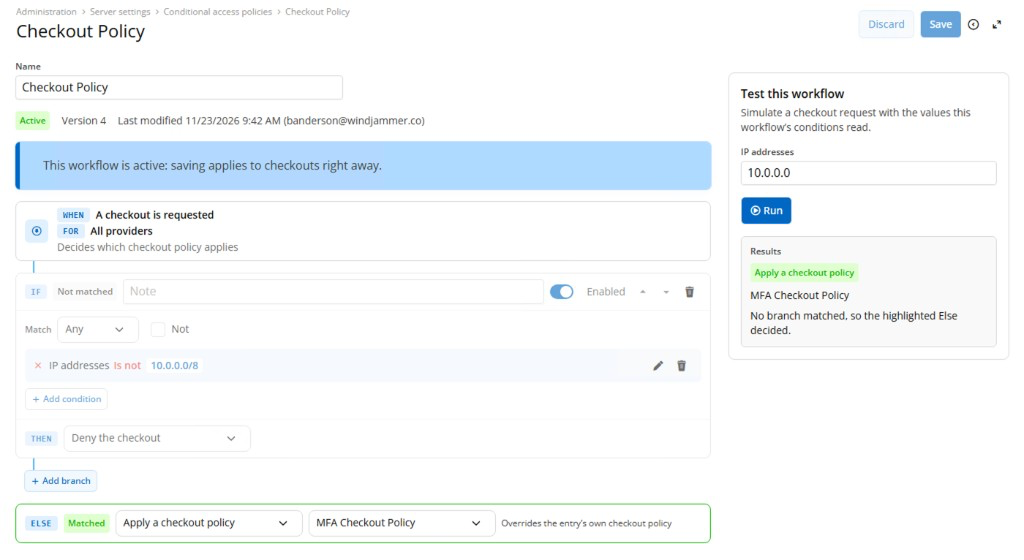
Try it: open the simulator to see which branch would decide a hypothetical request.
Confirm PAM checkout with WebAuthn or Duo as a multi-factor authentication (MFA) provider
Confirm a checkout with a WebAuthn security key or passkey, or with Duo where supported, alongside the existing code-based methods. Devolutions Server and RDM on Windows, macOS, and Linux support the expanded checkout choices. WebAuthn is the checkout option for Devolutions Cloud, and it is also supported on Linux. Android and iOS are also supported, with both WebAuthn and Duo.
Keep personal PAM accounts in a user vault
Store PAM accounts in a personal user vault and still use standard PAM workflows such as checkout and password rotation. Administrators and users can both do this. User vaults are also included when accounts are imported. The PAM module requires a PAM license. It is available with Devolutions Server, Devolutions Cloud, RDM on Windows, macOS, Linux, and mobile.
Hand a checkout to another technician
Keep the checkout and the audit trail continuous when work has to move to another technician. Pass a checked-out PAM account to another user without checking it in first. The new holder inherits the remaining checkout time. The password is not rotated during the handoff. Administrators enable the option per checkout policy with Allow checkout handoff. Devolutions Server 2027.1 or later is required. Available in Devolutions Server and RDM on Windows.
Try it: enable Allow checkout handoff in a checkout policy, then hand off a checkout.
Use vault secrets in scripts, pipelines, and AI agents with Devolutions CLI
Run programs with secrets that are not written to a file
Scripts, continuous integration (CI) pipelines, and AI coding agents can use vault secrets through references that begin with devo://. No secret values are written to files. With devo secret run, the real value is fetched from Devolutions Cloud, Devolutions Server, or a local RDM profile and passed only to the program that needs it. Install Devolutions CLI separately on Windows, macOS, or Linux. Configure Model Context Protocol (MCP) permissions carefully when an AI client can access the vault.
Try it: install Devolutions CLI and run a program with devo secret run.
Work sessions, tickets, and existing tools in RDM
Open ScreenConnect sessions in RDM tabs
Work in several ConnectWise ScreenConnect sessions as tabs beside your other connections in RDM. Use Embedded mode. The session toolbar includes Remote audio under Sound and local printer redirection under Printers.
Try it: open a ScreenConnect session in Embedded mode.
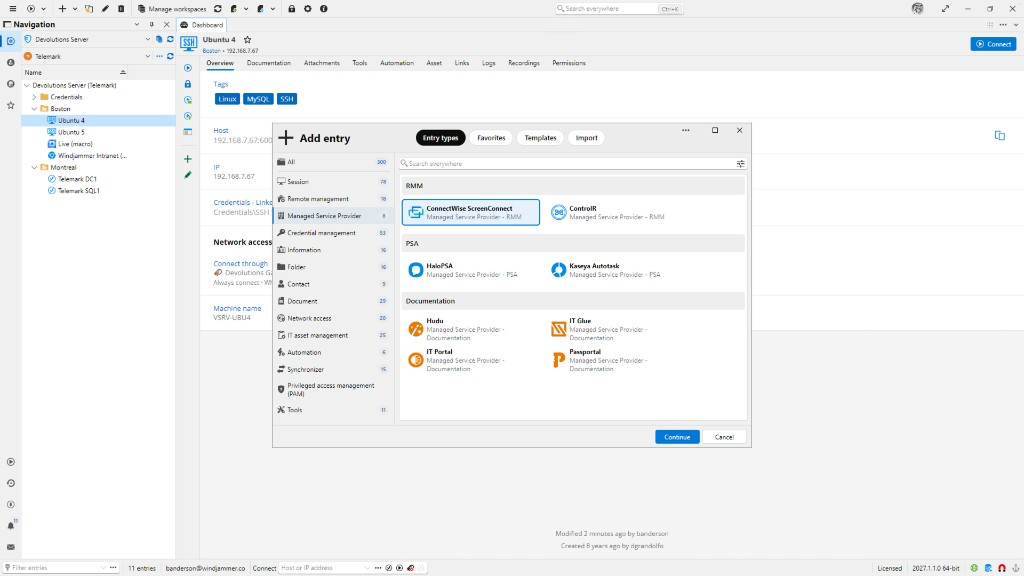
Work Autotask tickets beside customer connections
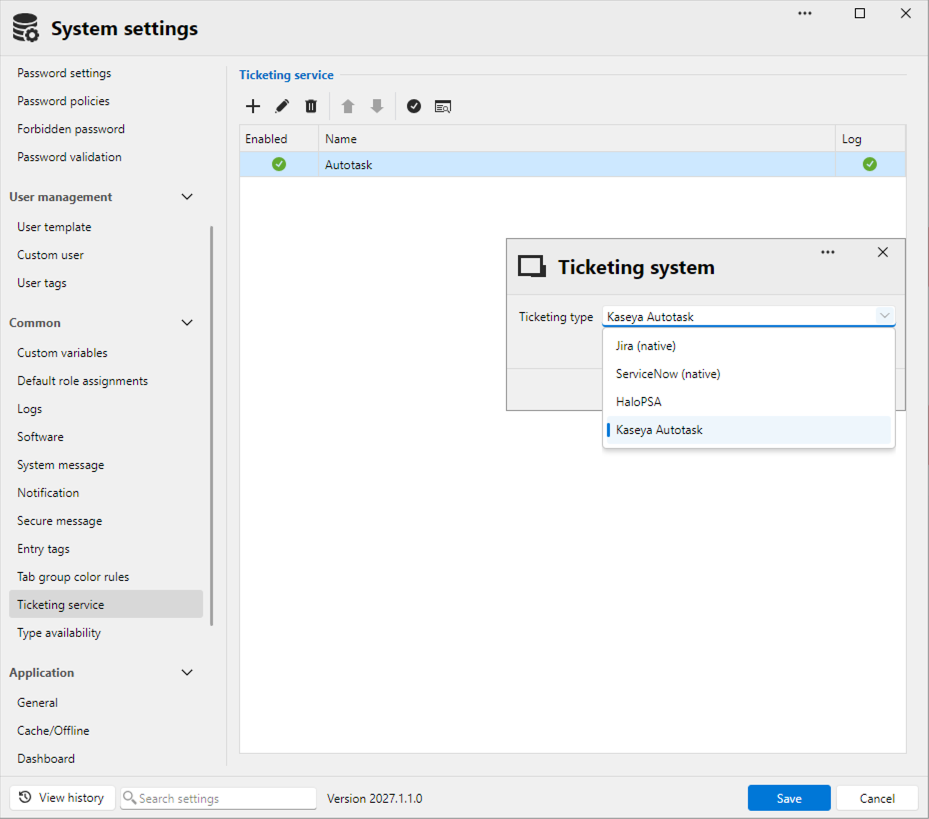
Comment on, update, and log work against Autotask tickets without leaving RDM. The Autotask tickets dashboard entry groups tickets by company. You can comment, add an internal note, log work, change status, or open a ticket in a browser. When a connection opens or a password is viewed, you can select the related ticket. To set it up, configure Autotask ticketing with an Autotask API user stored in a credential entry and an integration code. Available in RDM, with settings and ticket selection in Devolutions Server.
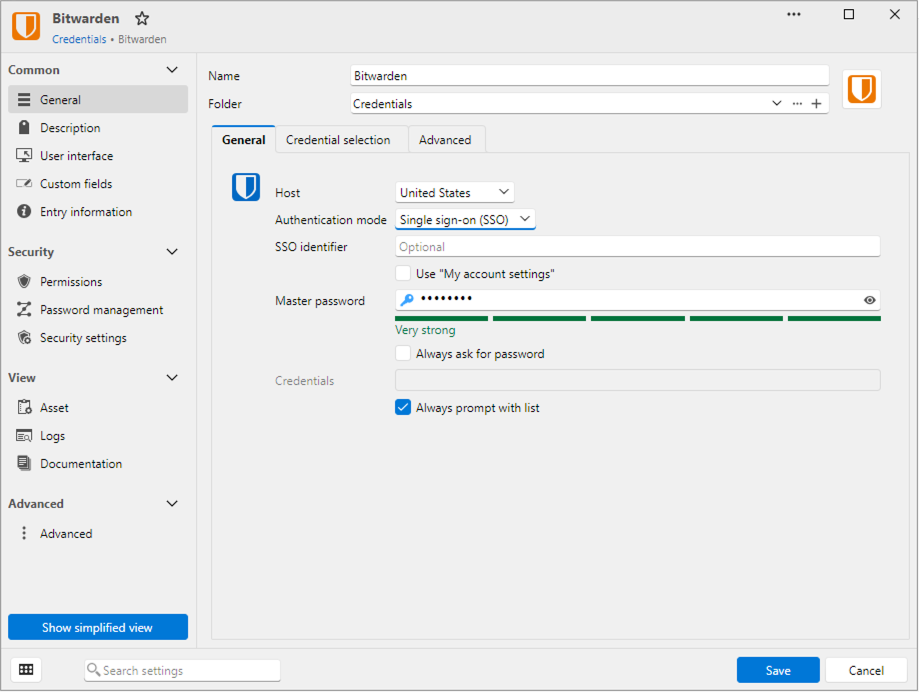
Sign in to Bitwarden through single sign-on (SSO)
Retrieve Bitwarden credentials even when your organization requires single sign-on (SSO). Choose SSO in a Bitwarden entry, complete the provider sign-in in a browser, and retrieve your credentials. API-key sign-in remains available, so you select the mode that matches your organization. SSO uses a local listener on ports 8065 to 8075. The Manage cached authentication window shows signed-in sessions that can be moved to standby or cleared. Available on Windows, macOS, Linux, Android, and iOS.
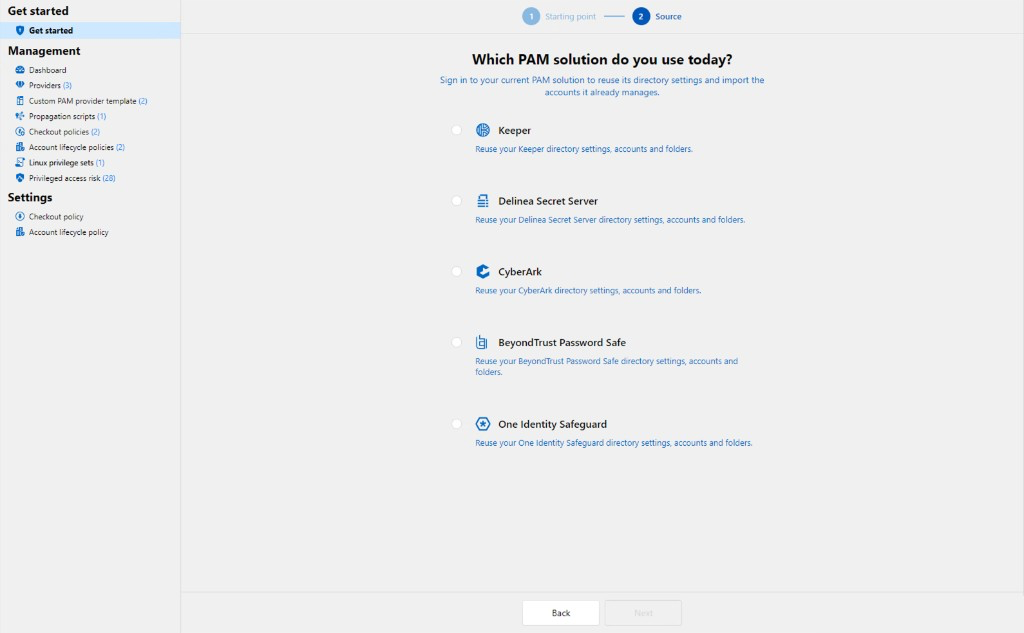
Start a PAM migration from Keeper, CyberArk, Delinea, BeyondTrust, or One Identity
Start a migration from your current PAM with provider details and accounts already filled in. Choose I already use a PAM in the Get started wizard, select your provider, and review the discovered directories, accounts, machines, and folders. Matching accounts are pre-selected for import. Complete any missing values and run the connection test before importing. Keeper, CyberArk, Delinea, BeyondTrust, and One Identity are all available as sources, in RDM on Windows.
Store AWS access keys once with a Credential object
Link a Credential object to an AWS dashboard entry instead of typing the access key ID and secret access key into each one. Store the credential once and select it from the entry’s existing credential choices. This applies to Access key mode on Windows, macOS, Linux, Android, and iOS.
Sync offline changes before you upgrade
Sync offline changes before upgrading
Offline mode now stores data in an encrypted SQLite-backed cache, so RDM users can keep working when a workspace is unreachable. Before upgrading, go online and sync pending offline changes. Earlier offline data is not migrated, so syncing first keeps your latest work available after the update. This applies to Windows, macOS, Linux, Android, and iOS.
NetBox v2 API tokens are the default
NetBox v2 API tokens are now the default in the NetBox synchronizer in RDM on Windows, and a warning banner flags a v1 token that needs attention. Make sure you update your API token before updating your NetBox version.
Coming in the 2027.1 release: PEDM phase 1
PEDM phase 1 is not in the Beta, but it is planned for the 2027.1 release. Administrators will be able to enroll devices with Devolutions Agent using an enrollment token, get a full report of the software installed on those devices, and manage software installation and updates with Devolutions UniGetUI package policies stored in Devolutions Server, from Devolutions Server and RDM on Windows. This first phase covers enrollment, installed software reporting, and centralized package policies, not privilege elevation.
Try the 2027.1 Beta
Use the Beta to practice the new workflow and devo secret run on a test machine, and sync offline work before the new cache replaces it.
Download the 2027.1 Beta on Windows, sync your offline changes first, then try three things: the new rule-based workflow connection and checkout, test a request in the workflow simulator, and run a program with devo secret run. Share your feedback in the Remote Desktop Manager 2027.1 Beta forum thread. The official release follows this upcoming December.