








 Laurence Cadieux
For our June poll question, we asked you to share your favorite keyboard shortcuts in Remote Desktop Manager. There were many great responses, which is not surprising, because we have many great users!
Several of you mentioned that you do not currently use keyboard shortcuts in Remote Desktop Manager, but wanted to check them out and give them a try. There was also a request for a list of keyboard shortcuts in PDF format.
Well, as we like to say around here: We are always listening to you!
Below you will find a master list of all default keyboard shortcuts in Remote Desktop Manager. Plus, we are sharing two small tutorials for customizing keyboard shortcuts and creating keyboard shortcut macros in Remote Desktop Manager for Windows.
And what about the documentation of all keyboard shortcuts that you can use as a handy reference whenever you wish? You will find it right here!
Important: There are additional shortcuts beyond those listed below; they just don’t have associated keyboard keys.
Boost your efficiency — download Remote Desktop Manager today and put these keyboard shortcuts into action.
Keyboard Shortcuts: ACTIONS
| Name | Shortcut |
|---|---|
| Clipboard - Copy Connection String | Ctrl+Alt+H |
| Clipboard - Copy Domain | Ctrl+Alt+B |
| Clipboard - Copy Host | Ctrl+H |
| Clipboard - Copy Password | Ctrl+Shift+B |
| Clipboard - Copy Url | Ctrl+Shift+H |
| Clipboard - Copy Username | Ctrl+B |
| Execute command from palette | Ctrl+Shift+P |
| Execute Typing Macro | Ctrl+Shift+A |
| Navigate URL | Enter |
| Open (Embedded/Tabbed) | Ctrl+Enter |
| Open (External) | Shift+Enter |
| Open Full screen | Alt+Enter |
| View Password | Ctrl+P |
Keyboard Shortcuts: EDIT
| Name | Shortcut |
|---|---|
| Add Credential Entry | Alt+Shift+N |
| Add Folder | Ctrl+Shift+N |
| Add Information | Ctrl+Alt+N |
| Add Session | Ctrl+N |
| Duplicate | Ctrl+D |
| Edit Entry | Ctrl+E |
| Local Specific Settings | Ctrl+Alt+E |
| New Entry | Ins |
| Rename | F2 |
| User Specific Settings | Ctrl+Shift+E |
Keyboard Shortcuts: GENERAL
| Name | Shortcut |
|---|---|
| Filter | Ctrl+F |
| Force Refresh | Ctrl+F5 |
| Online Help | F1 |
| Profiler | Ctrl+F12 |
| Quick Connect | Ctrl+Alt+Q |
| Quick Search | Ctrl+Space |
| Refresh | F5 |
Keyboard Shortcuts: NAVIGATION
| Name | Shortcut |
|---|---|
| File | Ctrl+Shift+F |
| Focus Dashboard | Ctrl+Shift+L |
| Focus Tab | Ctrl+Shift+Up |
| Focus Tree/List | Ctrl+L |
| Goto Bookmark 1 | Ctrl+1 |
| Goto Bookmark 2 | Ctrl+2 |
| Goto Bookmark 3 | Ctrl+3 |
| Goto Bookmark 4 | Ctrl+4 |
| Goto Bookmark 5 | Ctrl+5 |
| Goto Bookmark 6 | Ctrl+6 |
| Goto Bookmark 7 | Ctrl+7 |
| Goto Bookmark 8 | Ctrl+8 |
| Goto Bookmark 9 | Ctrl+9 |
| Search Ribbon | Alt+Q |
| Select Next Tab | Ctrl+Shift+Right |
| Select Previous Tab | Ctrl+Shift+Left |
| Set Bookmark 1 | Ctrl+Shift+1 |
| Set Bookmark 2 | Ctrl+Shift+2 |
| Set Bookmark 3 | Ctrl+Shift+3 |
| Set Bookmark 4 | Ctrl+Shift+4 |
| Set Bookmark 5 | Ctrl+Shift+5 |
| Set Bookmark 6 | Ctrl+Shift+6 |
| Set Bookmark 7 | Ctrl+Shift+7 |
| Set Bookmark 8 | Ctrl+Shift+8 |
| Set Bookmark 9 | Ctrl+Shift+9 |
| Switch Data Source | Ctrl+Shift+D |
| Switch vault | Ctrl+Shift+R |
Keyboard Shortcuts: IMPORT/EXPORT
| Name | Shortcut |
|---|---|
| Import in vault (.rdm) | Ctrl+Shift+I |
Keyboard Shortcuts: VIEW
| Name | Shortcut |
|---|---|
| Advanced Search | F11 |
| Dashboard | Alt+F6 |
| Favorites | F9 |
| Multi vault Search | F12 |
| Navigation pane | Alt+F8 |
| Opened Sessions | F8 |
| Play List Management | Ctrl+G |
| RDP Toggle View Only | Shift+F3 |
| Recent | F10 |
| Status Bar | Alt+F7 |
| Tab Bar | Alt+Shift+F6 |
| Tab Group Pane | Ctrl+Alt+F9 |
| Tab List | Ctrl+F9 |
| Top Pane (Ribbon/Menubar) | Alt+F11 |
| User vault | F7 |
| Vault | F6 |
Tutorial: Customizing Individual Shortcuts
In Remote Desktop Manager for Windows, you can easily customize individual shortcuts. Here are the steps:
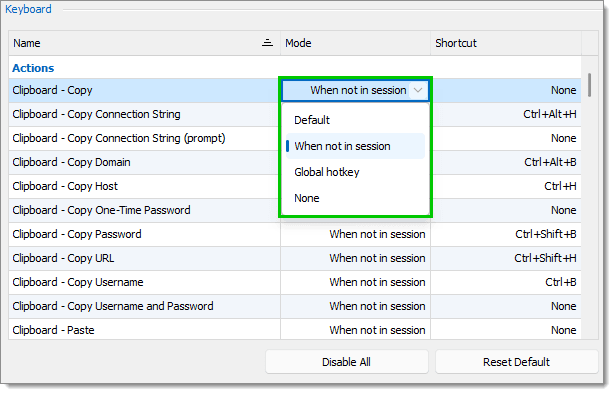
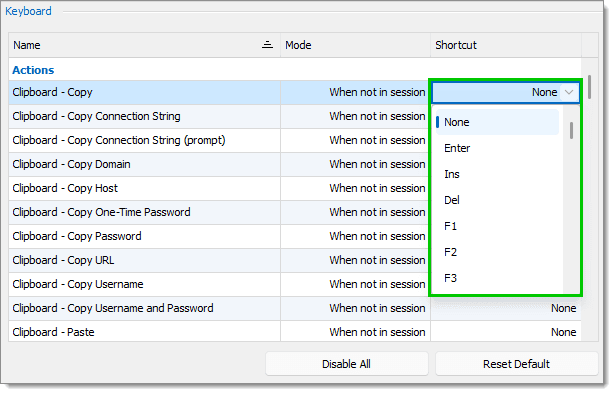
- In the Keyboard section, find the shortcut that you want to modify in the list. You can modify the mode and/or the key combination.
- To change the mode, click on the mode to open the drop-down list. Select your desired mode: Default, When not in session, Global hotkey, and None.
- To change the key combination, click on the shortcut to open the drop-down list. Then choose the desired key combination.
- Click OK to save your changes.
Note: If you wish to undo your changes later on, then simply click the Reset Default button to cancel all saved and unsaved changes. You can also use the Disable All button and change the mode/shortcut of all actions to None.
Tutorial: Creating Shortcut Macros
In Remote Desktop Manager for Windows, you can easily create custom macros and pair them with shortcut key combinations. Here are the steps:
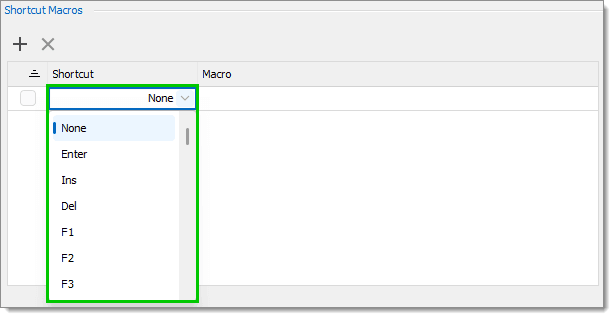
- In the Shortcut Macros section, click the Add icon. A new macro line will appear.
- Under the Shortcut column, select the desired key combination from the drop-down list.
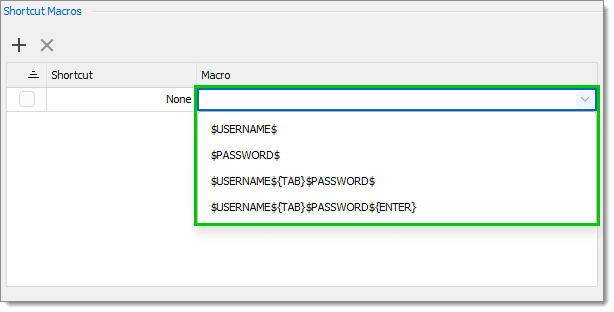
- Under the Macro column, select one of the available macros or create your own.
- Click OK to save your changes.
Note: To delete one or more shortcut macros, check the box next to the affected macro(s) and click the Delete button. When asked to confirm select Yes.
Tell Us What You Think
We hope that you enjoy this list of all default keyboard shortcuts in Remote Desktop Manager, along with the tutorials for customizing shortcuts and creating shortcut macros. Please share any feedback by commenting below, or by getting in touch with us directly.
We also invite you to let us know if you want new shortcuts added to the default list. We are constantly improving Remote Desktop Manager, and will take your advice into consideration for future versions!
Ready to work faster? Get Remote Desktop Manager now and start mastering every shortcut at your fingertips.

 Coralie Lemasson