











 Marc Beausejour
For organizations using Active Directory (AD), managing and maintaining endpoints effectively is a critical but often challenging task — especially in large-scale infrastructures. The Active Directory synchronizer in Remote Desktop Manager (RDM) addresses this by streamlining the integration of AD servers and computers into RDM, ensuring seamless synchronization and efficient oversight.
This guide explores the benefits of the AD synchronizer and provide step-by-step instructions on configuring and using it within RDM.
What is the RDM Active Directory synchronizer?
The Active Directory synchronizer is an entry type within RDM designed to automate and simplify the process of synchronizing servers and computers from an Active Directory environment into RDM’s list of entries. By using this tool, you can ensure that your RDM deployment is always up to date with changes made in AD, such as group assignments or the addition and removal of users.
This synchronization helps you keep your RDM environment in sync with your company’s security policies, ensuring that the right users have access to the correct assets at all times.
Advantages of using the RDM Active Directory synchronizer
Automated session creation Manually adding, removing, or updating entries is time-consuming and prone to errors. The Active Directory synchronizer automates this tedious task by pulling in machines directly from your AD and keeps the data up to date in RDM. This ensures that you spend less time creating entries and more time on high-priority tasks.
Easy access and management across environments By syncing AD servers and computers with RDM, you can ensure ease of access for your team. Changes made in AD — such as the creation of new systems, the modification of existing ones, or the deletion of systems that no longer exist — will be reflected in RDM.
Enhanced productivity and security When you use AD as a centralized management hub, RDM becomes your single source of truth for system access, enabling quick and efficient permissions management. Easily delegate access to user groups and facilitate seamless session launches from within RDM.
Scalability for large infrastructures For organizations with hundreds or thousands of endpoints, managing access manually is nearly impossible. The Active Directory synchronizer allows for seamless scaling, enabling IT administrators to manage a large number of systems without being bogged down by manual processes.
How to use the Active Directory synchronizer
To use the Active Directory synchronizer in RDM, you will need a few prerequisites and define configuration settings to your needs.
Prerequisites
Before setting up the AD synchronizer, make sure you have the following:
- An RDM deployment, using the latest version;
- An Active Directory domain;
- Administrative privileges in RDM;
Configuring the Active Directory synchronizer
To configure the AD synchronizer in RDM, simply follow these steps:
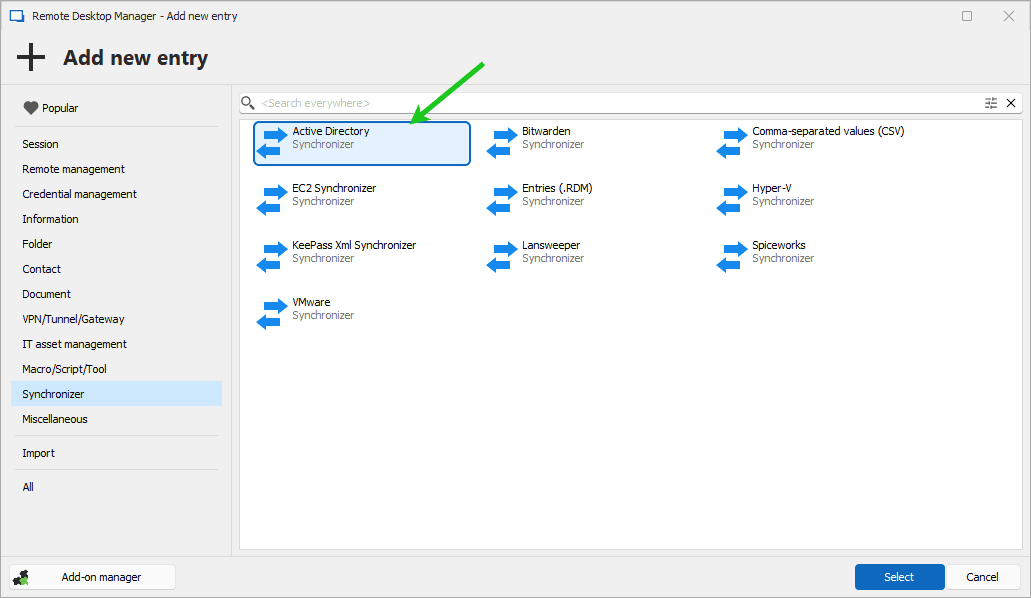
- Create an AD synchronizer entry: Open RDM and navigate through Edit > Add new entry > Synchronizer and select the Active Directory synchronizer. Alternatively, you can add a new entry from the dashboard.
- Define the sync parameters: In the AD synchronizer window, you can define the parameters of your synchronization process. Select the organizational units (OUs) that you want RDM to sync with.
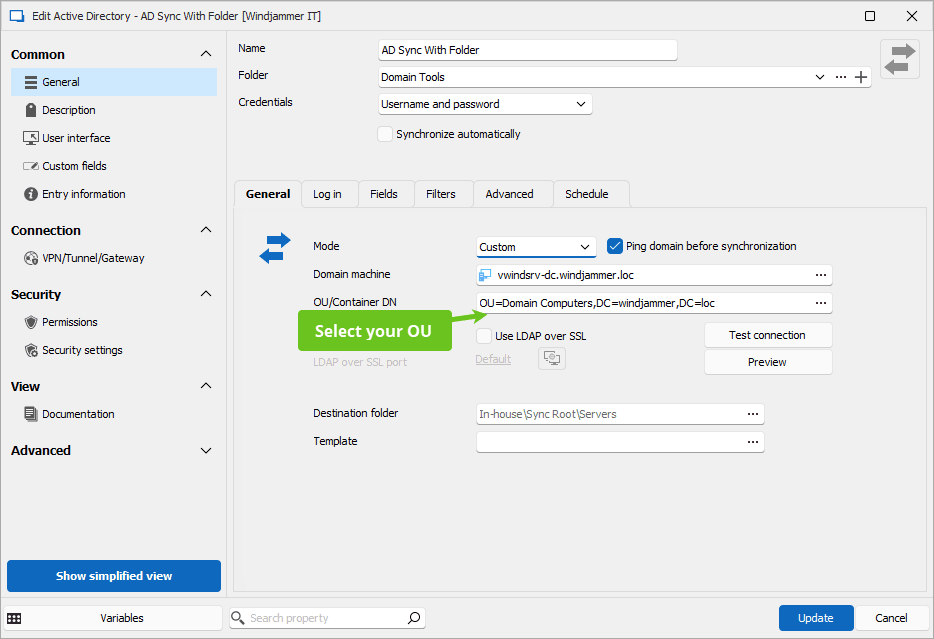
Set your desired sync interval: You can schedule how frequently the sync should occur. This can be set to occur daily at specific times to ensure your RDM instance is always in sync with AD. (This feature is available only with Devolutions Server.)
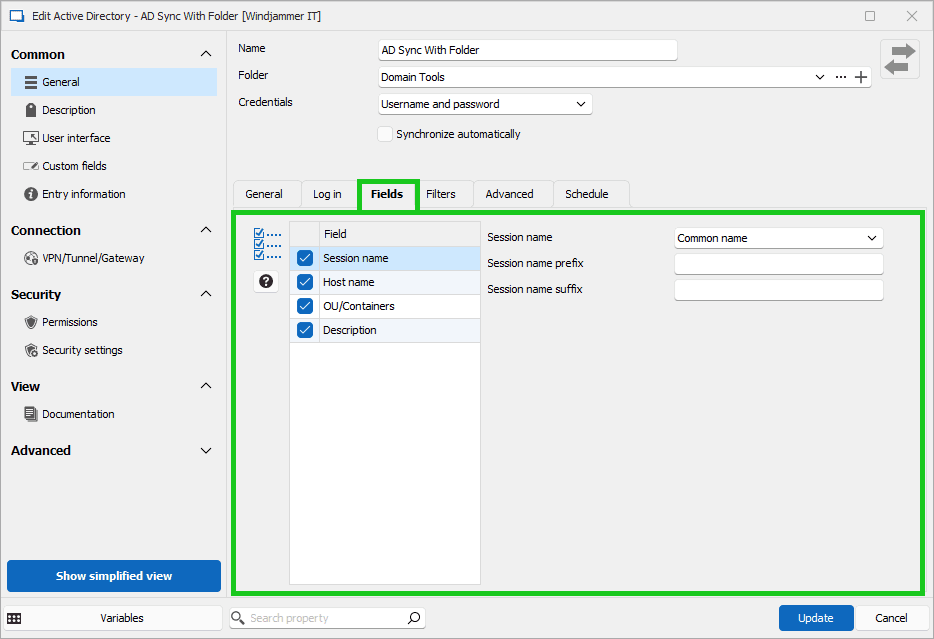
Configure field values: Sync attributes (like Host name, Description, etc.) to the corresponding fields in RDM. This step ensures that the data imported from AD contains everything necessary for your daily tasks.
- Apply filters (optional): You can set filters to include or exclude specific servers or computers. This is useful when you want to sync only certain endpoints.
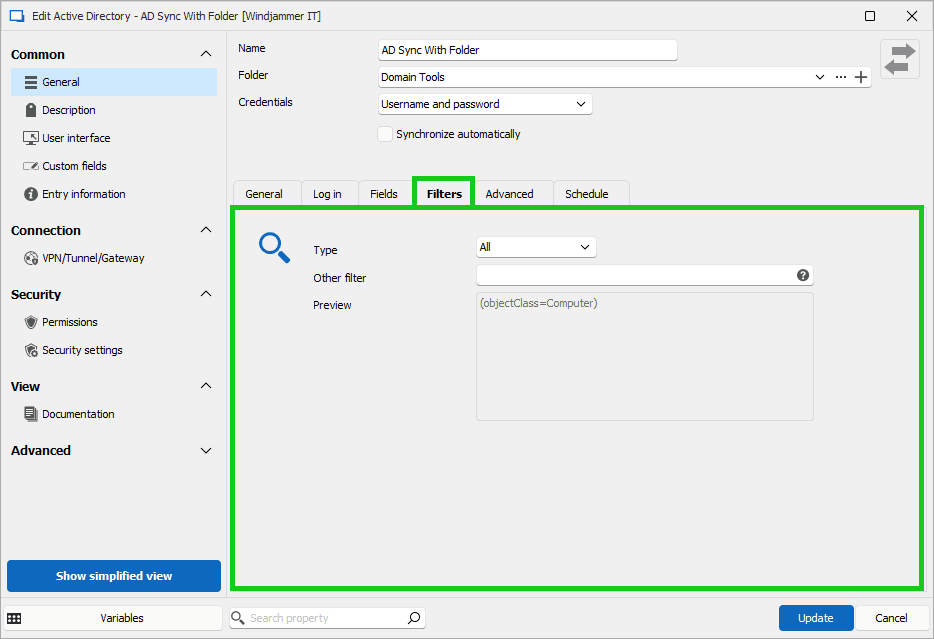
- Test your sync: Run a test sync to ensure that everything is set up correctly. Verify that servers and computers from AD are appearing in RDM as expected. In the properties of your AD sync, you will find a Preview button in the General tab.
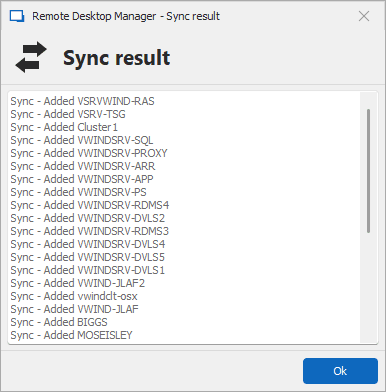
- Run sync: Once you’re satisfied with the configuration, you can run the sync and set it to automatically run based on your predefined schedule.
For detailed setup instructions, check out this guide.
Best practices for using the Active Directory synchronizer
- Regular sync intervals: Make sure to schedule regular syncs to keep your session list up to date with AD.
- Test changes: Always run a test sync when making significant changes to your AD structure to ensure that the sync doesn’t introduce unwanted changes in RDM.
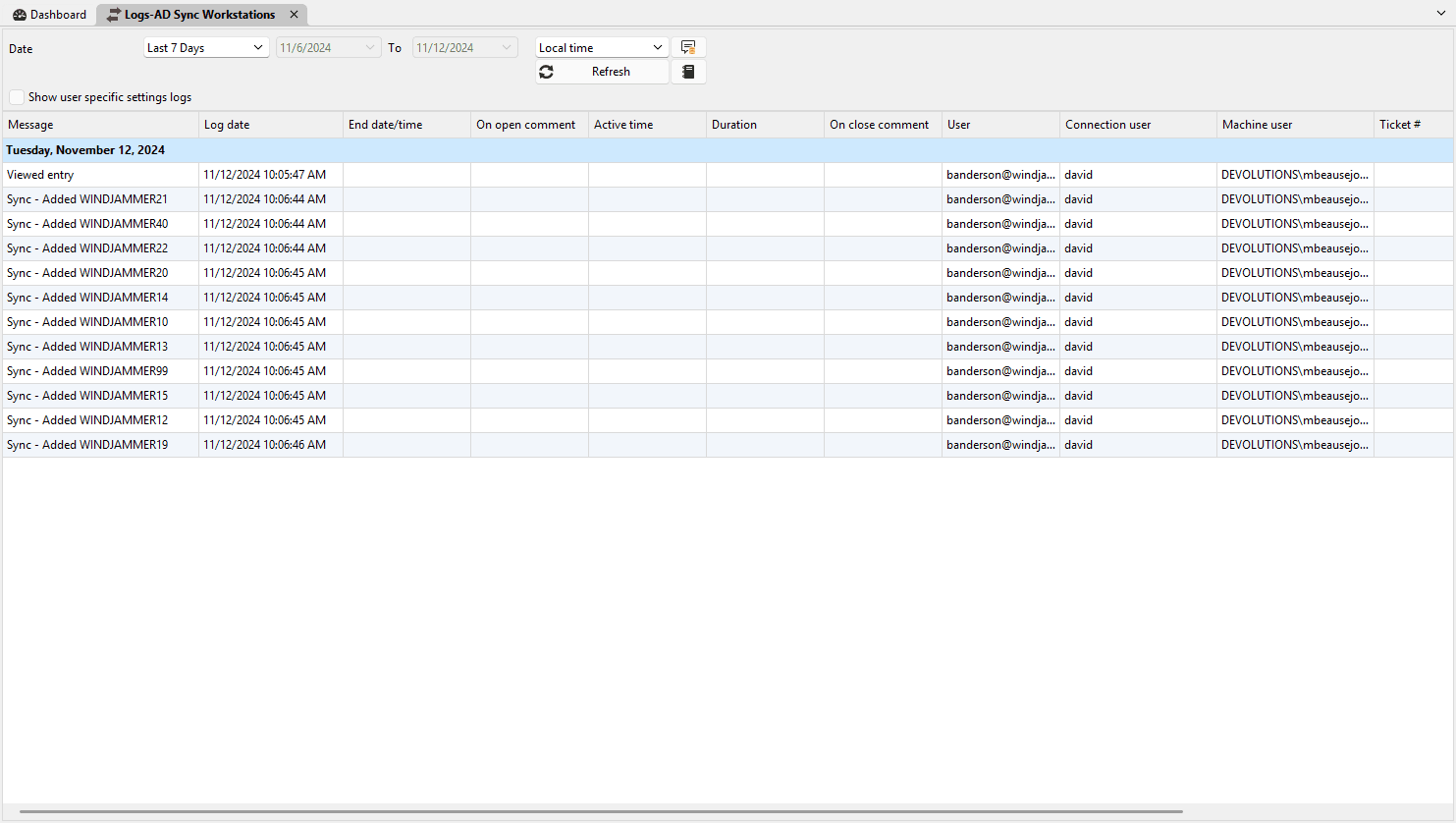
- Monitor logs: RDM provides detailed logs of synchronization activities. Regularly review these logs (accessible in the dashboard) to ensure that syncs are completing successfully and without errors.
Enhancing your team’s productivity with the Active Directory synchronizer
The Active Directory synchronizer in Remote Desktop Manager is a powerful tool for achieving consistent, scalable, and secure endpoint management. By automating AD synchronization, IT administrators save time, reduce errors, and enhance productivity across environments — whether for a small team or a large enterprise. Discover today how the AD synchronizer can simplify endpoint management and enforce security policies.
Interested in what you’ve read? Download the newest version and try it out for yourself right here.


 Steven Lafortune

 France Lymburner