











 Marc Beausejour
What if you could eliminate the need to juggle multiple tools and systems and bring your virtual machine (VM) management under one seamless system? Enter the VMware synchronizer in Remote Desktop Manager (RDM), a tool that automates the synchronization of vSphere virtual machines with RDM — saving precious time and reducing unnecessary complexity.
This article unpacks the RDM VMware synchronizer and its advantages. It also provides configuration instructions and best practices.
What is the RDM VMware synchronizer?
The VMware synchronizer is an entry designed to automate the integration and synchronization of vSphere entries in RDM. By eliminating the need for back-and-forth actions between VMware and RDM, this functionality simplifies access, management, and maintenance, and provides a single source of truth for VM connections.
Advantages of using the RDM VMware synchronizer
Automated session creation: Manually adding, removing, or updating entries is time-intensive and prone to errors. The VMware synchronizer eliminates this hassle by automatically pulling machines from your vSphere instance into RDM, ensuring accurate and up-to-date information and allowing you to focus on higher-priority tasks rather than repetitive entry management.
Easy access and management across environments: Syncing vSphere VMs with RDM reduces redundancy and ensures ease of access for your team. Any changes in vSphere — such as the addition of new VMs, modifications to existing machines, and deletions — are immediately reflected in RDM.
Enhanced security: By leveraging RDM’s fine-grained access control system, you can protect your critical vSphere assets, ensuring that only authorized users can access them.
Scalability for large infrastructures: Organizations managing hundreds or even thousands of endpoints benefit significantly from the VMware synchronizer, which enables IT administrators to efficiently scale their operations without being overwhelmed by manual processes.
How to use the RDM VMware synchronizer
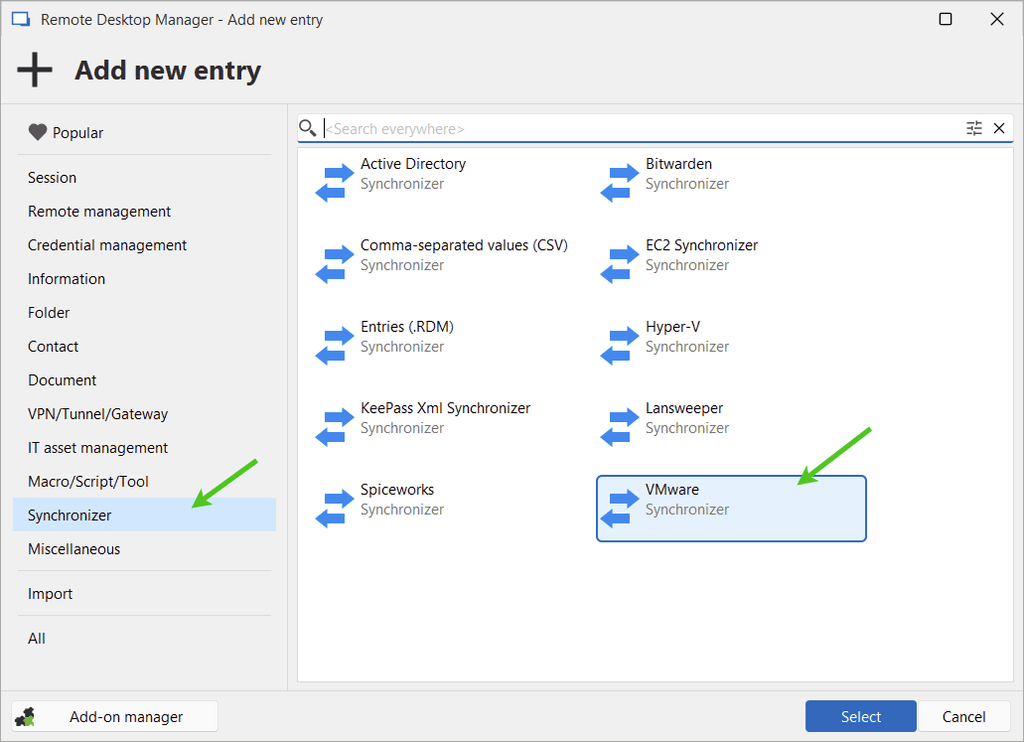
1 - Add a new VMware synchronizer entry: Open RDM, navigate through Edit > Add new entry > Synchronizer, and select VMware to create a new entry.
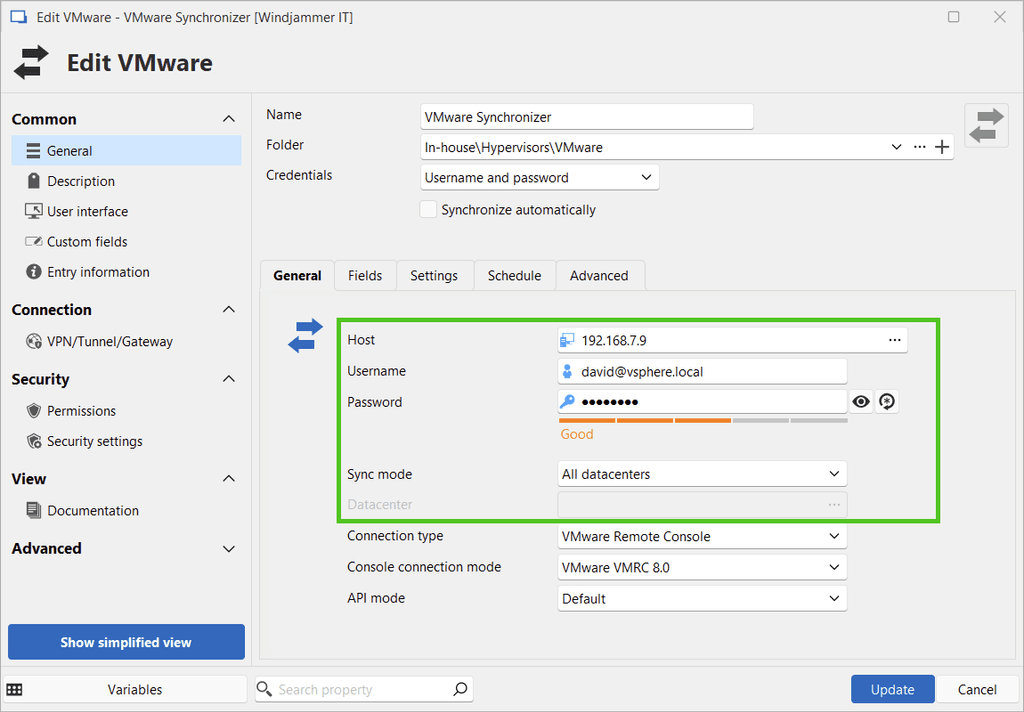
2 - Configure vSphere connection settings: Enter your vSphere host name and administrative credentials. You can choose whether to sync all datacenters or a specific subset based on your requirements.
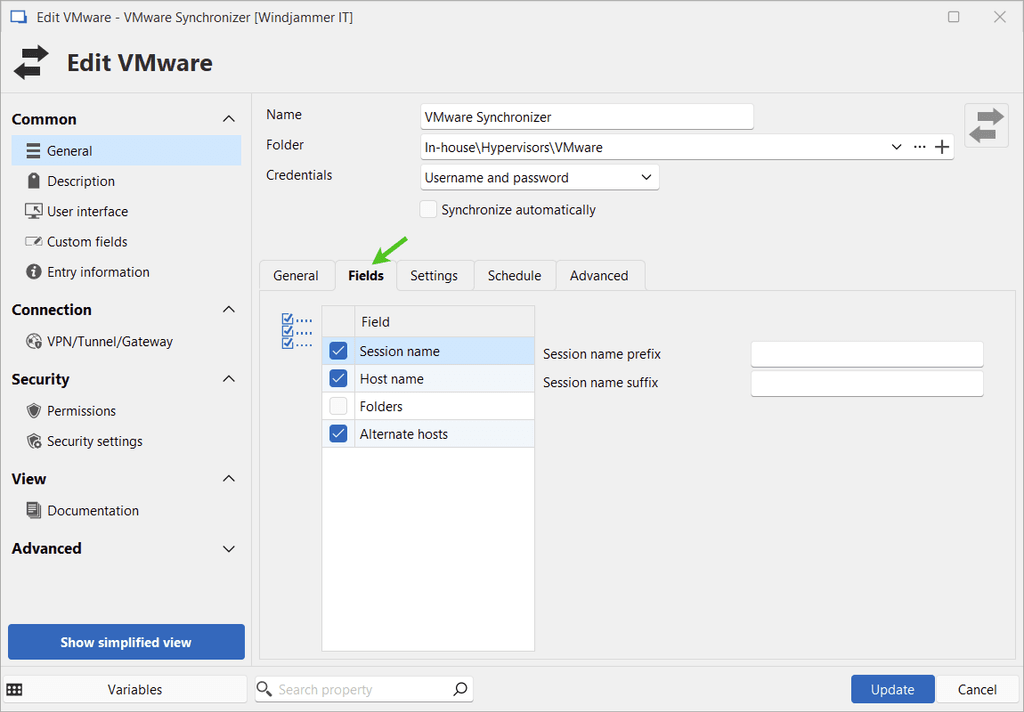
3 - Select fields for synchronization: Use the Fields tab to define which vSphere attributes (e.g., session name, alternate hosts) will be added to the sessions created in RDM.
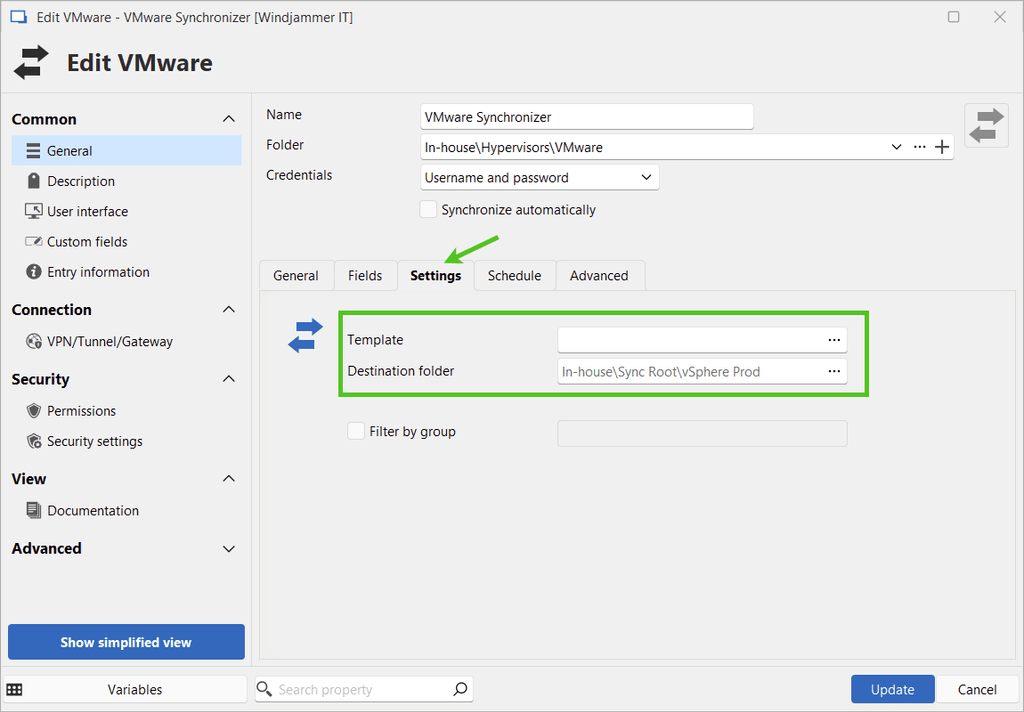
4 - Specify templates and destination folders: In the Settings tab, choose a destination folder for the created sessions. Optionally, you can apply a template to configure sessions with the appropriate native protocols based on that template for faster access to systems.
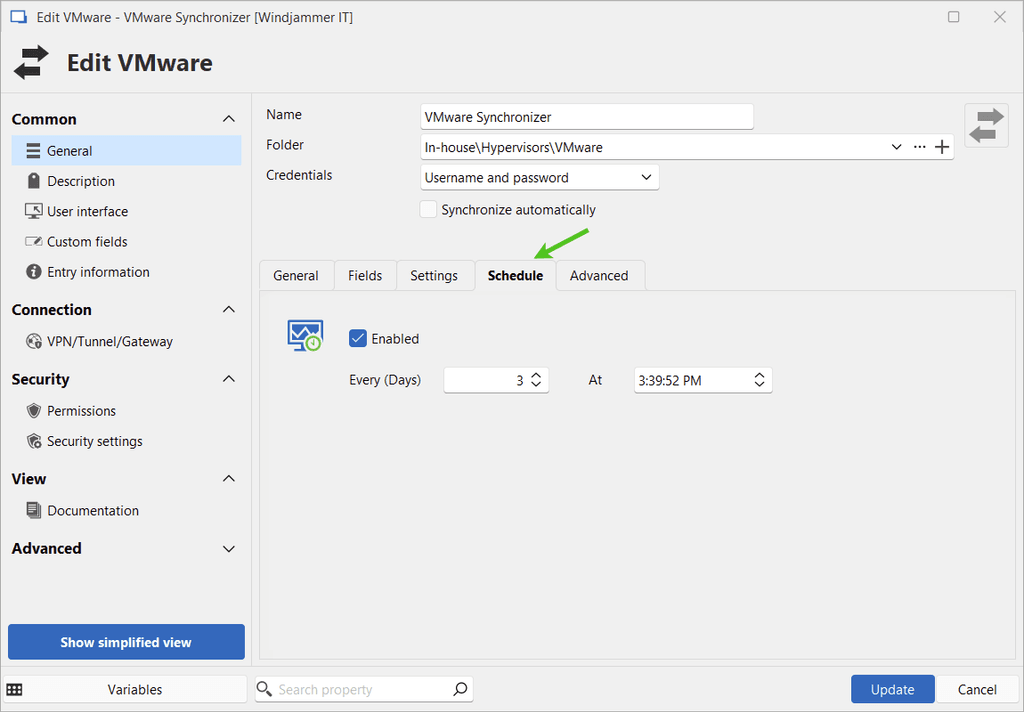
5 - Set your desired sync interval: In the Schedule tab, determine how frequently the sync should occur. This can be set to occur daily at specific times to ensure your RDM instance is always in sync with vSphere (This feature requires Devolutions Server.).
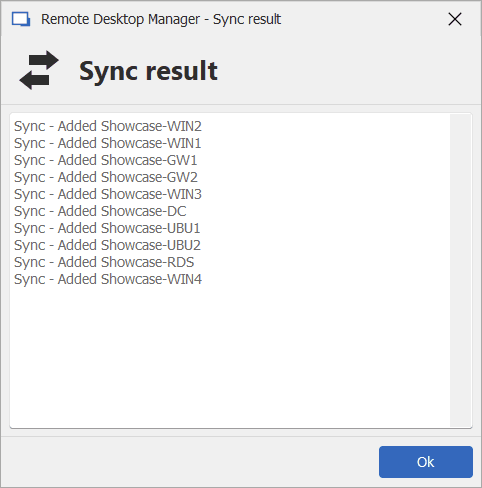
6 - Run sync: Once you’re satisfied with the configuration, you can run the sync and set it to automatically run based on your predefined schedule.
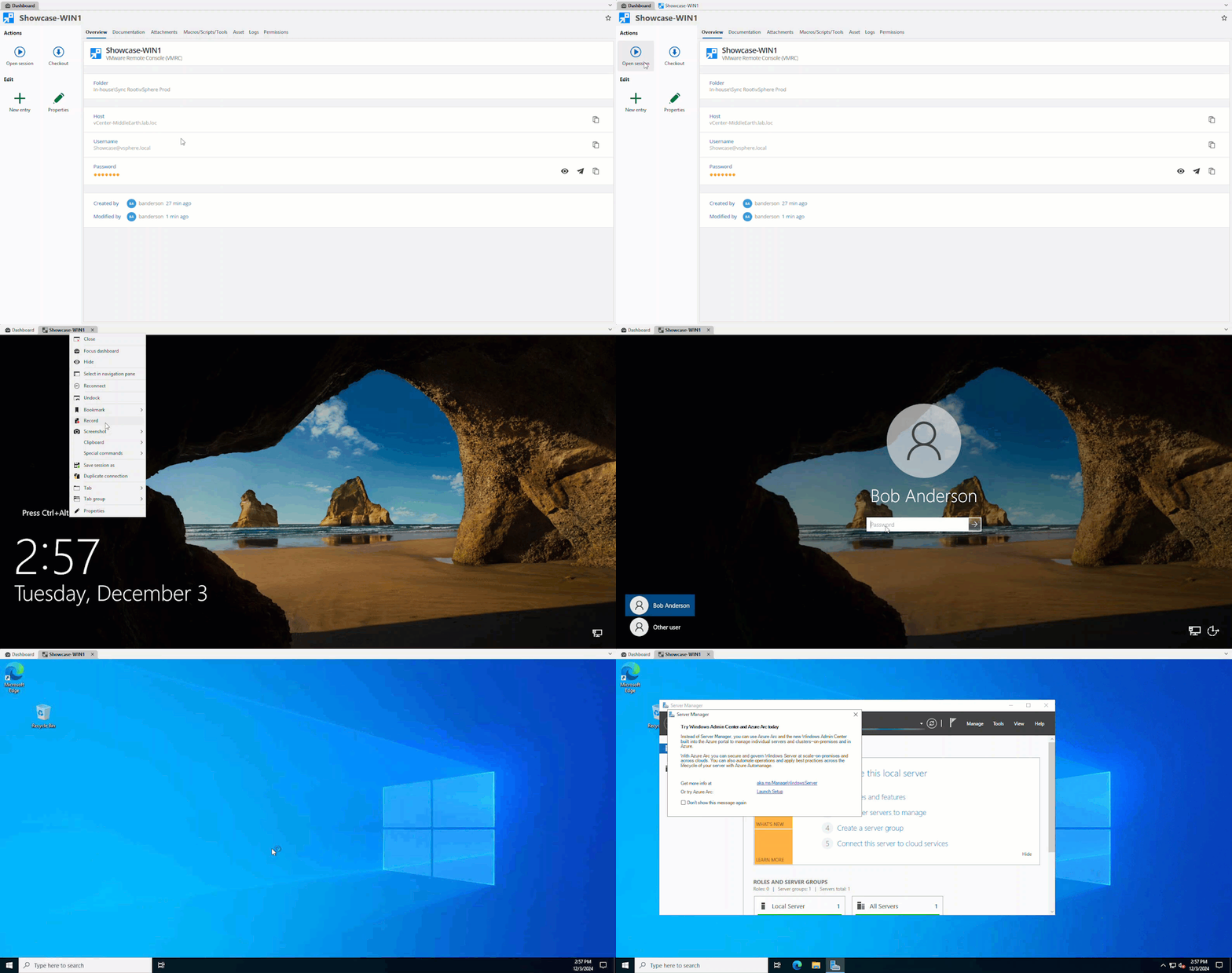
7 - With your newly created sessions, access your VMs using the VMware Remote Console (VMRC) directly in RDM!
For detailed setup instructions, check out this guide.
Interested in what you’ve read? Download the newest version and try it out for yourself right here.
Best practices for using the RDM VMware synchronizer
Schedule regular syncs: Set frequent sync intervals to keep your session list up to date with your data in vSphere.
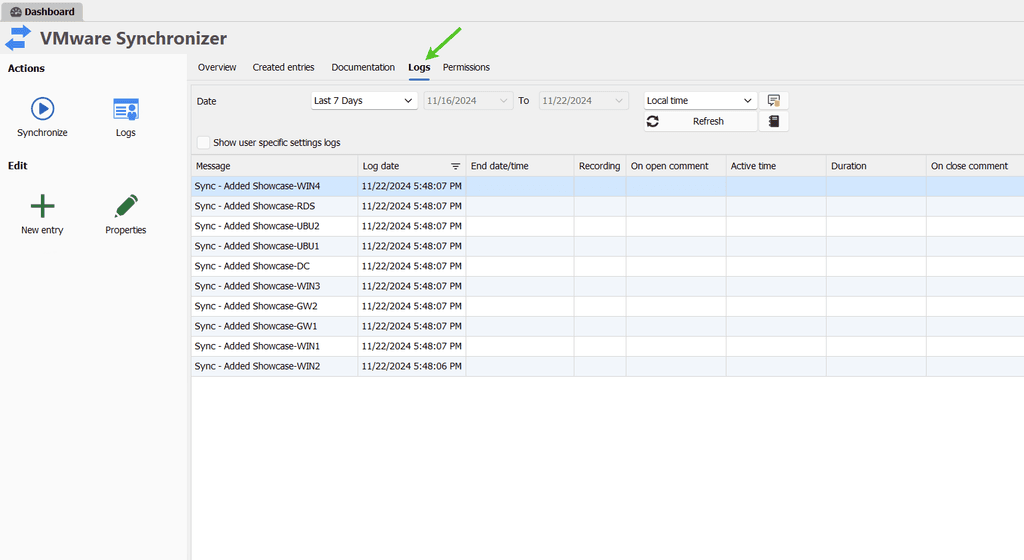
Monitor logs: Regularly review the detailed logs of synchronization activities (accessible through the RDM dashboard). These logs help you confirm sync completion and address any errors promptly.
Enhancing your team’s productivity with the VMware synchronizer
Imagine a workday where virtual machine management feels effortless: no tedious back-and-forth, no manual errors, just streamlined access and control at your fingertips. The VMware synchronizer in Remote Desktop Manager transforms this vision into reality by automating vSphere synchronization and empowering IT professionals to focus on bigger tasks. Whether you’re running a small IT team or overseeing a vast infrastructure, you can depend on RDM to scale with your needs, while providing you with consistent, secure, and efficient endpoint management.


 Steven Lafortune

 France Lymburner